Windows Program Won't Uninstall? Safer Ways to Remove It
By Jethro Sedoguio Writer & Editor, TechGuide PH · Updated September 14, 2026 · 4 min read
An application that refuses to uninstall can be blocked by a running process, damaged installer files, permissions, or a broken uninstall entry. Start with supported removal methods before touching the registry.
First, work out why it will not uninstall
When Windows cannot remove a program, the message and the moment it fails tell you what to try. Find the description below that matches your case before you start clicking.
- The Uninstall button does nothing, or the progress stops: the program or one of its background processes is still running, or another installer is busy.
- An error with a number appears, such as 1618 or 1605: a Windows Installer problem. See the table of common errors.
- Access denied or a permission message: your account is not an administrator, or the program is protected.
- The program is still listed, but its files are already gone: a leftover entry. See the section on leftover list entries.
- The program comes back after you remove it: another program, a company management tool, or unwanted software may be reinstalling it. See the last section.
- It is a driver, a hardware utility, or a Windows component: make sure you should remove it at all.
Before you remove anything important, save your own files and note any license key or sign-in details you will need later. If you are not sure what an item does, search for its name first. Our guide on removing unwanted software from a new Windows PC explains which preinstalled items are usually safe to remove and which are not.
Try the normal Windows removal first, and do it properly
Many failed uninstalls come from the program still running in the background. Close it completely before you start.
- Check the system tray (the small arrow near the clock). If the program has an icon there, right-click it and choose Exit or Quit.
- Press Ctrl + Shift + Esc to open Task Manager. On the Processes tab, look for the name of the program, select it, and click End task. End only processes that clearly belong to the program you want to remove.
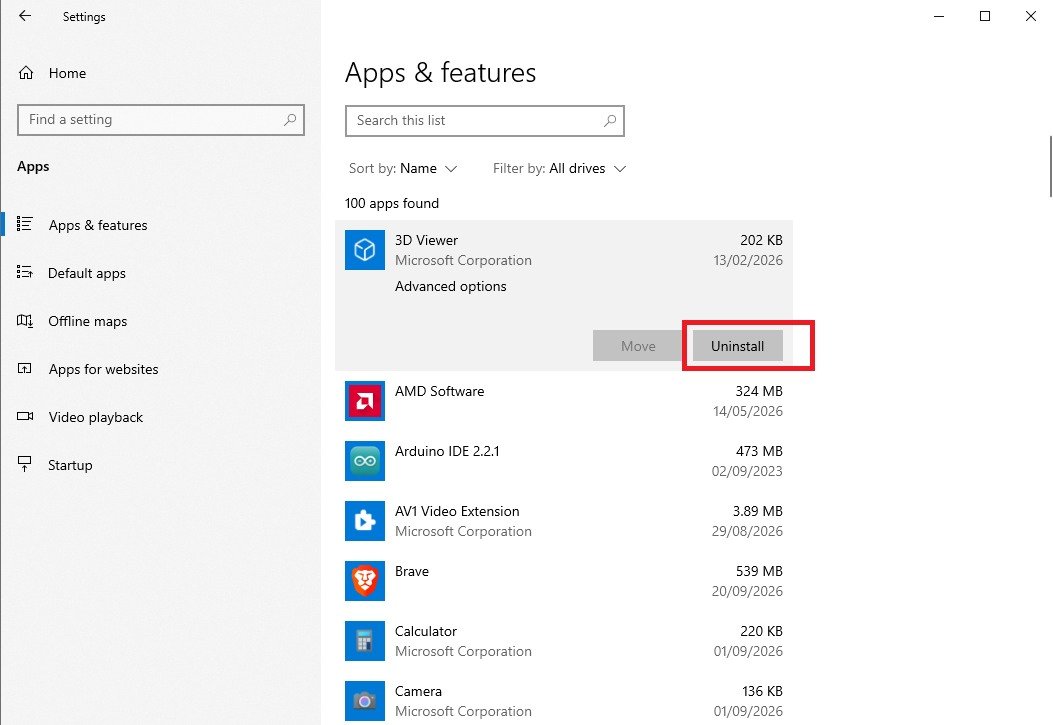
- Open Settings → Apps → Installed apps (in Windows 10 it is Apps & features). Search for the program, open its three-dot menu (in Windows 10, click the program), and choose Uninstall. Confirm the prompts.
- If that does not work, use the older list. Press Windows + R, type appwiz.cpl and press Enter. Right-click the program and choose Uninstall. This list shows the publisher, install date and size, which helps when several entries have similar names.
- If Windows asks for permission, sign in with an administrator account. On a work or school PC, your IT department may have to approve the removal.
Some programs finish their cleanup only after a restart, so restart Windows before you decide that the removal failed. If the entry is gone from both lists afterwards, you are done. If it is still there, continue with the next steps.
Run the uninstaller of the program itself, or its official removal tool
The Windows list only starts the uninstaller that the program registered. If that link is broken, you can start the uninstaller yourself.
- Click Start, find the program, right-click it, and choose Open file location (in Windows 11 it can be under More). If the folder only holds shortcuts, right-click the program shortcut there and choose Open file location once more to reach the real install folder.
- Look for a file named unins000.exe, uninstall.exe or something similar. Right-click it and choose Run as administrator.
- Also look in the Start menu folder of the program for a shortcut named Uninstall.
Run the original installer again. Many installers offer Repair or Remove when you run them on a computer that already has the program. Choosing Repair first, and then removing the program from Windows, fixes a lot of broken uninstalls. If you no longer have the installer, download the same version again from the official website of the developer.
Use the official removal tool. For antivirus programs, security suites and some large software packages, the developer publishes a cleaning tool that removes what the normal uninstaller leaves behind. Examples are the Adobe Creative Cloud Cleaner Tool, the Norton Remove and Reinstall tool, and the McAfee Consumer Product Removal tool. Search for the product name together with the words removal tool, and download it only from the website of the developer.
Restart and retry before deeper troubleshooting
Windows blocks a removal while it is waiting to finish another job. A proper restart often clears that.
- Click Start → Power → Restart. Use Restart and not Shut down. With Fast Startup turned on, a shutdown keeps part of the previous session, while a restart loads Windows from scratch.
- Before you try again, open Settings → Windows Update and check whether updates are waiting for a restart or are still installing. Let them finish.
- Do not start other installers or other uninstalls at the same time. Windows can run only one installation task at once, and this is the reason behind the message Another installation is already in progress.
- After you sign in, wait two or three minutes so the startup programs finish loading, and then try the uninstall again.
If it fails again, write down the exact text or number of the message and look for it in the table of common errors below.
Use the Microsoft Program Install and Uninstall troubleshooter
Microsoft offers a free troubleshooter named Program Install and Uninstall. It is made for exactly this problem. It can repair damaged installer records and other issues that stop a program from being removed.
- Search for the name of the troubleshooter on the Microsoft support website and download it from there. Do not download it from other sites.
- Open the downloaded file and click Next.
- When it asks what you are having trouble with, choose Uninstalling.
- Select the program in the list. If it is not listed, choose Not Listed.
- Choose Yes, try uninstall and follow the prompts.
- Restart Windows and check the Installed apps list.
If the tool is not available for your version of Windows, or if it cannot find the program, continue with the next sections.
Common uninstall error numbers and what they usually mean
If the uninstall fails with a number, compare it with this list. The number often appears inside a longer message, such as Error 1618.
| Error | Message or meaning | What to try |
|---|---|---|
| 1618 | Another installation is already in progress | Wait a few minutes, finish Windows updates, restart, and try again |
| 1603 | A general fatal error during the installation or removal | Restart, run the uninstaller as administrator, run the Microsoft troubleshooter |
| 1605 | This action is only valid for products that are currently installed | The Windows record is out of date. Use the troubleshooter or the section on leftover list entries |
| 1612 | The installation source for this product is not available | The original installer file is missing. Download the same version from the official site and use its Repair or Remove option |
| 1714 | The older version of the product cannot be removed | Same approach as 1612, then try the Microsoft troubleshooter |
| 1601 | The Windows Installer service could not be accessed | Restart. If it repeats, open an administrator Command Prompt and run sfc /scannow |
| 0x80070005 | Access is denied | Sign in as an administrator, run the uninstaller as administrator, check whether security software blocks the removal |
These meanings are general. A number can have more than one cause, so use the table as a starting point and read the full message in the dialog.
Use Safe Mode or a removal utility only when necessary
Use Safe Mode when the normal removal fails because a background process, service or driver keeps the files of the program in use. Safe Mode starts Windows with only its basic components, so most third-party background programs do not load.
Start Windows in Safe Mode.
- In Windows 11, open Settings → System → Recovery and click Restart now next to Advanced startup. In Windows 10, open Settings → Update & Security → Recovery and use Restart now under Advanced startup.
- Choose Troubleshoot → Advanced options → Startup Settings → Restart.
- When the list appears, press 4 (or F4) for Safe Mode.
- Uninstall the program from Settings → Apps → Installed apps or from appwiz.cpl.
- Restart Windows normally to leave Safe Mode.
Safe Mode has a limit. Many uninstallers depend on the Windows Installer service, which does not run in Safe Mode, so you may see the message that the service could not be accessed (error 1601). If that happens, go back to normal mode and use the other methods in this guide.
Third-party removal utilities. You rarely need them. If the other methods fail, choose a tool only from a reputable developer, download it from its own website, and create a restore point first. Pick one that shows you a list of what it plans to delete and lets you deselect items. Avoid tools that promise to clean the whole PC or the registry, because they often remove more than you intended.
If the program is still listed but its files are already deleted
This usually happens when the program folder was deleted by hand instead of using the uninstaller. Windows still has an uninstall record for the program, but the uninstaller file no longer exists, so the Uninstall button fails.
- Install it again, then remove it properly. Download the same program from the official website, install it in the same place, and then uninstall it from Settings → Apps → Installed apps. This repairs the record in most cases.
- Use the Microsoft troubleshooter described earlier. It can remove a broken record when the program is no longer available to download.
- As a last resort, remove the single broken list entry from the registry, as described in the next section.
Deleting more folders does not help here. The entry in the list is a separate record from the files.
Edit the registry only as a last resort, and remove only one entry
Wrong changes in the registry can break Windows or other programs. Use this only to remove a leftover list entry after every other method has failed. On a work or school PC, ask your IT department first.
- Create a restore point. Click Start, type Create a restore point, open it, select your system drive, and click Create. If the button is greyed out, click Configure and turn on system protection first.
- Press Windows + R, type regedit and press Enter. Click Yes at the prompt.
- Go to HKEY_LOCAL_MACHINE\SOFTWARE\Microsoft\Windows\CurrentVersion\Uninstall. For 32-bit programs on 64-bit Windows, also check HKEY_LOCAL_MACHINE\SOFTWARE\WOW6432Node\Microsoft\Windows\CurrentVersion\Uninstall. For programs installed for one user only, check HKEY_CURRENT_USER\Software\Microsoft\Windows\CurrentVersion\Uninstall.
- Click the subkeys one by one and read the DisplayName value on the right until you find your program. The UninstallString value shows which uninstaller Windows tries to run. If that file no longer exists, you have found the cause of the failure.
- Right-click the subkey of that program, choose Export, and save the file as a backup.
- Right-click the same subkey and choose Delete. Delete only that one key and nothing else.
- Close Registry Editor, restart Windows, and check the Installed apps list.
This removes only the list entry. It does not delete program files or other traces of the program. Do not use registry cleaner programs. They can delete entries that Windows or other programs need, and they rarely make a PC faster. If something goes wrong, double-click the exported backup file to restore the key, or use the restore point.
After the removal, and what to do if the program comes back
Once the program is gone, finish the job:
- Restart Windows and confirm that the program is no longer in the Installed apps list.
- Open Task Manager → Startup apps and check that nothing from the program is still set to start with Windows. Our guide on managing startup apps explains how to do this safely.
- Look for leftover folders in the Program Files folders and in %appdata% and %localappdata%. Delete a folder only if you are sure you do not need its settings. Games and creative programs can keep saved projects there, so copy anything you want to keep first.
If the program keeps coming back, something is installing it again. It can be a bundled launcher from another program, a management tool from your company or school, or unwanted software. Run a full scan in Windows Security → Virus & threat protection, and use the offline scan option if the problem returns. Check Installed apps sorted by install date for unfamiliar programs that appeared at the same time.
To avoid the problem in the future, install programs only from official sources, untick optional offers on installer screens, always remove programs from Windows instead of deleting their folders, and keep the installers of important programs. If you ask someone for help, tell them the program name and version, your Windows version, the exact error text or number, and which of the steps above you already tried.
Frequently asked questions
Why does a program say it is still running?
A background process or service may still be active. Close the program, check Task Manager, and restart Windows before trying more invasive steps.
Is deleting the program folder enough?
No. It can leave settings, services, and uninstall records behind. Use the application's supported uninstaller when possible.
Should I use a registry cleaner?
A registry cleaner is not required for ordinary software removal and can introduce new problems. Prefer supported uninstall methods.