Remove Unwanted Software from a New Windows PC Safely
By Jethro Sedoguio Writer & Editor, TechGuide PH · Updated September 5, 2026 · 4 min read
A new Windows computer may include trial programs, manufacturer utilities, and apps you never plan to use. This guide shows how to identify what can be removed while reducing the risk of deleting drivers or useful system components.
Inventory the programs before uninstalling
Before you uninstall anything, look at what is actually installed on your new computer. New laptops and desktops often ship with trial software, promotional apps, and manufacturer utilities. Not all of them are useless, so it is safer to build a list first.
How to see the installed apps list:
- Press Windows + I to open Settings.
- Select Apps.
- In Windows 11, select Installed apps. In Windows 10, select Apps & features.
- Sort the list by Name, Size, or Install date to make it easier to review.
How to evaluate each program:
- Check the publisher. If you recognize the company (Microsoft, your PC maker, Intel, AMD, NVIDIA, Realtek), be careful before removing it.
- If you do not recognize the name, search for it together with your computer's model.
- Work out what it is for: security, graphics, audio, touchpad, Wi-Fi, Bluetooth, battery, or firmware.
- Write down or screenshot the list before uninstalling so you can reinstall something later if needed.
Sort the list into three groups:
- Safe to remove: trial antivirus, trial office suites, duplicate utilities, games you will not play, and promotional apps.
- Check first: manufacturer utilities, support apps, and anything you do not recognize.
- Leave alone: graphics, audio, chipset, touchpad, Wi-Fi, Bluetooth, and security components.
Before you start: Create a restore point by searching for Create a restore point in Start, selecting your system drive, and clicking Create. If System Protection is off, turn it on first so you have something to fall back on if a change goes wrong.
How to verify: You should now have a clear list of what you will remove, what you still need to research, and what you will keep. If you are unsure about a program, leave it installed until you find a clear answer.
Remove ordinary trial software first
Start with the programs that are clearly unnecessary. This gives you the biggest benefit with the lowest risk, because trial software is normally not tied to your hardware or to Windows itself.
Common examples:
- Trial antivirus or internet security suites that expire after a few months.
- Trial versions of Microsoft 365 or other office software, if you already have your own license or will not use them.
- Pre-installed games you do not play.
- Cloud storage trials, photo editor trials, or PDF tools you do not need.
- Duplicate programs that do the same job, such as two media players or two backup tools.
How to uninstall:
- Close the program if it is open, and check the system tray at the lower right in case it is still running.
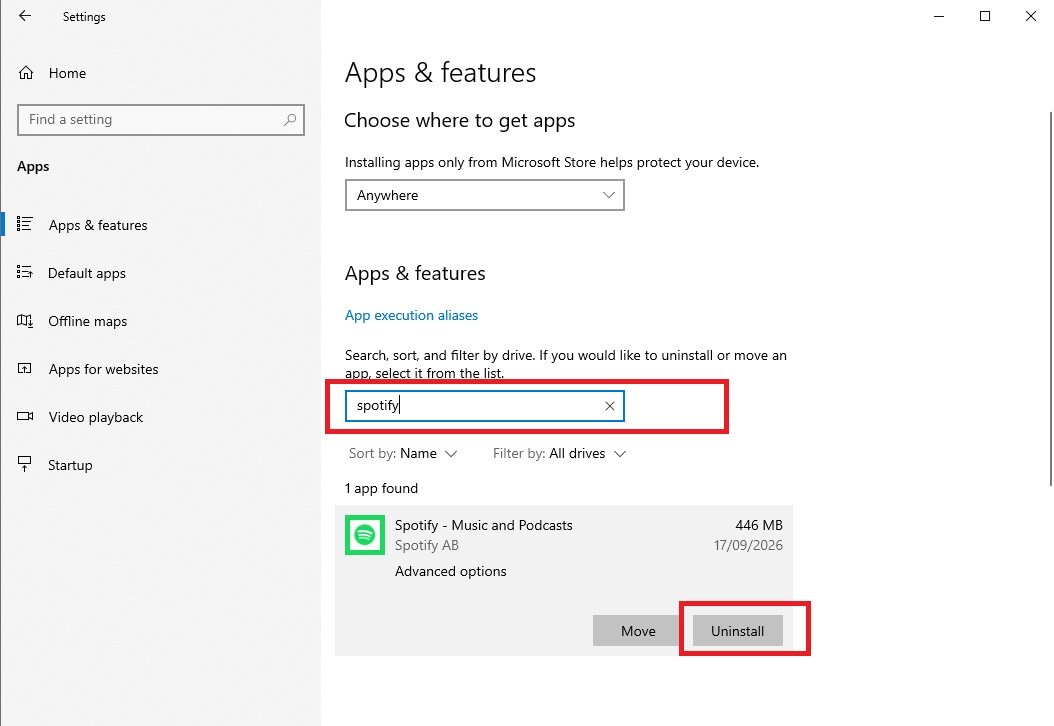
- Press Windows + I and go to Apps > Installed apps (or Apps & features in Windows 10).
- Find the program. In Windows 11, click the three-dot menu next to it and choose Uninstall. In Windows 10, select it and click Uninstall.
- Confirm and follow the uninstaller's prompts.
- Restart the computer if the program asks for it before continuing.
Be careful with trial antivirus: After you remove it, make sure Windows Security is active. Open it from Start and check Virus & threat protection. Do not leave the computer unprotected, especially if you go online right away.
Remove in small batches: Uninstall one or two programs, restart, and test the computer before moving on. If something stops working, you will know what you changed last.
How to verify: After restarting, confirm that Wi-Fi, sound, display, touchpad, and keyboard shortcuts still work. If something is missing, check which program you removed and whether it needs to be reinstalled.
Be cautious with manufacturer utilities
Manufacturer utilities such as Lenovo Vantage, HP Support Assistant, MyASUS, Dell SupportAssist, or Acer Care Center are not always bloatware. Some provide real value, while others are mostly promotions. You need to evaluate each one.
What they may be doing for you:
- Checking for and installing official BIOS, firmware, and driver updates from the manufacturer.
- Controlling battery mode, battery charge limits, or fan profiles.
- Managing keyboard shortcuts, function keys, or backlight behavior.
- Running hardware diagnostics for memory, storage, and battery.
- Providing recovery or backup tools from the manufacturer.
- Showing warranty information and support links.
How to decide whether to keep or remove one:
- Open the program and see what it actually offers.
- Search for its exact name together with your computer model to learn what it does.
- If it is mostly ads, promotions, or trial offers, it is probably safe to remove.
- If it controls battery behavior, keyboard keys, or firmware updates, keep it for now or find an official replacement first.
- If you do remove it, save information such as your serial number and warranty details first.
Warnings:
- Some function keys (volume, brightness, Wi-Fi toggle) may stop working if you remove the related utility.
- Do not remove anything labeled driver, chipset, audio, touchpad, or firmware unless you know what will replace it.
- If the manufacturer provides a recovery tool, do not remove it until you have made your own recovery drive or backup.
- If you are unsure, disable it at startup (Task Manager > Startup apps) instead of uninstalling it.
How to verify: After removing a utility, test your function keys, battery settings, and Wi-Fi or Bluetooth. If something breaks, reinstall the utility from the manufacturer's official support page for your exact model.
Avoid aggressive registry and debloat scripts
Many videos and forum posts promote scripts, one-click debloaters, and registry tweaks that promise to clean Windows in seconds. The speed is tempting, but the risk is much higher than uninstalling programs manually.
Why they can be risky:
- They can remove Windows components that the Start menu, Settings, Microsoft Store, Windows Update, or Windows Security depend on.
- They are often written for one specific Windows version and can cause problems on newer or different builds.
- It is hard to see exactly what they changed, and there is not always a way to undo it.
- Scripts from unknown sources can contain hidden malware.
- Heavy modification can complicate support or warranty service.
If you still want to try one, do the following:
- Create a restore point and back up your important files.
- Download the script only from a source you trust that has clear documentation.
- Read the script and its explanation of what it will change before running it.
- Test it first on a spare computer or a virtual machine.
- Never run a script you do not understand, no matter how popular it is.
Do not edit the registry casually: The Windows Registry stores settings for the system and for programs. A wrong deletion or change can stop Windows from booting or stop programs from working. Edit it only when official documentation gives instructions for your exact problem, and export a backup of the key before you change it.
Safer alternatives:
- Uninstall programs through Settings > Apps.
- Disable unneeded startup apps in Task Manager.
- Use the official privacy options in Settings > Privacy & security.
- If you want a cleaner Windows, use the official reset or reinstall options after backing up your files.
How to verify: If you used any tool, confirm that the Start menu, Settings, Windows Update, Microsoft Store, Windows Security, Wi-Fi, sound, and display still work. If something broke, use System Restore.
Finish with updates and a restart
After you remove the programs you do not need, make sure the computer is up to date and stable. It is best to do this last, so Windows does not spend time updating programs you were about to remove anyway.
Step by step:
- Press Windows + I and go to Windows Update.
- Click Check for updates and install everything that is available.
- Restart the computer when it asks.
- Repeat Check for updates until it says you are up to date. More updates often appear after the first restart.
- In Windows Update, open Advanced options and look for Optional updates. Driver updates sometimes appear here, but review them before installing.
For drivers:
- Use Windows Update first.
- For graphics, use the official app or site from NVIDIA, AMD, or Intel.
- For laptops, use the PC maker's support page and enter your exact model.
- Avoid driver updater tools from unknown sources.
Final checks:
- Open Task Manager > Startup apps and look for leftover programs you do not need at startup.
- Open Windows Security and confirm real-time protection is on.
- Test Wi-Fi, Bluetooth, sound, camera, microphone, touchpad, keyboard shortcuts, and any external display you use.
- On a laptop, check the battery settings and power mode.
- Create a new restore point or backup now that the system is clean and working.
Remember: Not every remaining program is a problem. A stable, secure computer matters more than the shortest possible app list. If you are unsure about a program, it is safer to leave it installed until you find a clear answer.
How to verify: After the final restart, open Windows Update and confirm the system is up to date. Use the computer normally for a few hours, and if a new problem appears, go back to your list of removed programs to find a likely cause.
Frequently asked questions
Is every preinstalled app bloatware?
No. Some preinstalled components provide drivers, device controls, recovery tools, or security functions. Identify an item before uninstalling it.
Can uninstalling an app damage Windows?
Removing a normal user application is generally low risk, but deleting system components or drivers can cause problems. Use the installed-app description and the manufacturer's documentation as clues.
Should I use a debloat tool?
It can save time, but it also increases the chance of removing something you need. A manual cleanup is easier to audit on a new PC.