Make Windows Start Faster by Managing Startup Apps
By Jethro Sedoguio Writer & Editor, TechGuide PH · Updated September 11, 2026 · 4 min read
Startup programs can add seconds to boot time and continue using memory after Windows loads. The goal is not to disable everything, but to keep only the software that genuinely needs to start automatically.
What startup apps are, and what to expect
Startup apps are programs that start by themselves when you sign in to Windows. Many programs add themselves during installation, and each one uses some CPU, disk activity and memory while it loads. A few of them make no difference. Twenty of them can leave the desktop feeling stuck for a minute after you sign in.
Here is what you can realistically expect from cleaning them up:
- The PC becomes usable sooner after sign-in, and it uses less memory in the background.
- The gain is bigger on a PC with a hard disk (HDD), little RAM, or many startup items. It is smaller on an SSD with only a few items.
- It does not make the hardware itself faster. If the PC is old and slow in every task, startup apps are only part of the story.
To see which kind of drive you have, press Ctrl + Shift + Esc, open the Performance tab, and click Disk. The type (HDD or SSD) is shown at the top right. If you have an HDD, replacing it with an SSD will usually improve startup more than anything in this guide.
The aim is not to disable everything. Keep what you need right after sign-in, and move the rest to the moment you actually use it.
Measure your startup time before you change anything
Without a starting number, you cannot tell whether a change helped or whether it only felt faster. Take two minutes to record a baseline.
Method 1: a stopwatch.
- Click Start → Power → Restart. Use Restart and not Shut down, because Fast Startup can make a normal shutdown skip part of a full start and give you misleading numbers.
- Start a timer on your phone when you enter your PIN or password.
- Stop it when the PC is really usable, meaning that you can open the Start menu and launch an app without a delay.
- Repeat three times and write down the average.
Method 2: the number that Windows records.
- Right-click Start and open Event Viewer.
- Go to Applications and Services Logs → Microsoft → Windows → Diagnostics-Performance → Operational.
- Click Filter Current Log and type 100 as the Event ID. Event 100 records a boot, and the boot time is shown in milliseconds in the details.
- To see what slowed a start, filter for 101,102,103. These events can name an application, a driver, or a service that took longer than usual to start.
Change only one or two items at a time, restart, and measure again. Keep a short note with the date, what you changed, and the new time. That way, if something stops working, you know which change to undo.
Review the startup list in Task Manager or Settings
There are two places to see the list. Both show the same startup apps.
Task Manager
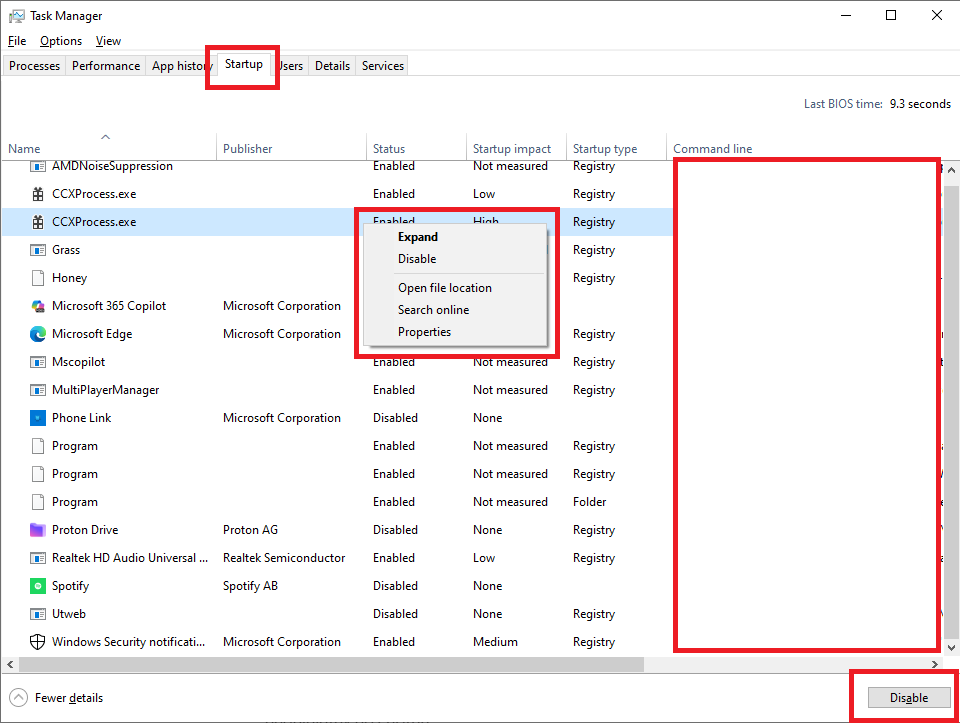
- Press Ctrl + Shift + Esc.
- In Windows 11, click Startup apps in the left menu. In Windows 10, open the Startup tab. If you only see a small window, click More details first.
- Click the Startup impact column to sort the list.
Settings
- Open Settings → Apps → Startup.
- Use the sort option at the top to sort by Startup impact. Each app has a switch that you can turn off.
Read the columns carefully. Status shows whether the item is enabled. Startup impact is rated High, Medium, Low or Not measured, and it is based on how much CPU and disk activity the app caused at startup, not on its memory use. Not measured usually means that Windows has not yet seen the app start. A High rating on an app you need, such as an antivirus, does not mean that you should disable it.
If you do not recognize a name, right-click it in Task Manager and choose Open file location to see which folder it belongs to, or choose Search online (available in Windows 10; in Windows 11 you can copy the name and search for it). Check the publisher column too. Do not disable something only because the name looks strange.
Disable optional launchers and helpers
Disabling a startup item does not uninstall the program. It only stops the program from opening by itself, and you can still start it from the Start menu whenever you need it.
To disable an item, right-click it in Task Manager and choose Disable, or turn off its switch in Settings → Apps → Startup. Start with two or three items, restart, and measure.
| Type of program | Usually fine to disable? | What changes |
|---|---|---|
| Game launchers such as Steam or the Epic Games Launcher | Yes | Downloads and game updates do not run until you open the launcher |
| Chat and meeting apps such as Discord, Zoom or Viber, if you do not need them all day | Usually | You will not see messages or reminders until you open the app |
| Music and media helpers such as Spotify | Yes | The app opens only when you start it |
| Updaters and helpers from software makers, such as Adobe or Java helpers | Often, but check | The program may check for updates only when you open it. See the note below |
| Printer and scanner status tools | Usually | Printing still works, but ink-level alerts may stop |
If you disable an updater, remember to update that program yourself from time to time. Our guide on keeping Windows and your apps updated shows how to do that without constant checking.
If anything stops working after a change, turn the item back on in the same place. Nothing is lost.
Leave security and hardware utilities alone unless you understand them
Some startup items look boring but keep important features alive. Disabling them can cost you protection, sync, or the keys on your keyboard. Research an item before you turn it off.
| Item | Why to be careful |
|---|---|
| Antivirus and the Windows Security notification icon | Protection or its alerts can stop working. Keep them enabled. |
| Touchpad, audio and graphics control panels | Gestures, sound enhancements or display settings may stop working or reset. |
| Laptop hotkey or function-key utilities from the maker | On some laptops these control brightness, volume, Wi-Fi or keyboard backlight keys. |
| Cloud sync apps such as OneDrive, Dropbox or Google Drive | Files stop syncing and backups can fall behind, especially if your Desktop or Documents folders are synced. |
| Password managers and backup tools | Autofill and scheduled backups may not run. |
| Input method and language tools | Typing in some languages or keyboard layouts may stop working. |
If you are not sure, disable one item, restart, and then test the things it may control: Wi-Fi, sound, the touchpad, the keyboard keys, brightness, printing and your sync folders. Turn the item back on if something is missing. Never disable an item that you cannot identify on a work or school PC without asking your IT department, because it may belong to the security or management software of the organization.
Use the startup setting inside the app when it keeps coming back
Some apps add themselves to the startup list again every time you open them, or they start through another route. If an item keeps returning after you disabled it, turn off the option inside the app itself.
These are common examples. The wording changes between versions, so look for a similar option if you do not see the exact one:
- Spotify: open its settings and find the option to open Spotify automatically after you log in to the computer. Set it to No.
- Discord: open User Settings → Windows Settings and turn off Open Discord.
- Steam: open Steam → Settings → Interface and untick Run Steam when my computer starts.
- Zoom: open Settings → General and untick Start Zoom when I start Windows.
- OneDrive: click the OneDrive icon in the system tray, open Settings, and untick Start OneDrive automatically when I sign in to Windows. Do this only if you do not need automatic sync.
After you change the setting in the app, check the startup list again. If the item is still enabled, it may start through the Startup folder or Task Scheduler. The next section explains those places.
Other places where programs start automatically
Not every program that starts with Windows appears in the normal startup list. Check these places only if something still starts and you cannot stop it.
The Startup folder. Press Windows + R, type shell:startup and press Enter. The shortcuts in this folder start when you sign in. You can remove a shortcut that you put there yourself. The folder for all users opens with shell:common startup.
Task Scheduler. Some programs start through a scheduled task.
- Press Windows + R, type taskschd.msc and press Enter.
- Open Task Scheduler Library and look for tasks from the maker of the program, usually with the trigger At log on.
- Right-click the task and choose Disable. Choose Disable and not Delete, so you can turn it on again.
Leave the tasks inside the Microsoft folder alone. They belong to Windows.
Services. Services start in the background before you sign in. You can see the non-Microsoft ones if you press Windows + R, run msconfig, open the Services tab, and tick Hide all Microsoft services. Treat this list as information, not as a to-do list. Disabling a service that a driver, an antivirus or a hardware utility needs can cause problems that are harder to find than a slow startup. Look up the service name before you change anything.
Browsers and background apps that keep running
Some programs do not look like startup apps, but they stay active in the background after Windows has started. Two common ones are your web browsers.
- Microsoft Edge: open Settings → System and performance. Turn off Startup boost and turn off Continue running background extensions and apps when Microsoft Edge is closed. Startup boost makes Edge open faster, so turning it off makes the first opening of Edge a little slower.
- Google Chrome: open Settings → System and turn off Continue running background apps when Google Chrome is closed.
You can also control background activity for apps from the Microsoft Store. In Windows 11, open Settings → Apps → Installed apps, open the three-dot menu of an app, choose Advanced options, and change Let this app run in the background to Power optimized or Never. This option is shown only for apps that support it. In Windows 10, use Settings → Privacy → Background apps.
Be careful with apps that you rely on for notifications, such as email or messaging apps. If you block their background activity, you will not receive alerts until you open them.
If Windows still starts slowly after the cleanup
If your startup time hardly changed, startup apps were not the main cause. Check these:
- A hard disk (HDD) as the system drive. This is one of the most common reasons for a slow start, and software tweaks cannot fully fix it. An SSD is the biggest improvement you can make.
- Little free space. Open Settings → System → Storage. If the system drive is almost full, free some space.
- Updates in progress. Open Settings → Windows Update and let pending updates finish, then restart.
- Not enough RAM. On a PC with 4 GB of RAM, Windows 11 and a browser with several tabs can use most of the memory. Open Task Manager after startup and check the Performance tab.
- Unwanted software. Run a full scan in Windows Security → Virus & threat protection, and review Settings → Apps → Installed apps for programs you do not know. Our guide on removing unwanted software from a new Windows PC can help.
- Damaged system files. Open Terminal (Admin) and run sfc /scannow.
About Fast Startup. Windows 10 and 11 often have Fast Startup turned on. It saves part of the system state when you shut down, so the next start is faster. The side effect is that Shut down is not a full reset, and some problems stay until you use Restart. If you want to test without it, open Control Panel → Power Options → Choose what the power buttons do → Change settings that are currently unavailable, untick Turn on fast startup, save, and measure again. On many PCs, Fast Startup is helpful, so turn it back on if it does not solve your problem.
How to undo changes and keep startup clean
To undo a change, go back to the same place where you disabled the item (Task Manager or Settings → Apps → Startup), select it, and choose Enable. If you disabled a scheduled task, enable it again in Task Scheduler. If you changed an option inside an app, change it back there. Restart to see the effect.
To keep the list clean, use these habits:
- When you install a program, read each installer screen and untick options such as run at startup or install extra tools.
- Look at the startup list again after you install large programs, because many of them add several items.
- Review the list every few months, and use the notes you took earlier to compare.
- Uninstall programs you no longer use instead of only disabling them.
If a PC is set up by a company or school, startup items may be managed by the organization, and some changes can be reversed automatically. Ask the IT department before you change them.
Frequently asked questions
Will disabling startup apps uninstall them?
No. It only prevents them from launching automatically. You can still open the program normally.
Can I disable Microsoft services?
Do not disable services simply because they look unfamiliar. Many are part of Windows or installed components.
Why is my PC still slow after startup cleanup?
The bottleneck may be storage, RAM, CPU load, background tasks, or aging hardware rather than startup programs.