Keep Windows and Your Apps Updated Without Constantly Checking
By Jethro Sedoguio Writer & Editor, TechGuide PH · Updated September 6, 2026 · 4 min read
Automatic updates reduce the chance that important security and bug fixes are missed. Use built-in update systems where possible and understand which applications need a separate update mechanism.
Turn on Microsoft Store app updates
Many Windows apps come from the Microsoft Store, such as Photos, Notepad, Calculator, and anything else you download there. When automatic updates are on, they download new versions on their own, so you do not need to check each one.
How to check and turn on automatic app updates:
- Click Start, type Microsoft Store, and open it.
- Click your profile icon at the top of the window.
- Select App settings.
- Find App updates and make sure the toggle is On.
To update right now:
- In the Microsoft Store, select Library in the left menu.
- Click Get updates.
- Wait for the downloads to finish. You can see each app's progress in the list.
Keep in mind:
- Some Store features need you to be signed in with a Microsoft account. If updates do not work, try signing out and back in.
- If you use limited mobile data or prepaid Wi-Fi, updates may be delayed when the network is set as a metered connection. That is normal and helps protect your data allowance.
- There must be enough free disk space for updates to complete. If your system drive is nearly full, downloads can fail.
- Not every app comes from the Store. Programs installed with an .exe or .msi file have their own update method (see the section on updating apps outside the Store).
How to verify: After clicking Get updates, return to Library. If no apps have pending updates and App updates is on, your setup is working.
Keep Windows Update active
Windows Update delivers security patches, bug fixes, and system improvements. You do not need to open it every day, but you do need to let it work properly and complete the restarts it asks for.
Make sure Windows Update is active:
- Press Windows + I to open Settings.
- In Windows 11, select Windows Update. In Windows 10, select Update & Security, then Windows Update.
- Click Check for updates.
- If updates are available, let them download and install.
- When Windows asks for a restart, choose a time when you are not working, or restart right away if you can.
To avoid interruptions:
- Set Active hours (Windows Update > Advanced options > Active hours) so the computer does not restart while you are using it.
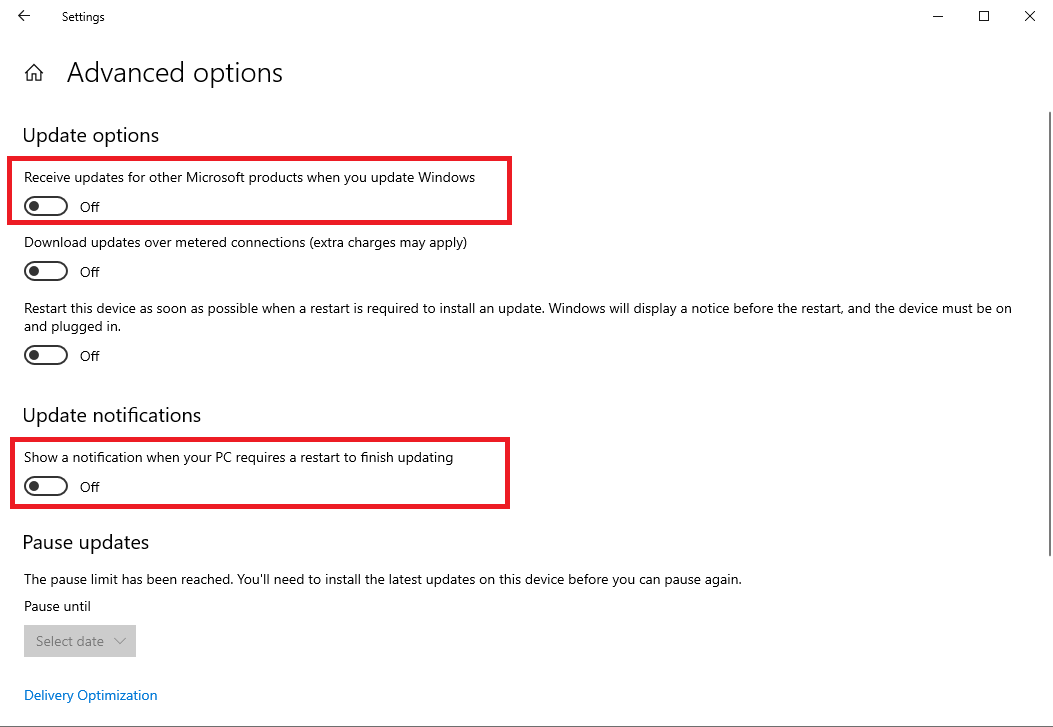
- Turn on Receive updates for other Microsoft products if it is available, so Office and other Microsoft products are included.
- Use Pause updates only when you truly need a short break, such as before an important presentation. Do not leave it paused permanently.
- Do not shut down the computer while a screen says "Working on updates" or "Do not turn off your computer."
About Windows 10: Microsoft ended regular support for Windows 10 in October 2025 unless you are enrolled in Extended Security Updates. If you are still on Windows 10, check Microsoft's official website for current information and consider upgrading to Windows 11 if your computer supports it.
If an update will not install: Restart the computer and try again. Make sure there is enough free disk space, the internet connection is stable, and the date and time are correct. Note any error code and search for it on Microsoft's support site.
How to verify: On the Windows Update page you should see a message that you are up to date, along with the time of the last check. If a restart is pending, restart first and then check again.
Update apps outside the Store through their supported channels
Many popular programs, such as browsers, PDF readers, media players, and game launchers, do not come from the Microsoft Store. They update in their own way. The safest approach is to use the program's official updater or the developer's official website.
How to find a program's update option:
- Open the program.
- Look for a menu called Help, About, or Settings.
- Choose Check for updates, or open the About page, which often checks for a newer version automatically.
- If an update is available, follow the on-screen steps.
Examples:
- Google Chrome: three-dot menu > Help > About Google Chrome. It checks for updates and asks you to Relaunch.
- Microsoft Edge: three-dot menu > Help and feedback > About Microsoft Edge.
- Mozilla Firefox: menu > Help > About Firefox.
- Other desktop programs: usually under Help or About. If there is no update option, visit the developer's official website.
Optional for comfortable users: winget. Recent versions of Windows include the winget package manager, which can show programs that have newer versions. Open Terminal or Command Prompt and type winget upgrade to see the list. Read the list before running any upgrade, and do not upgrade programs you do not recognize.
What to avoid:
- Do not download installers from random software sites or links sent in chat or email.
- Be careful with ads in search results that look like download buttons. Check that the website domain is correct before you download.
- Do not install cracked or pirated versions. They often contain malware and cannot receive legitimate updates.
How to verify: After updating, open the program's About page again. The version should match the latest version listed on the developer's official website.
Do not install every update blindly from unofficial tools
Some driver updaters, PC optimizers, and one-click update tools promise to fix your computer in a single click. They often show a scary list of outdated drivers and ask for payment to install them. Not all of these tools can be trusted.
Why they can be risky:
- They may install the wrong driver for your hardware, which can cause crashes, no sound, or a broken Wi-Fi adapter.
- Some bundle adware or other unwanted programs.
- Some show fake warnings to push you into buying a paid version.
- It is hard to go back if you have no restore point or backup.
Safer approach:
- Use Windows Update first. It normally delivers drivers that Microsoft has checked.
- For graphics, use the official app or website from NVIDIA, AMD, or Intel.
- For laptops, use the PC maker's support page or support app (Lenovo, HP, Dell, ASUS, Acer, and others) and enter your exact model.
- Update only when you have a reason, such as a problem you are trying to fix or a security fix listed in the release notes.
Before installing a driver or a large update:
- Create a restore point: search for Create a restore point in Start, select the system drive, and click Create.
- Back up your important files.
- Write down the current driver version in Device Manager so you know what to go back to.
- Restart after installing and test sound, Wi-Fi, Bluetooth, and display.
If a problem appears: In Device Manager, right-click the device, choose Properties, open the Driver tab, and use Roll Back Driver if it is available. If not, use System Restore.
How to verify: After an update, check that all the hardware you use still works. If a new problem appears, note what you installed just before it started so you can undo it easily.
Review update history when something changes
You do not have to watch every update, but update history becomes valuable when something suddenly changes: the computer slows down, an app crashes, or sound disappears after a restart. It shows you what was installed before the problem began.
How to view Windows update history:
- Press Windows + I to open Settings.
- Go to Windows Update.
- Select Update history.
- Review recent updates, including the install date and whether each one succeeded or failed.
How to uninstall an update (if needed):
- In Update history, scroll down and select Uninstall updates.
- Find the update that was installed before the problem started.
- Select it and click Uninstall.
- Restart the computer and test again.
Do this only when the update clearly seems related to the problem. Removing a security update can leave the computer exposed, so treat it as a temporary step and look for an official fix from Microsoft.
For apps:
- In the Microsoft Store, check Library for recently updated apps.
- In Settings > Apps > Installed apps, some programs show their install date.
- Read the developer's release notes on their official website to see whether the latest version has a known bug.
A good routine when something goes wrong:
- Write down when the problem started and what you were doing.
- Compare that with the dates in update history.
- Try the smallest fix first: restart, repair the app, update the app, or roll back the driver.
- Use System Restore if you need something broader.
- If it is still not fixed, search Microsoft's or the developer's support site for the exact error message or error code.
How to verify: After any uninstall, rollback, or restore, repeat the action that caused the problem. If it is gone, you have found the likely cause. Keep a note of it in case the problem returns after the next update.
Frequently asked questions
Are automatic updates safe?
Updates from trusted software channels are an important part of maintaining security and compatibility. Problems can still occur, which is why backups and restore options matter.
Do all Windows programs update through Windows Update?
No. Many traditional desktop applications use their own updater or installation channel.
Should I use third-party driver updater software?
It is usually safer to obtain drivers from Windows Update or the device/component manufacturer's supported source.