Windows System Restore: Create a Restore Point and Use It Safely
By Jethro Sedoguio Writer & Editor, TechGuide PH · Updated September 1, 2026 · 4 min read
System Restore can help reverse certain Windows configuration changes after a driver or software problem. It is not a substitute for a file backup, and it does not restore every type of data.
What System Restore Does and When to Use It
System Restore is a Windows feature that saves a snapshot of important system files, drivers, registry settings, and installed programs at a specific moment. If a driver update, a new program, or a Windows update causes crashes, error messages, or unusual behavior, you can return the system to that earlier snapshot without reinstalling Windows.
It only helps if a restore point exists, and on some computers the feature is not turned on by default. This guide shows how to check that System Protection is enabled, how to create a restore point before making a change, how to restore from inside Windows and from the recovery menu, and what System Restore cannot do. The steps apply to Windows 10 and Windows 11, and menu names are noted where they differ.
Check Whether System Protection Is Turned On
System Restore can only return Windows to a restore point that already exists, and restore points are only saved for drives where System Protection is enabled. On some computers it is switched off, so check this before you need it.
- Press the Windows key.
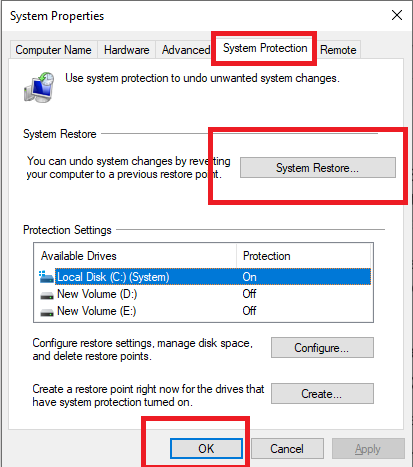
- Type Create a restore point and open the result. The System Properties window opens on the System Protection tab.
- Under Protection Settings, find Local Disk (C:) (System) and read the Protection column.
- If it says On, no change is needed.
- If it says Off, select the C: drive and click Configure.
- Select Turn on system protection.
- Use the Max Usage slider to set how much disk space restore points may use. For most home computers, a value between 5 and 10 percent of the drive is a reasonable starting point.
- Click Apply, then OK.
If the options are greyed out, you may be signed in with a standard account or the computer may be managed by a school or workplace policy. System Protection settings need an administrator account.
How to verify: Return to the System Protection tab. The C: drive should now show On in the Protection column.
Create a Restore Point Before a Risky Change
Windows creates some restore points automatically, for example before certain updates or driver installations. It does not do this before every change, so create your own before anything that could affect system stability.
Good times to create one include:
- Installing or replacing a graphics, audio, or network driver
- Installing software from outside the Microsoft Store
- Changing system settings you do not fully understand
- Editing the registry or running a system tweak
To create a restore point manually:
- Press the Windows key and type Create a restore point.
- Open the result to display the System Protection tab.
- Click Create.
- Type a clear description, such as Before installing new graphics driver. Windows adds the date and time automatically.
- Click Create and wait for the progress message to finish.
- When Windows displays The restore point was created successfully, click Close.
A descriptive name matters. If you need to choose between several restore points later, a name that explains the reason for each one makes the choice much easier.
How to verify: Click System Restore on the same tab, click Next, and look for your new entry in the list. You can close the wizard without restoring anything.
Restore Windows From a Restore Point
If Windows still starts and you can sign in, this is the simplest way to go back to an earlier state. Save your work and close open programs first, because the computer will restart.
- Press the Windows key, type Create a restore point, and open the result.
- On the System Protection tab, click System Restore.
- Click Next. Windows may suggest a recommended restore point.
- Select Choose a different restore point if you want to pick one yourself, then click Next.
- Check Show more restore points if you want to see older ones.
- Select a restore point dated before the problem started.
- Click Scan for affected programs. Windows lists the programs and drivers that will be removed or restored.
- Click Close, then Next, and then Finish.
- Read the final warning and click Yes to start.
Do not turn off the computer while the restore is running. The screen may show a progress message, and Windows restarts at least once. On a laptop, keep it plugged in.
After you sign in again, Windows should display a message that System Restore completed successfully.
How to verify: Repeat the action that previously caused the problem. If the problem remains, you can try an older restore point, because the first choice may have been created after the problem began.
Use System Restore When Windows Will Not Start
If Windows cannot reach the sign-in screen, you can still run System Restore from the Windows Recovery Environment.
If Windows still opens but is unstable, you can enter recovery from Settings:
- In Windows 11, open Settings > System > Recovery. In Windows 10, open Settings > Update & Security > Recovery.
- Under Advanced startup, click Restart now.
- Select Troubleshoot.
- Select Advanced options.
- Select System Restore.
- Choose your user account and enter its password if prompted.
- Click Next, choose a restore point, and follow the prompts to finish.
If Windows will not start at all, it usually opens the recovery screen automatically after several failed startup attempts. If that does not happen, start the computer from a Windows installation USB drive, choose your language settings, and click Repair your computer. From there, follow Troubleshoot > Advanced options > System Restore.
If the drive is protected with BitLocker or device encryption, Windows may ask for the recovery key before it can continue. Make sure you can find that key in your Microsoft account or wherever you stored it.
How to verify: After the restart, check that Windows reaches the desktop and that the problem you were fixing no longer appears.
What System Restore Can and Cannot Do
System Restore is designed to reverse system-level changes. It is not a full backup tool, and expecting it to behave like one is a common cause of data loss.
- It does not back up personal files. Documents, photos, videos, and downloads are not saved in a restore point. Use File History, OneDrive, or an external drive for those.
- Programs installed after the restore point are removed. Programs you uninstalled after that point may come back, although some may need to be reinstalled.
- Drivers and system settings return to their earlier state. This is the main reason it helps after a bad driver update.
- It is not a malware removal tool. A restore point can contain infected files. If you suspect malware, run a full scan with Windows Security.
- It cannot repair failing hardware. If crashes continue after a restore, test the memory and storage drive.
Restore points also take up disk space and are deleted over time as the space limit is reached, so an older restore point may not be available when you need it.
How to Undo a System Restore
If the restore did not help or you chose the wrong restore point, you can usually reverse it.
- Press the Windows key, type Create a restore point, and open the result.
- Click System Restore.
- Select Undo System Restore, then click Next.
- Review the details and click Finish.
- Confirm the warning and wait for Windows to restart.
The Undo option appears only after a restore that was run from within normal Windows. A restore performed from Safe Mode or the recovery menu may not be reversible, so choose the restore point carefully in those cases.
Troubleshooting System Restore Problems
System Restore does not always work on the first attempt. These are the most common problems and what to try.
No restore points are listed. System Protection was probably turned off when the problem occurred, so there is nothing to restore. Turn it on now using the first section of this guide so future problems can be reversed.
The System Restore button is greyed out. Make sure you are using an administrator account and that protection is enabled for the system drive. On work or school computers, a policy may block the feature.
The restore fails with the message that System Restore did not complete successfully. Windows normally leaves your files and settings unchanged when this happens. Try these steps in order:
- Restart the computer and try a different, older restore point.
- Temporarily disable any third-party antivirus program and try again, then turn it back on.
- Run System Restore from the recovery menu, as described earlier, instead of from the desktop.
- Right-click Start, open Terminal (Admin) or Command Prompt (Admin), type sfc /scannow, and press Enter. Let the scan finish, restart, and try again.
If every attempt fails, copy your important files to an external drive before considering a stronger repair such as Reset this PC with the Keep my files option.
Manage Restore Point Disk Space
Restore points use part of your system drive. When the space limit is reached, Windows deletes the oldest restore points to make room for new ones.
To review or change the limit:
- Open Create a restore point from the Start menu.
- Select the system drive and click Configure.
- Check Current Usage to see how much space restore points are using.
- Move the Max Usage slider to a different percentage if needed, then click Apply.
The Delete button on this screen removes all restore points for the drive, including the newest one. Use it only if you are sure you no longer need them. A gentler alternative is Disk Cleanup: open the More Options tab and use the Clean up button under System Restore and Shadow Copies, which keeps the most recent restore point.
If the drive is nearly full, free space by removing unused programs and large files rather than reducing the restore point limit to a very small number.
Conclusion
System Restore is one of the quickest ways to recover from a bad driver, a faulty update, or a program that destabilizes Windows, but only when it was prepared in advance. Confirm that System Protection is on, create a named restore point before risky changes, and know how to start System Restore from the recovery menu in case Windows will not boot.
Remember that a restore point protects system files and settings, not your personal data. Keep a separate backup of documents and photos so that a restore, a reset, or a hardware failure never puts them at risk.
Frequently asked questions
Does System Restore delete personal files?
It is designed to roll back system configuration, not act as a personal-file backup. Still, keep current backups before recovery work.
How often should I create restore points?
Create one before significant driver or software changes. Windows may also create points automatically when certain system events occur.
Can System Restore fix a dead hard drive?
No. A restore point cannot repair failing physical storage. Hardware problems require diagnosis and, if necessary, replacement.