Speed Up a Slow Windows PC Without Reinstalling Windows
By Jethro Sedoguio Writer & Editor, TechGuide PH · Updated September 12, 2026 · 4 min read
A Windows computer can slow down for several different reasons, including startup load, low memory, storage pressure, background processes, or hardware limits. These checks help identify the bottleneck before you change settings.
Find the resource that is actually busy
Before you delete, uninstall, or install anything, find out what is actually slowing the computer down. The fix is different depending on whether the CPU, memory, disk, or network is the bottleneck. Task Manager is the easiest place to start.
How to use Task Manager:
- Press Ctrl + Shift + Esc to open Task Manager.
- If it opens in the simple view, click More details.
- On the Processes tab, click the CPU, Memory, Disk, or Network column header to sort programs from heaviest to lightest.
- Do this while the slowdown is happening, not after it has passed.
- Also open the Performance tab to see overall usage and a graph for each resource.
How to read the result:
- Disk near 100% for a long time: Often a slow hard drive, a nearly full drive, or a program reading and writing constantly (antivirus scan, update, backup, indexing).
- Memory almost full: Too many open apps or tabs, or not enough RAM in the computer.
- High CPU while idle: A background program, an update in progress, or possibly malware.
- High network use: Something is downloading, uploading, or backing up in the background.
Keep in mind:
- A high number tells you where to look, but not automatically who is to blame. High usage can be normal during an update, scan, or heavy task.
- Do not end Windows processes you do not recognize, because some are essential.
- If you do not know a program, right-click it and choose Search online to learn what it is.
- Windows 11 has an Efficiency mode for some processes that reduces their resource use. Apply it only to apps you know.
For a closer look: Open Resource Monitor (search for resmon in Start) and check the Disk tab to see which files and processes are using the drive.
Check security too: If usage is high and you cannot work out why, run Windows Security > Virus & threat protection > Quick scan.
How to verify: Write down which resource is highest and which programs are at the top of the list. This guides the next steps so you do not change things that are not actually the cause.
Reduce unnecessary startup and background work
One of the most common reasons for a slow computer is the number of programs that start automatically with Windows and stay running in the background. Each one uses a little CPU, memory, and disk, and the total grows over time.
How to review startup apps:
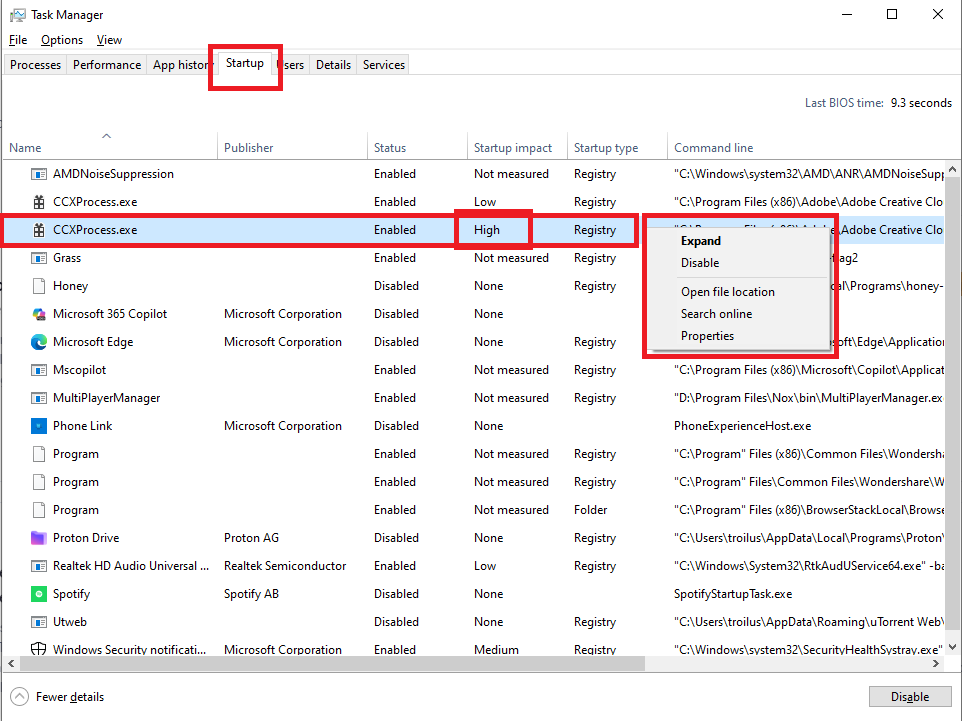
- Press Ctrl + Shift + Esc to open Task Manager.
- Go to Startup apps (or Startup in Windows 10).
- Sort the list by Startup impact.
- Check the name and Publisher of each program.
- Right-click anything you do not need at startup and choose Disable.
Usually fine to disable:
- Cloud storage apps you do not use every day.
- Game launchers and chat apps.
- Updaters for programs you rarely open.
- Promotional apps from the manufacturer.
Be careful with:
- Security software and Windows Security.
- Touchpad, audio, graphics, and Bluetooth utilities tied to your hardware.
- Programs you do not recognize. Search for them before disabling anything.
Disabling a startup item does not uninstall the program. You can still open it manually when you need it, and you can turn the setting back on at any time.
Review background apps too:
- Go to Settings > Apps > Installed apps.
- Click the three-dot menu next to an app and choose Advanced options (if available).
- Under Background apps permissions, choose Never for apps that do not need to run when you are not using them.
Other tips:
- Close programs you are not using and reduce the number of open browser tabs.
- Remove browser extensions you do not use.
- If several installed programs do the same job (for example, multiple updaters or utilities), remove the extras.
- Do not install a "PC booster" or "optimizer" just to clean up startup. Task Manager does this for free and safely.
How to verify: Restart after a small group of changes. Notice how long it takes before the desktop is usable and whether fewer programs are running. If something stops working (for example, a touchpad gesture), re-enable the last item you disabled.
Keep the system drive healthy and spacious
Windows slows down quickly when the system drive is almost full or when the drive itself has a problem. Windows needs free space for updates, temporary files, and virtual memory.
Check free space:
- Go to Settings > System > Storage.
- See how much space is left on the system drive (usually C:).
- As a general guide, try to keep a healthy amount free (typically several GB, or roughly 15 to 20 percent of the drive, depending on its size).
- If space is low, use the Temporary files cleanup and uninstall programs you no longer use.
- Move large personal files to an external drive or the cloud, and make sure important files are backed up.
Find out whether you have an SSD or an HDD: Open Task Manager > Performance > Disk and look at the drive type above the graph. An SSD is much faster and more responsive than an HDD.
Optimize Drives:
- Search for Defragment and Optimize Drives in Start.
- Select the drive and click Analyze or Optimize.
- For an HDD, defragmentation helps. For an SSD, Windows performs TRIM optimization, so you do not need to defragment manually with other tools.
- Make sure scheduled optimization is turned on.
Check the drive's health:
- If Disk usage is often 100% even when you are not doing anything heavy, or an HDD makes unusual sounds, the drive may have a problem.
- Use the diagnostic tool from the drive or laptop manufacturer if there is one.
- You can run a file system check: in File Explorer, right-click the drive and choose Properties > Tools > Check.
- If there are signs the drive is failing, back up your files immediately before doing anything else.
What to avoid:
- Do not delete files from the Windows or Program Files folders just to free space.
- Do not use registry cleaners or "disk boosters" you do not recognize.
- Do not turn off virtual memory (the page file) to save space. Leave it managed automatically by Windows unless you have a clear reason.
How to verify: After cleaning up, restart and check the Storage page for the new free space. Watch whether disk usage in Task Manager drops during normal use.
Adjust visual effects only if responsiveness is the goal
Windows uses animations, transparency, and shadows that make it look better but also use a little of your resources. On a newer, powerful computer you will hardly notice. On an older or low-powered machine, reducing them can make menus and windows feel faster.
Important: This does not increase the actual speed of the CPU, GPU, or drive. It only reduces visual effects, so the interface feels quicker, but it will not speed up heavy tasks such as video editing or compiling.
In Windows 11 (Accessibility settings):
- Press Windows + I to open Settings.
- Go to Accessibility > Visual effects.
- Turn off Transparency effects.
- Turn off Animation effects.
In Performance Options (Windows 10 and 11):
- Press Windows + R, type sysdm.cpl, and press Enter.
- Open the Advanced tab.
- Under Performance, click Settings.
- Choose Adjust for best performance for the fewest visual effects, or choose Custom and uncheck the effects you do not need.
- Click Apply and OK.
Suggestion for the custom setting: You can leave Smooth edges of screen fonts and Show thumbnails instead of icons checked so text and folders do not look rough. Remove the animations and fade effects you do not need.
Other settings that affect how fast the computer feels:
- Set Power mode to Best performance (Settings > System > Power & battery) when your laptop is plugged in. Remember that this drains the battery faster when unplugged.
- Make sure the laptop is not stuck in Battery saver while you work.
- Lower the resolution or refresh rate only if you have a specific display problem, not as a general fix.
When it is not worth doing: If the computer runs fine and you like how Windows looks, you do not need to remove the visual effects. Do this only when the slowness is in opening menus, switching windows, and general interface movement.
How to verify: After changing the settings, open and close a few windows, open the Start menu, and switch between apps. If it feels faster, keep the change. If you do not like how it looks, switch back to Let Windows choose what's best for my computer.
Consider hardware limits
If you have worked through the earlier steps and the computer is still slow, the hardware itself may be the limit. Some situations cannot be fixed with software cleanup, and it is better to know that before you spend money on utilities that promise instant speed.
Signs that hardware is the problem:
- Memory in Task Manager is almost always full even with few programs open.
- You still use a hard drive (HDD) as the system drive, and Disk usage is constantly high.
- The computer is very slow to start and to open programs even after startup has been cleaned up.
- A laptop gets hot quickly and slows down under sustained use (thermal throttling).
- The computer is old and no longer meets the needs of newer Windows versions or programs.
How to check your specs:
- Go to Settings > System > About to see your processor and installed RAM.
- Open Task Manager > Performance to see the drive type (SSD or HDD), memory, and CPU speed.
- Search for your exact computer model and check the manufacturer's support page for upgrade options.
Possible upgrades:
- HDD to SSD: One of the biggest improvements in how an older computer feels. It requires cloning the drive or reinstalling Windows, so make sure you have a backup.
- More RAM: Helps if memory is constantly full. Check first whether your computer can take more, because some laptops have soldered RAM that cannot be upgraded.
- Cleaning the fan and heatsink: If the computer runs hot, clear dust and make sure the vents are not blocked. If you are not comfortable opening a laptop, ask a technician.
- Replacing thermal paste or the battery: For older, hot-running laptops, but best done by someone experienced.
Before you spend money:
- Compare the cost of the upgrade with the cost of a new computer.
- Make sure the parts you buy are compatible with your model (RAM type, drive size, and connector).
- Back up all important files before opening the computer or replacing a drive.
- Read your warranty terms, because opening the device yourself may affect coverage.
Beware of promises of instant speed: Avoid "PC cleaner," "RAM booster," and registry optimizer programs that show alarming reports and ask for payment. They are usually unnecessary and can even cause problems.
If nothing else works and the problem is severe: You can try Settings > System > Recovery > Reset this PC as a last step that does not need separate installation media. Back up everything first and read the options (Keep my files or Remove everything). It is a bigger change than adjusting settings, so do it only if necessary.
How to verify: After any upgrade or major change, compare startup time, how quickly programs open, and memory and disk usage in Task Manager with the notes you made before.
Frequently asked questions
Does deleting temporary files make a PC much faster?
It can recover space, but it does not automatically make every PC faster. Performance depends on what is actually limiting the system.
Is High Performance mode always better?
It can increase power use and heat and may have little effect on ordinary workloads. Use a power mode appropriate to how you use the computer.
When should I upgrade RAM?
Consistently high memory usage with frequent paging is a practical sign to investigate a RAM upgrade, assuming the computer supports one.