Configure Microsoft Defender in Windows for Everyday Protection
By Jethro Sedoguio Writer & Editor, TechGuide PH · Updated September 5, 2026 · 4 min read
Microsoft Defender provides built-in protection against common threats, but its settings and available features vary by Windows version. The safest approach is to keep core protection enabled and change advanced options only when you understand the trade-off.
Confirm core protection is active
Microsoft Defender Antivirus is built into Windows and is managed through the Windows Security app. For everyday protection, the first job is simply to confirm that the core protections are on and up to date. Most of the time, nothing else needs to be changed.
Open Windows Security and check the overall status:
- Click Start, type Windows Security, and open it.
- On the Security at a glance page, look at each area: Virus & threat protection, Account protection, Firewall & network protection, App & browser control, and Device security.
- A green check mark means no action is needed. A yellow or red mark means something needs attention. Click the item and follow the recommended action.
Check real-time protection:
- Open Virus & threat protection.
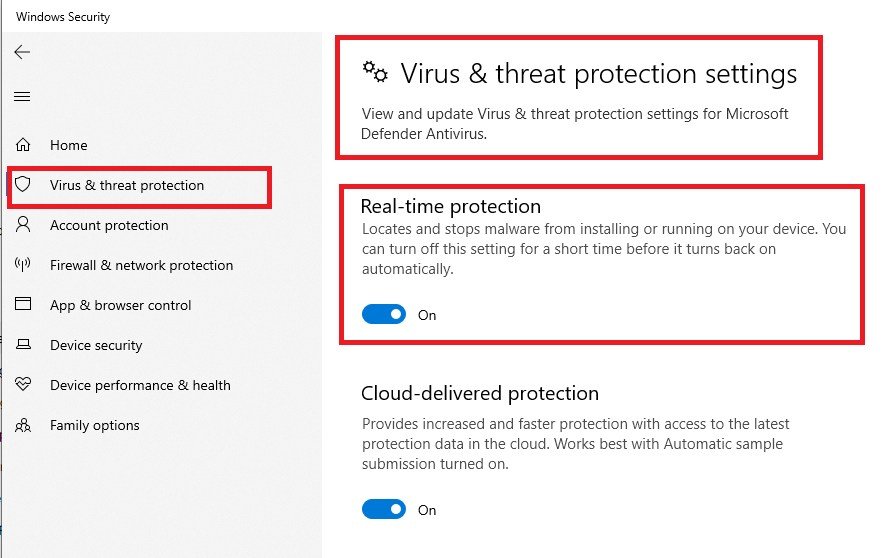
- Under Virus & threat protection settings, click Manage settings.
- Make sure Real-time protection is On.
- Also check that Tamper Protection is On. It helps stop unauthorized changes to important security settings.
Check that protection is up to date:
- In Virus & threat protection, scroll to Virus & threat protection updates and click Protection updates.
- Click Check for updates.
- Confirm that the security intelligence version and the last update time look current.
If you use another security product: When a third-party antivirus is installed and registered with Windows, Microsoft Defender Antivirus may turn off its real-time protection to avoid conflicts. That is normal. Windows Security will show which product is protecting you. Do not run two real-time antivirus programs at once. If you removed the other product, make sure Defender has turned itself back on.
Other areas worth a quick look:
- Firewall & network protection: Make sure the firewall is on for your active network profiles.
- App & browser control: Keep reputation-based protection turned on to help warn you about suspicious apps, files, and sites.
- Windows Update: Keep Windows updated, because security fixes are delivered there.
If a setting is greyed out: It may be managed by an organization, controlled by another security product, or blocked by a system problem. On a personal computer, restart and check again, and note any message shown on the page.
How to verify: Return to the Security at a glance page. If every area shows a green check mark and the last update time is recent, your core protection is in good shape.
Review cloud and sample-submission options
Two settings in Microsoft Defender often raise questions: Cloud-delivered protection and Automatic sample submission. They help Microsoft identify new and emerging threats faster, but they also involve sending information, so it is worth understanding what they do before you decide.
What the settings do:
- Cloud-delivered protection: Lets Defender check suspicious files and behavior against Microsoft's online protection service, which is updated much faster than local definitions alone.
- Automatic sample submission: Sends suspicious files to Microsoft for analysis when Defender needs a closer look. Windows may ask before sending a file that is likely to contain personal information, depending on your settings.
How to review them:
- Open Windows Security and select Virus & threat protection.
- Under Virus & threat protection settings, click Manage settings.
- Find Cloud-delivered protection and Automatic sample submission.
- Read the description under each toggle.
- Click the Privacy statement or Privacy Settings links to see how Microsoft describes the data handling for your edition of Windows.
How to decide:
- For most home users, leaving cloud-delivered protection on gives better protection against new threats.
- If you work with confidential documents or are bound by your employer's policy, check the rules before sending samples. You may prefer to keep sample submission off or set to ask first.
- If a work or school computer shows these options as managed by your organization, you cannot change them yourself, and the administrator is responsible for the policy.
Related settings to be aware of:
- Diagnostic data (Settings > Privacy & security > Diagnostics & feedback) is separate from Defender, but it is also a privacy setting you may want to review.
- Tamper Protection should normally stay on so other software or malware cannot quietly turn off your protections.
Keep in mind: Options and wording can differ between Windows versions and editions, so read the descriptions on your own screen rather than relying on an older guide.
How to verify: After deciding, return to Manage settings and confirm the toggles match your choice. Make a note of your decision, especially if you are managing the computer for family or a small office.
Use Controlled Folder Access carefully
Controlled folder access is a ransomware protection feature. It watches selected folders, such as Documents and Pictures, and blocks programs it does not trust from changing files in them. It can be valuable if you keep important files on your computer, but it can also block legitimate programs, so turn it on thoughtfully.
How to turn it on:
- Open Windows Security and select Virus & threat protection.
- Under Ransomware protection, click Manage ransomware protection.
- Turn on Controlled folder access.
- Click Protected folders to see which folders are covered, and add any other folders that hold important files.
If a legitimate program is blocked:
- You will see a notification saying that a program was blocked from making changes.
- Think about whether you recognize the program and expected it to save files there.
- If you are confident it is trustworthy, go to Manage ransomware protection > Allow an app through Controlled folder access.
- Click Add an allowed app and choose the program.
When to be cautious:
- Do not allow a program you do not recognize just to make a warning go away.
- If a blocked notification appears when you were not doing anything, investigate before allowing it. Check Protection history in Virus & threat protection and consider running a scan.
- If you install new software that saves to your Documents folder, you may need to allow it once.
Protect your files in more than one way: Controlled folder access reduces risk, but it is not a replacement for backups. Keep a separate backup, for example on an external drive or a cloud service with version history, so you can recover files if something goes wrong.
OneDrive and ransomware recovery: If you use OneDrive, check its file recovery features so you know how to restore earlier versions of files if they are changed unexpectedly.
If you do not want it on: It is optional. If it keeps interfering with the programs you use, leave it off and focus on keeping Windows updated, using real-time protection, and keeping good backups.
How to verify: After turning it on, use your normal programs for a few days. If something stops saving files, check whether it was blocked, and decide whether to allow it. Confirm that the folders you care about appear in Protected folders.
Run scans when there is a reason
Microsoft Defender scans in the background through real-time protection, so you do not need to run a manual scan every day. A manual scan is useful when you have a reason: you downloaded something suspicious, plugged in an unknown USB drive, or notice odd behavior.
Run a Quick scan:
- Open Windows Security and select Virus & threat protection.
- Click Quick scan.
- Wait for it to finish. A quick scan checks the places where threats are most commonly found and normally finishes in a few minutes.
Choose other scan types:
- In Virus & threat protection, click Scan options.
- Choose Full scan to check all files and running programs. It takes much longer.
- Choose Custom scan to check a specific folder or drive, such as a USB drive or a Downloads folder.
- Choose Microsoft Defender Offline scan if you suspect malware that hides while Windows is running. Windows will restart and scan before the normal system loads.
Scan a single file or folder quickly: Right-click the file or folder in File Explorer and choose Scan with Microsoft Defender (on Windows 11 this may be under Show more options).
When a scan is a good idea:
- After downloading a file from a source you are not sure about.
- After connecting an unknown USB drive or external disk.
- If the computer suddenly becomes slow, shows unexpected pop-ups, or changes browser settings.
- If a security alert says a threat was found and you want to confirm that it was removed.
If a threat is found:
- Review the name and the file location shown.
- Choose the recommended action, which is often to remove or quarantine the item.
- Open Protection history to see what Defender did.
- Be careful with Allow on device. Use it only for a file you are completely sure is safe.
If you suspect a serious compromise: Disconnect from the internet, run the Microsoft Defender Offline scan, change important passwords from a different, clean device, and follow Windows Security's recovery guidance. Consider professional help if sensitive accounts may be affected.
How to verify: After the scan, check that it reports no current threats, or that found items were removed or quarantined. Look at Protection history for details, and note the time of the last scan on the Virus & threat protection page.
Avoid unnecessary exclusions
An exclusion tells Microsoft Defender to ignore a file, folder, file type, or process. That can fix a compatibility problem, but it also creates a blind spot, because anything placed in that location is no longer checked. Use exclusions rarely, narrowly, and only for a good reason.
How to see your existing exclusions:
- Open Windows Security and select Virus & threat protection.
- Under Virus & threat protection settings, click Manage settings.
- Scroll down to Exclusions and click Add or remove exclusions.
- Review the list. If you see something you do not recognize or no longer need, select it and click Remove.
When an exclusion might be reasonable:
- The software vendor documents that a specific folder or process should be excluded for compatibility or performance.
- A specific, trusted tool is repeatedly flagged incorrectly, and you have confirmed with the vendor that it is safe.
- A development or build folder is causing a significant slowdown, and you understand the risk.
How to add one carefully:
- Confirm that the file really is safe. For example, check it from the developer's official site, or scan it first, or check it with a reputable multi-engine scanning service.
- Choose the narrowest option you can, such as one specific file instead of a whole drive.
- Use Add an exclusion and select File, Folder, File type, or Process as appropriate.
- Write down what you excluded and why, so you can remove it later.
What to avoid:
- Do not exclude your whole C: drive, your Downloads folder, or your Desktop.
- Do not add exclusions because a cracked program, keygen, or "activator" tells you to. Those instructions are a warning sign, because such files are commonly used to spread malware.
- Do not add an exclusion just because a download is blocked, unless you are completely sure it is safe.
- Do not leave exclusions in place after the software that needed them has been removed.
Review them from time to time: Every few months, open the exclusions list and remove anything that no longer has a clear purpose.
How to verify: After removing an unneeded exclusion, run a quick scan of the affected folder and check that the program that needed it still works. If it does not, you can add back a narrower exclusion with a clear reason.
Frequently asked questions
Is Microsoft Defender enough for normal Windows use?
It provides built-in malware protection for supported Windows systems, but safe browsing, updates, strong passwords, and cautious downloads remain important.
Should I disable Defender to make games faster?
Disabling security protection removes a layer of defense. Investigate the specific performance issue and use narrowly scoped, documented settings instead.
Are exclusions safe?
They reduce scanning coverage for the excluded item. Use them sparingly and only when you understand why they are needed.