Windows Update Stuck? A Structured Troubleshooting Guide
By Jethro Sedoguio Writer & Editor, TechGuide PH · Updated September 15, 2026 · 4 min read
Windows Update can pause because of a temporary service issue, damaged update cache, insufficient space, or another system problem. Start with simple checks and preserve your files before using repair commands.
Check the update status and restart
Before you panic or force a shutdown, work out whether the update is truly stuck or just slow. Large updates, especially feature updates, can take a long time, even when the percentage does not move for several minutes.
How to tell whether it is really stuck:
- Watch the disk activity light on your laptop or desktop, if it has one. If it is still blinking, Windows is probably still working.
- If you can still reach the desktop, open Task Manager (Ctrl + Shift + Esc) and check CPU and Disk usage. If the numbers are moving, it has not completely stopped.
- If you are on the blue "Working on updates" screen with a percentage, give it plenty of time, especially on a hard drive (HDD) rather than an SSD.
- If you are in Settings and a download or install is not progressing, check whether an error code is shown.
How long to wait: For a normal monthly update, allow a few hours before deciding anything. For a big feature update, allow longer, especially on a slow connection or an older drive. If there has been no disk activity at all for several hours and the screen is frozen, then consider restarting.
If you do need to restart:
- If Windows is still responsive, save your work and restart using Start > Power > Restart.
- If the screen is frozen with no activity for a very long time, hold the power button to turn the computer off, wait a few seconds, and turn it on again. Treat this as a last resort, because it can damage update files.
- Let Windows boot. It may automatically undo a partly installed update, which is normal.
- Once it starts, go to Settings > Windows Update and click Check for updates.
Before trying again:
- Disconnect unneeded external devices (USB drives, printers, docking stations).
- Plug your laptop into its charger.
- Avoid using the computer while the update installs.
- If you use a VPN, disconnect it temporarily.
How to verify: If the update finished after the restart, you will see it in Windows Update > Update history marked as successful. If it failed again, write down the error code and continue with the next steps.
Use the built-in Windows Update troubleshooter
Windows includes a troubleshooter that can check common problems with the Windows Update services and configuration. It is quick to run and is normally a safe first automated fix.
In Windows 11:
- Press Windows + I to open Settings.
- Go to System > Troubleshoot > Other troubleshooters.
- Find Windows Update.
- Click Run.
- Wait for the scan to finish and follow its recommendations.
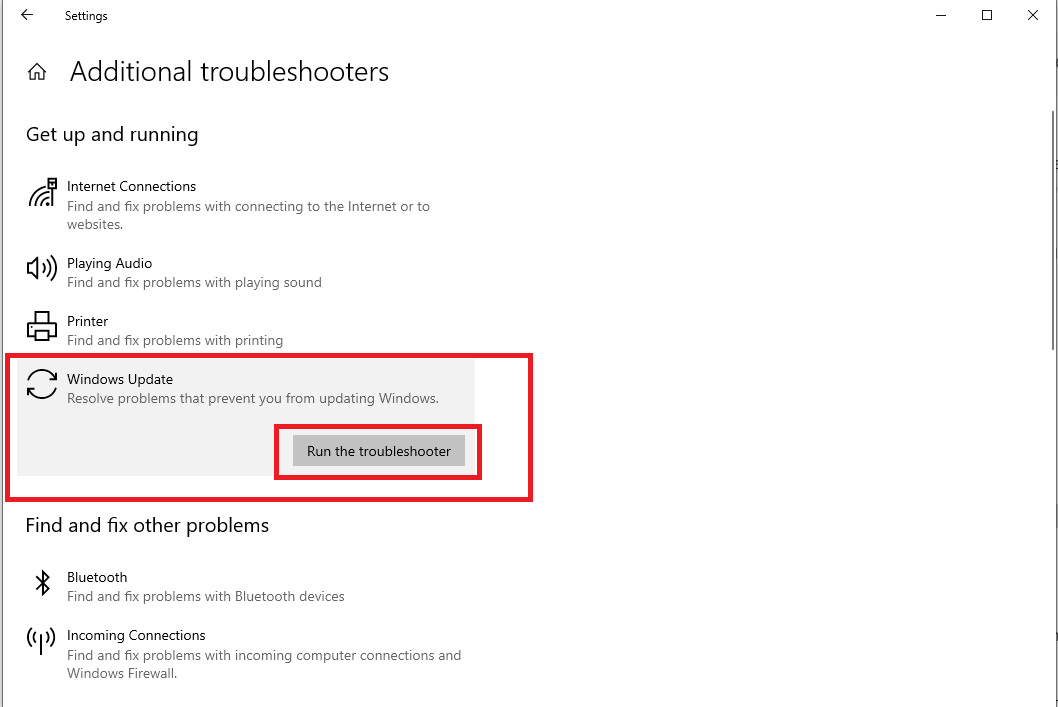
In Windows 10:
- Press Windows + I and select Update & Security.
- Select Troubleshoot, then Additional troubleshooters.
- Select Windows Update and click Run the troubleshooter.
How to read the result:
- If it found a problem and reports Fixed, restart the computer and check for updates again.
- If it found a problem but reports Not fixed, write down the message, because it can help you search for a solution.
- If it found nothing, that does not mean everything is fine. Continue with the next steps.
If you cannot find the troubleshooter: The menu may differ in your Windows version, or Microsoft may have moved it into another tool such as the Get Help app. Search for Get Help in Start and look for Windows Update, or check Microsoft's official support site for the current method for your version.
Keep in mind:
- Read each suggestion before agreeing, especially if it changes system settings.
- Run the troubleshooter as administrator if the option Try troubleshooting as an administrator appears.
- Do not download a "Windows Update fixer" from an unknown website. Use only tools built into Windows or provided on Microsoft's official site.
How to verify: After running the troubleshooter and restarting, open Windows Update and click Check for updates. If downloading or installing now proceeds, the fix worked.
Confirm storage, network, and time settings
Often Windows Update itself is not broken. Instead, the basic conditions it needs are missing: enough disk space, a stable connection, and the correct date and time. These are easy to check, so do them before the more technical steps.
1. Storage:
- Go to Settings > System > Storage.
- Check the free space on your system drive (usually C:).
- Small updates need a few GB. Large feature updates need considerably more, so check Microsoft's current requirements.
- If space is short, use the Temporary files cleanup in Storage settings and uninstall programs you no longer use. Do not delete personal files unless you are sure.
2. Network:
- Test other websites and videos to confirm the internet is stable.
- If you are on Wi-Fi, move closer to the router or use a wired connection if possible.
- Disconnect any VPN or proxy.
- Check whether the connection is set as a Metered connection (Settings > Network & internet > Wi-Fi or Ethernet > Properties). If it is on, some update downloads may be delayed.
- Restart the router if the connection is slow or keeps dropping.
3. Date and time:
- Go to Settings > Time & language > Date & time.
- Turn on Set time automatically and Set time zone automatically.
- Click Sync now under Additional settings.
- Make sure the year, date, and time zone are correct. A wrong clock can prevent secure connections to the update servers.
4. Other common causes:
- Security software or a firewall blocking the connection. If you disable it temporarily, turn it back on right away.
- External devices connected during installation.
- Low battery on a laptop.
How to verify: After correcting these conditions, restart the computer and run Check for updates again. If the download starts, one of these was likely the cause.
Repair the update components only when needed
If updates still fail after the earlier steps, the temporary Windows Update data or some system files may be damaged. This part is more technical, so do it only when needed and follow the steps carefully.
Before you start:
- Create a restore point (search for Create a restore point in Start).
- Save all open work.
- Use an account with administrator rights.
- Follow only steps from Microsoft's official documentation or from this guide, and do not copy commands from unknown sources.
Option 1: Check system files
- Search for Command Prompt in Start, right-click it, and choose Run as administrator.
- Type DISM /Online /Cleanup-Image /RestoreHealth and press Enter. Wait for it to finish, which can take a while.
- Then type sfc /scannow and press Enter.
- Restart the computer and try Windows Update again.
Option 2: Reset the update components
This temporarily stops the update services and renames the folders that hold temporary update data, so Windows creates fresh ones. In a Command Prompt running as administrator, run these one at a time:
net stop wuauserv
net stop cryptSvc
net stop bits
net stop msiserver
ren %systemroot%\SoftwareDistribution SoftwareDistribution.old
ren %systemroot%\System32\catroot2 catroot2.old
net start wuauserv
net start cryptSvc
net start bits
net start msiserver
Then restart the computer and open Windows Update. The folders are only renamed, not deleted. Once everything works, you can delete the .old folders to get the space back.
If a command shows an error: Make sure Command Prompt is running as administrator and that the services stopped before you rename the folders. If you do not understand the message, stop and write it down rather than continuing.
If a large feature update is the problem: You can use the official Windows Installation Assistant or Media Creation Tool from Microsoft's website. For a specific monthly update, you can download it from the Microsoft Update Catalog and install it manually. Make sure the version and architecture (x64 or ARM64) match your Windows.
Remember: If you have important files that are not backed up, back them up before doing larger repairs. Repeated forced shutdowns and random experimenting can make things worse.
How to verify: After the repair and a restart, open Windows Update and click Check for updates. Updates should start downloading or installing without an error.
Record the error code before searching for a targeted fix
The error code is the most useful clue to why an update failed. When you know the exact code and your Windows version, it is much easier to find a fix that fits your problem, instead of trying unrelated fixes at random.
Where to find the error code:
- Go to Settings > Windows Update. The error is often shown here when an update fails.
- Select Update history and look for updates marked Failed. Click the update for details if available.
- If a blue screen or a message appears at boot, take a photo of it.
- For more detail, open Event Viewer and look under Windows Logs > System or Applications and Services Logs > Microsoft > Windows > WindowsUpdateClient.
What to write down:
- The full error code (for example, in the format 0x8007xxxx), with every character correct.
- The name or KB number of the update that failed.
- Your Windows version and edition (Settings > System > About).
- When the problem started and what you did just before it appeared.
How to search for a fix:
- Search for the exact error code together with Windows Update and your Windows version (for example, Windows 11).
- Prefer results from support.microsoft.com and other official Microsoft documentation.
- Read the full explanation and make sure your Windows version and symptoms match.
- Try fixes one at a time, and note what you did and what happened.
Watch out for risky advice:
- Videos or forum posts that tell you to delete registry keys without a clear explanation.
- Downloads described as a "Windows Update fixer" from an unknown website.
- Advice that does not match your Windows version.
- Solutions that ask you to pay for ordinary Windows repairs.
When to get help: If updates keep failing after you have worked through this guide, contact Microsoft Support, your PC maker's support, or a technician you trust. Bring your notes: the error code, the KB number, your Windows version, and the steps you have already tried.
How to verify: After applying a targeted fix, restart and try the update again. If the same error code appears, that was not the right fix. If a different code appears, the problem has changed and can be investigated separately.
Frequently asked questions
Can I turn off the PC while Windows Update is stuck?
If Windows is actively installing an update, avoid forcing a shutdown unless the system is genuinely unresponsive and you have no safer option. A normal restart is preferable when Windows offers it.
Why does Windows Update fail repeatedly?
Common causes include storage shortages, damaged update components, network issues, incompatible drivers, and a particular update problem.
Should I use random command scripts from the internet?
Be cautious. Update-repair scripts can make significant system changes. Prefer current instructions from Microsoft or another source you trust.