Windows Blue Screen: How to Read the Stop Code and Troubleshoot It
By Jethro Sedoguio Writer & Editor, TechGuide PH · Updated September 9, 2026 · 4 min read
A blue-screen crash is a symptom rather than a single diagnosis. The stop code, recent hardware or driver changes, memory errors, overheating, and system files can all provide useful clues.
Record the stop code and recent changes
A blue screen (also called a BSOD or stop error) appears when Windows hits a problem it cannot safely recover from. The screen looks alarming, but it also contains the most useful clue you will get: the stop code. Record it before you try any fix.
What to write down from the blue screen:
- The stop code, which is written in capital letters with underscores, such as MEMORY_MANAGEMENT or CRITICAL_PROCESS_DIED.
- The What failed line, if one is shown. It sometimes names a file ending in .sys, which can point to a specific driver.
- The QR code and any hexadecimal code, if you want to look the error up later.
If the computer restarts too quickly for you to read the screen, take a photo with your phone when it appears, or turn off automatic restart:
- Press Windows + R, type sysdm.cpl, and press Enter.
- Open the Advanced tab.
- Under Startup and Recovery, click Settings.
- Under System failure, uncheck Automatically restart.
- Click OK.
Find the history of crashes after Windows starts:
- Press Windows + R, type perfmon /rel, and press Enter to open Reliability Monitor.
- Look for red X marks on the timeline, which indicate critical events.
- Click a day to see the details, including the time and the related event.
Windows may also save a small crash dump file in C:\Windows\Minidump. You do not need to open it, but keeping the file can help if a technician needs to analyze it later.
List what changed recently: Think about what happened shortly before the crashes started.
- A new or updated driver (graphics, network, audio, or chipset).
- A Windows update.
- New hardware, such as RAM, a drive, or a USB device.
- A newly installed program, especially one that works at a low level, such as antivirus, VPN, or overclocking tools.
- Changes to BIOS or performance settings.
Look for patterns: Does the crash happen only during gaming, only during startup, only when a certain device is plugged in, or randomly? A pattern helps narrow down the cause.
Keep in mind: A stop code is a clue, not a diagnosis. The same code can have different causes, and a driver named on the screen is not always the real culprit.
How to verify: You should end up with a short note: the stop code, the file named (if any), when the crashes happen, and what changed just before they started. That note will guide every step that follows.
Review recent drivers
Drivers are a leading cause of blue screens, because they run with deep access to the system. A faulty, outdated, or incompatible driver can crash Windows. If the crashes started after a driver update, that is an important lead.
Check which drivers changed recently:
- Press Windows + X and choose Device Manager.
- Expand the category related to your symptom, such as Display adapters, Network adapters, or Sound, video and game controllers.
- Right-click the device and choose Properties.
- On the Driver tab, note the driver date and version.
If the crashes began right after a driver update, roll it back:
- In the device's Properties, open the Driver tab.
- Click Roll Back Driver if the button is available.
- Choose a reason and confirm.
- Restart the computer and see whether the crashes stop.
If the driver is old or the problem was never fixed, update it from a supported source:
- Use Windows Update first, including Optional updates under Advanced options.
- For graphics, use the official site or app from NVIDIA, AMD, or Intel.
- For laptops, use the PC maker's support page and enter your exact model.
- For Wi-Fi, Bluetooth, chipset, and storage controllers, use the PC or component manufacturer's support page.
What to avoid:
- Do not use driver updater tools from unknown sources. They can install the wrong driver and cause more crashes.
- Do not install several driver updates at once. Change one thing at a time so you know what helped or hurt.
- Do not delete driver files by hand.
If you know the named file: If the blue screen names a file ending in .sys, search for that exact file name together with the stop code. It may belong to a graphics driver, a network driver, antivirus software, or a hardware utility. Treat this as a clue to investigate, not as proof.
Third-party low-level software: Antivirus programs, VPN software, virtual drive tools, and overclocking or fan-control utilities all use drivers. If the crashes started after installing one of them, update or uninstall it as a test.
How to verify: Use the computer normally for a while, including the activity that used to cause the crash. If the blue screens stop after one change, you have probably found the cause. Keep notes so you can undo the change if something else appears.
Check memory and storage
Faulty memory (RAM) and failing or corrupted storage are classic causes of blue screens. Stop codes such as MEMORY_MANAGEMENT, PAGE_FAULT_IN_NONPAGED_AREA, or INACCESSIBLE_BOOT_DEVICE may point in this direction, although they are not proof on their own.
Test your memory with Windows Memory Diagnostic:
- Save your work and close all programs.
- Press Windows + R, type mdsched.exe, and press Enter.
- Choose Restart now and check for problems.
- Wait while the computer restarts and runs the test. This can take a while.
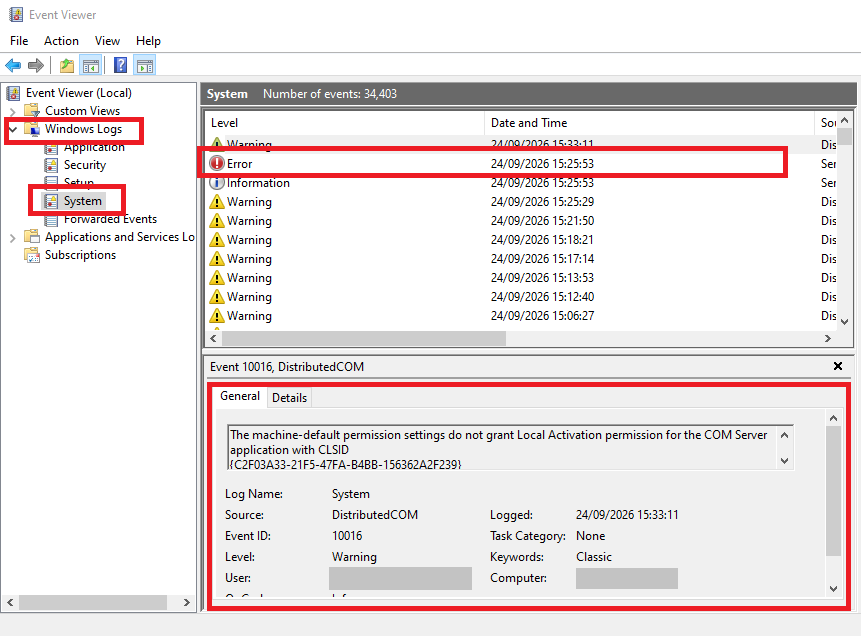
- After Windows starts again, a result message should appear. If it does not, open Event Viewer > Windows Logs > System and look for MemoryDiagnostics-Results.
If memory errors are reported:
- Turn off the computer, unplug it, and reseat the RAM modules if your computer allows it.
- If you have more than one stick, test them one at a time to find a faulty one.
- If you have enabled an XMP, EXPO, or overclock profile in BIOS, return to default settings and test again.
- If a module is faulty, replace it. Check your warranty first.
Check your system files:
- Open Command Prompt as administrator.
- Run sfc /scannow and wait for it to finish.
- If it reports problems it cannot fix, run DISM /Online /Cleanup-Image /RestoreHealth, then run sfc /scannow again.
Check your drive:
- In Command Prompt as administrator, run chkdsk C: /scan for an online scan of the system drive.
- Use the drive manufacturer's diagnostic tool, or your laptop maker's built-in hardware diagnostics, to check the drive's health.
- Check that you have enough free space on the system drive.
- Watch for warning signs such as very slow file access, clicking sounds from an HDD, or files that disappear or become corrupted.
If you suspect the drive is failing: Back up your important files immediately, before you run repairs that stress the drive further. A failing drive can get worse quickly.
How to verify: If a memory test finds errors or a drive diagnostic reports a problem, you have a concrete hardware cause. If everything passes, the problem is more likely software, drivers, or heat, so continue with the other checks.
Watch temperatures and hardware stability
Blue screens that appear only under heavy load, such as gaming, video editing, or long sessions, can be caused by overheating or unstable hardware. Crashes can also happen after sudden shutdowns or with very hot components.
Signs of a heat or stability problem:
- The computer crashes or shuts off unexpectedly while playing games or running demanding programs.
- The fans run loudly all the time, or the computer feels very hot.
- Performance suddenly drops after the computer has been on for a while.
- The stop code is WHEA_UNCORRECTABLE_ERROR or CLOCK_WATCHDOG_TIMEOUT, which can be related to hardware problems (not proof by themselves).
- Crashes started after overclocking or changing BIOS settings.
How to check temperatures:
- Install a reputable hardware monitoring tool from its official website.
- Note the CPU and GPU temperatures while the computer is idle.
- Repeat while doing the activity that causes the crash.
- Compare the numbers with the manufacturer's recommended maximum temperatures, which you can find on the processor or graphics card support page.
Improve cooling:
- Keep vents clear. Do not use a laptop on a bed, a sofa, or other soft surfaces that block airflow.
- Clean dust from vents and fans. On a desktop, power it off, unplug it, and use compressed air carefully. If you are not comfortable opening a laptop, ask a technician.
- Check that all fans spin and that case airflow is not blocked.
- A laptop cooling pad may help in some situations.
- If the computer is old, thermal paste may have dried out and may need replacing by someone experienced.
Remove instability sources:
- Reset BIOS or UEFI settings to defaults, especially if you changed memory profiles or overclocked.
- Turn off overclocking and undervolting tools as a test.
- For a desktop, check that cables and components such as RAM and the graphics card are seated firmly. A weak or failing power supply can also cause random crashes.
- Disconnect unneeded external devices to see whether a faulty USB device is involved.
Use manufacturer diagnostics: Many PC makers include hardware diagnostics in the BIOS or in a support app. Run the full test for the processor, memory, and drive if available.
How to verify: After improving cooling or resetting settings, repeat the demanding activity while watching temperatures. If the crashes stop and temperatures stay in a safe range, heat or unstable settings were likely the cause.
Use recovery options for recent software changes
If the blue screens started after a software change, such as a driver, program, or Windows update, a recovery option may return Windows to a working state without losing your files. If Windows will not start at all, you can reach these tools from the recovery environment.
Back up first if you can. If Windows starts, copy your important files to an external drive or cloud storage before doing deeper repairs.
Use System Restore:
- Search for Create a restore point in Start and open it.
- Click System Restore.
- Choose a restore point dated before the problems started.
- Click Scan for affected programs to see what will change.
- Confirm and let Windows restart.
Uninstall a recent update:
- Go to Settings > Windows Update > Update history.
- Scroll down and select Uninstall updates.
- Choose the most recent update installed before the crashes began and click Uninstall.
Treat this as temporary, because removing security updates leaves you exposed. Look for an official fix afterward.
If Windows will not start normally:
- Windows should offer the recovery environment automatically after repeated failed starts. If not, turn the computer on and force it off by holding the power button as soon as the Windows logo appears. After two or three times, it should open the recovery screen.
- Choose See advanced repair options (or Troubleshoot > Advanced options).
- Try Startup Repair, System Restore, or Uninstall Updates.
- To start Safe Mode, choose Startup Settings, click Restart, and press 4 or F4 for Safe Mode. In Safe Mode, you can uninstall a problem driver or program.
If a particular driver or program seems to be the cause: In Safe Mode, uninstall it from Settings > Apps > Installed apps, or roll back the driver in Device Manager, then restart normally.
Last resorts:
- Reset this PC (Settings > System > Recovery) can reinstall Windows while keeping your files, but you may lose installed apps and settings. Back up first.
- A clean installation from official Microsoft media removes everything and is only for serious cases.
When to stop and get help: If crashes continue after all the checks, or memory or drive tests report errors, contact the PC maker, a trusted technician, or Microsoft Support. Bring your notes: the stop codes, when the crashes happen, what changed, and which tests you have already run.
How to verify: After a restore or uninstall, use the computer normally, including the activity that used to crash it. If it stays stable for several days, note what you changed so you can avoid repeating it.
Frequently asked questions
Does every BSOD mean the hardware is failing?
No. Drivers, Windows components, software conflicts, and hardware can all cause blue-screen crashes.
Should I reinstall Windows after one BSOD?
A single crash does not normally justify a full reinstall. Look for a pattern and the stop code first.
Why does the stop code matter?
It narrows the type of failure Windows detected and provides a useful search term for Microsoft's documentation and troubleshooting steps.