VLC Won't Play a Video? Work Through These Checks
By Jethro Sedoguio Writer & Editor, TechGuide PH · Updated September 2, 2026 · 4 min read
VLC can fail to show video, play audio without a picture, refuse a file, or behave differently after a settings change. The quickest way to diagnose it is to compare another file, review output settings, and then check the file itself.
Test a different video file
Before you change any settings, find out whether the problem is VLC itself or one particular video. This is faster, and you will not risk breaking a setup that already works.
Step by step:
- Open VLC.
- Click Media > Open File (or press Ctrl + O).
- Choose a different video that you know works, such as a short MP4 you have played successfully before.
- Play it and check whether you get both picture and sound.
- Repeat with another file in a different format if you have one (for example MKV, AVI, or MP4).
How to read the result:
- Other videos work, but one does not: The problem is most likely the file itself, such as a bad download, an unusual codec, or a container issue. Continue to the damaged-files section.
- No video works: The problem is more likely VLC settings, hardware decoding, or the graphics driver. Continue with the next checks.
- Sound but a black screen: This often points to the video output or hardware decoding setting.
- Picture but no sound: Check the audio track, volume, and output device.
Look at the file details:
- While the video is playing or paused, click Tools > Codec Information (or press Ctrl + J).
- Open the Codec tab to see the video and audio formats.
- Write down the codec and format, which will help if you need to search for a solution.
Try another player too: Open the same file in another media player, such as Movies & TV or Windows Media Player. If it also fails there, the file itself is more likely damaged or unsupported than VLC.
Do not change many settings yet: If only one file is affected, it is safer to leave VLC's configuration alone so you do not disturb settings that already work for other videos.
How to verify: You should be able to say clearly whether (1) every video fails, (2) only one file fails, or (3) only the picture or only the sound is affected. That tells you which of the next steps you actually need.
Reset unusual VLC preferences
If the problem started after you experimented with settings, installed a plugin, or updated VLC, a changed configuration may be the cause. Resetting preferences returns VLC to its defaults without uninstalling the program.
Before resetting, note any custom settings you use:
- The audio device or audio output you selected.
- Subtitle language, size, and color.
- Any hotkeys you changed.
- The interface or skin you use.
- Special video or network streaming settings.
How to reset preferences on Windows:
- Open VLC.
- Click Tools > Preferences (or press Ctrl + P).
- At the bottom left of the window, click Reset Preferences.
- Read the warning and confirm with OK.
- Close VLC completely, including any VLC process left in Task Manager.
- Open VLC again.
If VLC will not open or shows a preferences error: Close VLC, press Windows + R, type %appdata%, and open the vlc folder. Rename that folder (for example to vlc_old) so VLC creates a fresh one the next time it starts. This does not delete your video files.
Keep in mind:
- Custom hotkeys, interface settings, and other personal preferences will be lost.
- Your video files and other programs are not affected.
- Do not restore all your old settings at once. Test a video first, then bring back the ones you need one at a time.
How to verify: After the reset, open the video that was failing. If it plays, your old configuration was the problem. Restore your custom settings one at a time to find out which one caused it.
Check video output and hardware decoding
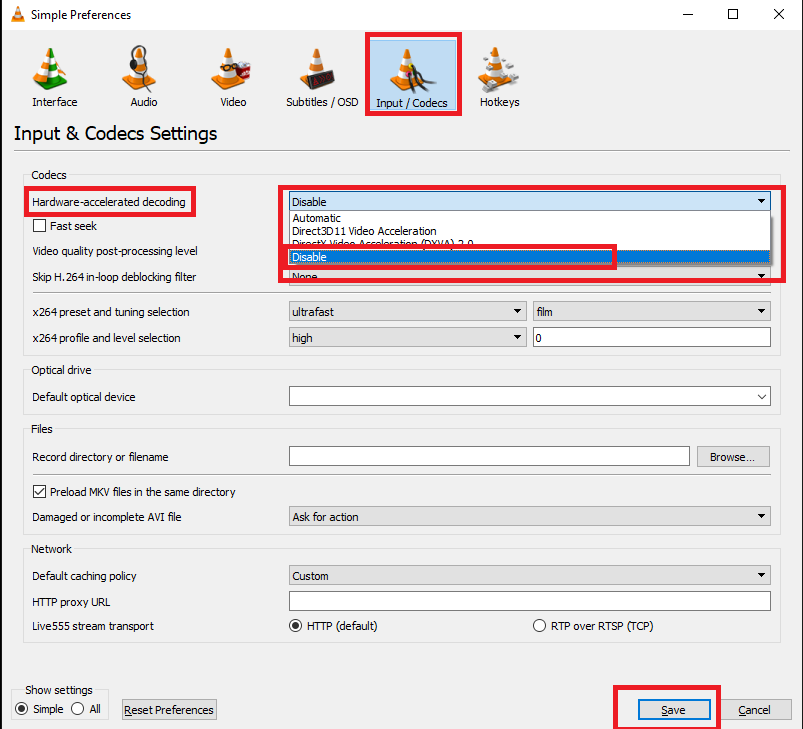
When you hear sound but the picture is black or flickering, the cause is often a conflict between VLC, the graphics driver, and hardware acceleration. Two settings are worth testing: hardware-accelerated decoding and the video output module.
First, disable hardware decoding:
- Open VLC and click Tools > Preferences.
- Select the Input / Codecs tab.
- Find Hardware-accelerated decoding.
- Change the value from Automatic to Disable.
- Click Save.
- Close and reopen VLC, then try the video again.
If that does not help, try a different video output:
- In Tools > Preferences, select the Video tab.
- Find the Output drop-down.
- Try another option, such as Direct3D11 video output, Direct3D9 video output, or OpenGL video output. The available options vary by VLC and Windows version.
- Click Save, restart VLC, and test the video again.
- Test one option at a time and note which one works.
Other things that can interfere:
- Graphics driver settings, or a laptop with two graphics processors (integrated and dedicated). Try running VLC on a different graphics processor in Windows graphics settings.
- Overlays or screen recorders running in the background.
- External monitors or HDR settings that affect the display.
If playback is choppy even though the screen is not black: Disabling hardware decoding can increase CPU usage, especially with high-resolution video. If the video plays but the computer gets hot or slow, try re-enabling hardware decoding after updating your graphics driver.
Look at VLC's messages: Press Tools > Messages (or Ctrl + M), set Verbosity to 2, and play the video. Look for lines containing "error" or "failed". You do not need to understand everything, but the text can help when searching for a solution.
How to verify: If the picture appears after one setting change, that setting was the cause. Keep the working setting and avoid changing others.
Update VLC and graphics drivers
An old version of VLC or an outdated graphics driver can contain bugs or lack support for newer codecs and formats. It is also important to download updates from official sources so you do not end up with a fake installer carrying malware.
How to update VLC:
- Open VLC.
- Click Help > Check for Updates.
- If a new version is available, follow the on-screen steps.
- If the built-in updater does not work, visit the official VideoLAN website (videolan.org) and download the latest Windows installer.
- Close VLC before running the installer, and restart your computer afterward.
Beware of fake download sites: Do not download VLC from ads, random software sites, or links sent in chat. Type the official address into your browser yourself and check that the domain is correct.
How to check your graphics driver:
- Press Windows + X and choose Device Manager.
- Expand Display adapters.
- Right-click your graphics adapter and choose Properties.
- On the Driver tab, note the driver version and date.
How to update a driver safely:
- Open Settings > Windows Update and check for updates, including Optional updates.
- For NVIDIA, AMD, or Intel graphics, use the vendor's official app or website.
- On a laptop, the driver from the PC maker's support page is sometimes the better match, so enter your exact model.
- Avoid driver updater tools from unknown sources.
Before updating a driver: Create a restore point (search for Create a restore point in Start). If things get worse after the update, you can use Roll Back Driver on the Driver tab in Device Manager, or System Restore.
How to verify: After updating and restarting, check Help > About in VLC for the version number and try the video again. If other apps also have display or video problems, the graphics driver is more likely involved.
Treat damaged files separately
If other videos play fine and only one will not, the file itself is probably the problem. Changing VLC settings will not repair it, so treat it as a separate issue.
Possible causes:
- A download that was interrupted or never finished.
- A transfer from a phone, camera, or flash drive that was cut off.
- A failing storage device or file system.
- A recording or export that was interrupted before it finished.
- An unusual codec or container.
- A file whose extension was changed (for example, a different format renamed to .mp4).
What to check:
- Look at the file size in Properties and compare it with the expected size. If it is very small, it is probably incomplete.
- Check the file name for extensions such as .part, .crdownload, or .tmp, which mean the download is not finished.
- Try the file in another player and, if possible, on another computer.
- If it came from a USB drive or SD card, copy it to your computer first and test it from there.
- For large files, wait for the transfer to finish and use Safely Remove Hardware before unplugging the drive.
Try VLC's AVI repair option: If the file is an AVI and VLC reports a broken or incomplete index, it may offer to repair it. You can also look under Tools > Preferences > Input / Codecs for the option about damaged or incomplete AVI files. Make a copy of the file before trying this.
Get a clean copy: If the file fails in other players too, the most reliable fix is to download or export it again from the original source. If it came from a camera or phone, transfer it again from the device.
Be careful with codec packs: Do not install a codec pack from an unknown site just to make one video play. Many of them bundle unwanted software or malware, and you rarely need them because VLC already includes most codecs.
If the source is not trustworthy: Do not open a video file with an unusual extension, such as an .exe pretending to be a video. If in doubt, scan it with Windows Security.
How to verify: After you get a new copy, play it in VLC and in another player. If it works, the old file was damaged. If it still fails, check the source of the video and the storage it is kept on.
Frequently asked questions
Why do I hear sound but see a black screen?
That pattern can be caused by video-output or hardware-decoding problems. Testing another output mode or disabling hardware decoding can help isolate the cause.
Does VLC support common video formats?
VLC supports many common containers and codecs, but exact support can vary by release and build. Keeping VLC current improves compatibility.
Should I reinstall VLC first?
Usually test the file, reset preferences, and review output settings first. Reinstallation is more useful when the installation itself appears damaged.