How to Start Using a Password Manager Without Losing Control of Your Accounts
By Jethro Sedoguio Writer & Editor, TechGuide PH · Updated September 8, 2026 · 4 min read
A password manager can reduce password reuse and make unique logins easier to maintain. This guide focuses on a safe setup, recovery planning, and practical habits rather than a particular brand.
Choose a manager based on how you use it
Before installing anything, decide how you will actually use a password manager. The best one is the one you will open every day, not the one with the longest feature list.
Questions to answer first:
- Which devices do you use? If you use a Windows laptop and an Android phone, make sure the manager has apps or browser extensions for both. Add tablets and other browsers to the list too.
- Is it just for you, or for the whole family? Some providers offer family plans with shared folders for Wi-Fi passwords, streaming accounts, or shared bills.
- Do you want cloud sync or offline storage? Cloud sync is convenient because your vault is available on every device. An offline vault gives you more direct control, but you become responsible for backups and for moving the file between devices.
- Free or paid? Many free plans are enough for personal use. Check the limits, such as the number of devices or missing security features, before you decide.
What to look for in a provider:
- A clear explanation of how your vault is encrypted and what the provider can and cannot see.
- Multi-factor authentication for the password manager account itself.
- A documented recovery process, so you know what happens if you forget your main password.
- An export feature, so you can move to another provider later.
- Regular updates and active support or documentation.
Built-in browser manager or dedicated app? The built-in managers in Chrome, Edge, and Firefox are free and easy to start with. They are usually more limited outside the browser and depend heavily on the security of your device and browser account. Dedicated managers typically add secure notes, shared vaults, and clearer recovery options. If you are just starting, a built-in manager is a reasonable first step, but plan to move to a dedicated app as your account list grows.
Warning: Read the provider's current documentation and privacy policy before you store important accounts. Features, pricing, and policies differ between providers and change over time.
How to verify your choice: Install the app on your main device, create a test entry, and confirm that it appears on a second device. If sync is reliable and autofill works smoothly, the manager is a good fit.
Create one strong main credential
Your main password (also called a master password) unlocks everything in your vault. If it is weak, everything inside is weak too, so this is the most important password you will create.
How to build a strong main passphrase:
- Use a passphrase: four to six random words joined together, rather than a single common word with a number added.
- Make it long. Length matters more than complicated symbols, and it is easier to remember.
- Make it unique. Never use it for email, social networks, online banking, or any other service.
- Avoid anything easy to guess, such as your name, pet's name, birthday, or phone number.
- Type it several times on the first day so your hands and memory learn it.
What to avoid:
- Do not save it in a notes app, a screenshot, or a message to yourself.
- Do not share it with anyone, including someone who claims to be support staff.
- Do not change it repeatedly for no reason. Change it only if you suspect it has been exposed.
Recovery information: Many password managers give you a recovery code, emergency kit, or recovery key. If you forget your main password, this may be the only way back into your vault. Print or write it down and keep it somewhere safe, such as where you store important documents at home. Do not store it inside the vault it is meant to unlock.
Important: With many zero-knowledge managers, the provider cannot reset your main password because they never know it. Read the provider's recovery policy before you start storing important accounts.
How to verify: Log out of the vault, close the app, and log back in using only the passphrase from memory. If you cannot do this comfortably yet, practice before adding more accounts.
Move important accounts gradually
Do not try to move every account in one day. It is safer and easier to control if you work in batches, starting with the accounts that matter most. That way you will not lose track of which password is new and which is old.
Start with accounts that protect other accounts:
- Email accounts (Gmail, Outlook, Yahoo), because most password resets are sent there.
- Banking, e-wallet, and investment accounts.
- Cloud storage, your Google Account, and your Apple ID.
- Social media and work accounts.
- Shopping, streaming, and other lower-risk accounts last.
Steps for each account:
- Log in to the website or app with your current password.
- Go to the Security or Change password section.
- Use the manager's password generator to create a long, random password.
- Save the new password in the manager before you confirm the change, so you are never left without a copy.
- Confirm the change, log out, and log back in using the password from the manager.
- Remove the old saved password from your browser or any other place so only one version exists.
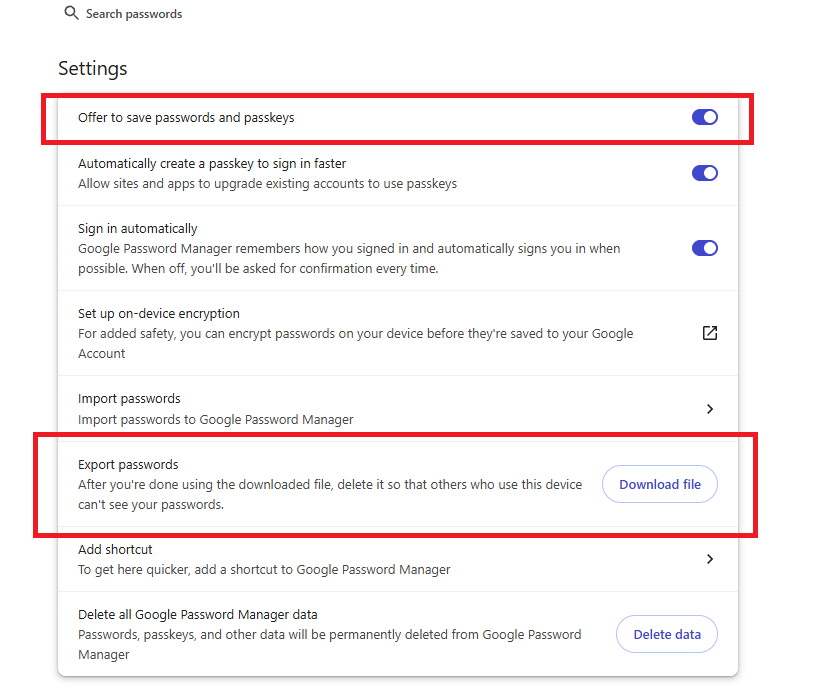
If your browser already has saved passwords: You can import them into the manager. After you have imported and verified them, delete them from the browser and delete the exported file (usually a CSV). That file is not encrypted, so never leave it in Downloads, email, or a cloud drive.
Keep in mind:
- Change reused passwords first, because one leaked site can expose every account that shares the password.
- Use the generator for most accounts instead of inventing your own pattern.
- If a site limits password length or symbols, adjust the generator settings rather than choosing something weak.
- Store security question answers as random text, not real answers that someone could guess.
How to verify: After each batch, log in to those accounts from a second device and confirm that autofill and sync work before moving on to the next batch.
Turn on extra account protection
Even a strong password can be exposed through phishing, a data breach, or malware. Multi-factor authentication (MFA) adds a second step, so a password alone is not enough for someone else to get into your account.
Types of MFA, from strongest to weakest:
- Hardware security key or passkey. The strongest protection against phishing, because it is tied to the real website. A good choice for your email and password manager accounts.
- Authenticator app. Generates a temporary code that changes every few seconds. It is safer than SMS and works without signal.
- SMS or phone call. Weaker, because messages can be intercepted or a SIM can be swapped, but still better than no MFA. Use it only if it is the only option offered.
Where to enable it first:
- Your password manager account.
- Your main email account.
- Banking, e-wallet, and payment apps.
- Cloud storage, Google Account or Apple ID, and social media.
How to set up an authenticator app:
- Open the account's Security settings and choose two-step verification or authenticator app.
- Scan the QR code with your authenticator app.
- Enter the first code it shows to confirm the setup.
- Save the backup codes the service gives you and store them somewhere safe, not only on the same phone.
Important: If your authenticator lives on one device only, you can be locked out if that phone is lost or damaged. Check whether your app offers backup or transfer, and do not skip the backup codes. Some password managers can also store authenticator codes. That is convenient, but think about whether you want a password and its code in the same place.
Watch out for phishing: Never share a verification code or OTP with anyone, even someone claiming to be your bank, e-wallet, or support team. A legitimate service will not ask for it.
How to verify: Log out of an account that has MFA and log back in. It should ask for the second step, and your code or security key should work.
Build a recovery plan before you need it
The biggest risk of a password manager is not only being hacked, but also losing access to your own vault. Build a recovery plan while everything still works, not after your phone is lost or you have forgotten your main password.
Prepare the following:
- Emergency kit or recovery key. If your provider offers one, print or write it down and store it somewhere safe, such as with your important documents.
- MFA backup codes. Keep them separate from both your phone and your vault.
- A second device. Sign in to the vault on at least one additional device so you still have a way in if your main one is lost.
- Up-to-date recovery email and phone number. Make sure you still control them.
- A trusted person or emergency access. If the provider offers this feature, decide who should have access in an emergency and read how it works.
Test your plan:
- Sign in to the vault from a second device using your main password and MFA.
- Confirm that you know where your recovery kit and backup codes are.
- Read the provider's recovery steps so you know what support can and cannot do.
- Export an encrypted backup if the manager offers one, and store it safely.
If your phone is lost:
- Use your second device to sign in to your password manager and your email.
- Sign the lost device out of your accounts from the security settings, if possible.
- Change the passwords for email, banking, and e-wallet accounts, and lock or erase the phone with its device-finding service.
- Notify your bank or e-wallet provider if you suspect anyone is using your account.
Review regularly: Set a reminder every few months to clean up old or duplicate passwords, update your recovery information, and check the manager's security report if it has one. Delete accounts you no longer use.
How to verify: If something happened to your main device today, you should still be able to get into your vault, your email, and your important accounts using the recovery information you have stored.
Frequently asked questions
Can I use a password manager on several devices?
Most modern password managers support synchronization across computers and mobile devices. Check the provider's current plan and device limits before choosing one.
What if I forget the main password?
Many services cannot simply reveal it because the provider is not supposed to know it. Recovery options vary, so configure and safely store them before an emergency.
Should every website have a different password?
For important accounts, yes. Unique passwords limit the damage if one website suffers a credential leak.