How to Troubleshoot Google Chrome When It Stops Working
By Jethro Sedoguio Writer & Editor, TechGuide PH · Updated September 23, 2026 · 6 min read
Google Chrome can stop opening, freeze, crash, or become unresponsive. Follow these step-by-step fixes before considering a reset or reinstall.
How to Troubleshoot Google Chrome When It Stops Working
Google Chrome may stop working because of a temporary process problem, corrupted cache files, an incompatible extension, an outdated browser, or a Windows background process.
Before reinstalling Chrome, try the simpler fixes below. Most of them do not remove your bookmarks, saved passwords, or browsing history.
Close Chrome completely and open it again
If Chrome is frozen or does not respond, closing the visible browser window may not be enough. A Chrome process can remain running in the background.
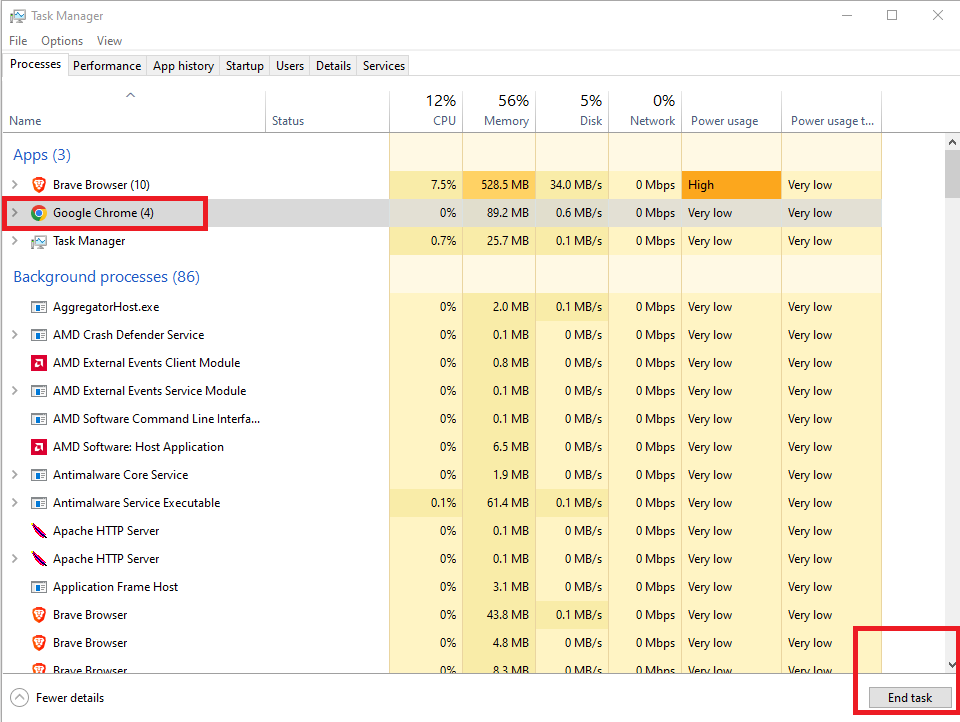
- Press Ctrl + Shift + Esc to open Windows Task Manager.
- If Task Manager opens in the simplified view, select More details.
- In the Processes tab, look for Google Chrome or chrome.exe.
- Select the Chrome process.
- Click End task.
- Repeat the process for other Chrome processes that remain listed.
- Press the Windows key.
- Type Google Chrome.
- Select Google Chrome from the search results.
Closing Chrome processes can remove a temporary process that became stuck.
How to verify: Open a new tab and browse to a website. If Chrome responds normally without freezing, the problem was likely temporary.
Restart your Windows computer
A Windows process or another application can interfere with Chrome. Restarting the computer gives Windows and Chrome a fresh start.
To restart Windows 11:
- Click Start.
- Click the Power button.
- Select Restart.
To restart Windows 10:
- Click Start.
- Click the Power button.
- Select Restart.
Wait until Windows finishes restarting, then open Chrome again.
How to verify: Open Chrome and visit two or three websites. If the browser remains responsive, the issue may have been caused by a temporary Windows or application process.
Check whether Chrome is using too many resources
Chrome can become slow or unresponsive when the computer has limited available memory or when a webpage consumes excessive CPU resources.
First, check Windows Task Manager:
- Press Ctrl + Shift + Esc.
- Select the Processes tab if it is not already selected.
- Click the Memory column to sort applications by memory usage.
- Look for applications using a large amount of memory.
- Close applications that you recognize and do not currently need.
Do not end Windows processes that you do not recognize simply because they use memory.
You can also check Chrome's own task information:
- Open Google Chrome.
- Press Shift + Esc to open Chrome Task Manager.
- Review the listed tabs, extensions, and browser processes.
- Select a tab or extension that is using unusually high resources.
- Click End process.
Ending a Chrome tab process can close that tab, so save any unsaved work first.
How to verify: Use Chrome normally for several minutes. If freezing stops after closing a resource-heavy tab or application, that process may have contributed to the problem.
Disable problematic Chrome extensions
A Chrome extension can cause crashes, freezing, loading problems, or other browser issues, particularly after an extension or Chrome update.
You can test extensions without immediately uninstalling them.
- Open Google Chrome.
- Click the three-dot menu in the upper-right corner.
- Select Extensions.
- Select Manage Extensions.
- Find an extension you recently installed or updated.
- Turn off its toggle switch.
- Restart Chrome.
If Chrome works normally, enable extensions one at a time to identify whether a particular extension is causing the problem.
To remove an extension you no longer need:
- Open Chrome > three-dot menu > Extensions > Manage Extensions.
- Find the extension you want to remove.
- Click Remove.
- Confirm by selecting Remove.
How to verify: Browse normally after disabling extensions. If Chrome becomes stable, enable the extensions individually until you identify the one associated with the problem.
Clear Chrome's cached files
Chrome stores temporary files to help websites load faster. These files can occasionally become outdated or corrupted.
Clearing the cache does not have the same effect as deleting all browser data.
- Open Google Chrome.
- Press Ctrl + Shift + Delete.
- Set Time range to the period you want to clean. Selecting All time removes cached files from the entire available period.
- Select Cached images and files.
- Review the other selected items before continuing.
- Click Delete data.
- Close Chrome after the process finishes.
- Open Chrome again.
Be careful when selecting other data types. Clearing cookies and other site data can sign you out of websites, while clearing saved passwords can remove stored login information.
How to verify: Open the websites that previously caused Chrome to freeze or behave incorrectly. The first load may be slightly slower because Chrome needs to create new cached files.
Update Google Chrome
An outdated Chrome installation can have compatibility or stability problems. Chrome normally updates automatically, but you can manually check for an update.
- Open Google Chrome.
- Click the three-dot menu in the upper-right corner.
- Select Help.
- Select About Google Chrome.
- Wait while Chrome checks for updates.
- If an update is available, allow Chrome to download and install it.
- Click Relaunch when Chrome provides the option.
If Chrome is already up to date, the About page will indicate that the browser is current.
How to verify: After Chrome restarts, return to Help > About Google Chrome and check that Chrome reports that it is up to date.
Reset Chrome settings
If Chrome continues to crash or behave incorrectly after checking extensions and clearing the cache, resetting its settings can undo configuration changes that may be causing problems.
This should be done after the safer troubleshooting steps above.
- Open Google Chrome.
- Click the three-dot menu.
- Select Settings.
- Select Reset settings in the left-side menu.
- Select Restore settings to their original defaults.
- Review the information shown by Chrome.
- Click Reset settings to confirm.
Resetting Chrome changes settings such as the startup page, new tab page, search engine, and some site permissions. Extensions and themes may also be disabled.
Your bookmarks, history, and saved passwords are not normally deleted by this Chrome settings reset, but you should still review the warning shown by your version of Chrome before confirming.
How to verify: Restart Chrome and test the browser without immediately re-enabling every extension or changing multiple settings.
Reinstall Google Chrome
If Chrome still will not open or repeatedly crashes after the previous troubleshooting steps, reinstalling the browser can replace damaged program files.
Before uninstalling Chrome, make sure you can access important browser information such as bookmarks and passwords. If you use Chrome Sync, confirm that your important information is synchronized with your Google Account.
To uninstall Chrome in Windows 11:
- Press Windows + I to open Settings.
- Select Apps.
- Select Installed apps.
- Find Google Chrome.
- Click the three-dot button beside Google Chrome.
- Select Uninstall.
- Confirm the uninstall operation.
To uninstall Chrome in Windows 10:
- Press Windows + I to open Settings.
- Select Apps.
- Select Apps & features.
- Select Google Chrome.
- Click Uninstall.
- Confirm the uninstall operation.
Warning: Uninstalling Chrome can affect locally stored browser information and settings. If you are unsure whether important data is synchronized or backed up, do not uninstall Chrome until you have checked it.
After uninstalling, download Chrome again from Google's official website and install the current version.
How to verify: Open the newly installed Chrome and test several websites before restoring extensions or changing advanced settings.
Useful tips and warnings
- Do not immediately clear all browsing data. Start with cached files if the problem appears to be related to temporary browser data.
- Do not end unfamiliar Windows processes. Task Manager contains important system processes that should not be stopped without knowing what they do.
- Test extensions individually. If Chrome works after extensions are disabled, re-enable them one at a time instead of turning everything back on at once.
- Keep Chrome updated. Check Chrome > three-dot menu > Help > About Google Chrome when troubleshooting browser problems.
- Restart Chrome after major changes. This helps determine whether the change actually affected the problem.
If the problem still isn't fixed
If Chrome continues to stop working after these steps, determine whether the problem affects only Chrome or the entire computer.
Try opening another browser and visiting the same website. If other browsers work normally while Chrome continues to crash, the issue is more likely specific to Chrome, its profile, extensions, or local configuration.
If multiple applications are freezing or Windows itself is becoming unresponsive, the problem may be outside Chrome. Check available disk space, recently installed software, Windows updates, and security software.
You can also create a separate Chrome profile to determine whether the problem is limited to the current profile:
- Open Google Chrome.
- Click the profile icon near the upper-right corner.
- Select Add.
- Choose whether to continue without an account or sign in with another Google Account.
- Open a few websites using the new profile.
If Chrome works normally in the new profile, the original profile's settings or installed extensions may be contributing to the problem.
Conclusion
When Google Chrome stops working, start with simple fixes instead of immediately reinstalling the browser. Completely close Chrome, restart Windows, check resource usage, test extensions, clear cached files, and install available Chrome updates.
If the problem continues, resetting Chrome settings or reinstalling the browser can be considered. Always review warnings before clearing browser data or uninstalling Chrome, especially when important information may be stored locally.
Frequently asked questions
Why does Google Chrome keep freezing on Windows?
Chrome can freeze because of a problematic webpage, extension, temporary browser data, high memory usage, or a browser process that has become stuck. Restarting Chrome, checking resource usage, disabling extensions, and clearing cached files are useful first steps.
Will clearing Chrome's cache delete my bookmarks?
Clearing only Cached images and files does not normally delete bookmarks. However, review the selected data types before clicking Delete data, because cookies, passwords, and other browser information can be affected by different selections.
Why won't Google Chrome open at all?
Chrome may fail to open because a Chrome process is stuck, program files are damaged, another application is interfering with it, or its configuration has a problem. Start by ending Chrome processes in Task Manager and restarting Windows before considering a reinstall.
Should I reinstall Chrome if it keeps crashing?
Reinstalling Chrome is better treated as a later troubleshooting step. First check Chrome processes, extensions, cached files, available system resources, and browser updates. If the problem continues, reinstalling can replace damaged Chrome program files.
Can a Chrome extension cause the browser to stop working?
Yes. An extension can conflict with Chrome or with another extension. Disable recently installed or updated extensions through Chrome > three-dot menu > Extensions > Manage Extensions, then test Chrome again.