Outlook Not Sending Emails on Windows? Check the Outbox Step by Step
By Jethro Sedoguio Writer & Editor, TechGuide PH · Updated September 22, 2026 · 4 min read
When Outlook leaves messages in the Outbox, the cause may be offline mode, a connection problem, authentication, an attachment, an add-in, or a damaged profile. These checks help identify the failure without deleting your mailbox.
Which Outlook are you using?
Before you try any fix, find out which version of Outlook you have, because the menus and the way the Outbox works are different.
- Classic Outlook (Microsoft 365 apps, Outlook 2019, Outlook 2021) has a File tab at the top left and a Send / Receive tab. Most steps in this guide are written for it.
- New Outlook for Windows has no File tab, uses a Settings (gear) icon, and has far fewer account and profile options. When a message fails here you may see an error banner or find the message in Drafts instead of a classic Outbox queue.
- Outlook on the web runs in your browser. It is very useful as a test, as explained below.
A quick check: if you can see a File tab in the ribbon, you are using classic Outlook.
Before you start, write down the exact error message or code (if one is shown), the type of email account you use (Microsoft 365 work or school, Outlook.com or Hotmail, Gmail, or custom-domain email from a web host), and whether the problem affects every message or only some. These details tell you which section below matters most.
Confirm Outlook is online
If Outlook is switched to offline mode, or cannot reach the mail server, every message stays in the Outbox and you may not see any error at all.
- Look at the status bar at the bottom of the Outlook window. It normally shows Connected to: Microsoft Exchange or All folders are up to date (the wording depends on the account type). If it says Working Offline, Disconnected or Trying to connect…, Outlook cannot send.
- Open the Send / Receive tab.
- In the Preferences group, look at the Work Offline button. If it is highlighted, click it once to switch offline mode off.
- Click Send All, or press F9 to run Send/Receive on all folders.
- Open any website in your browser to confirm that the computer really has internet access. If websites do not load, fix the Wi-Fi or router problem first. If other devices on the same network are also offline, restart the router and wait a few minutes for the connection to return.
A Microsoft-side outage can also leave mail in the Outbox. On a work or school account, ask your IT administrator to check the Microsoft 365 service health page. On a personal account, check whether other users are reporting problems with Outlook.com or Microsoft 365.
How to verify: the number in brackets next to Outbox disappears and the message shows up in Sent Items.
Inspect the message stuck in the Outbox
One stuck message can block every message queued behind it, so look at what is actually waiting in the Outbox.
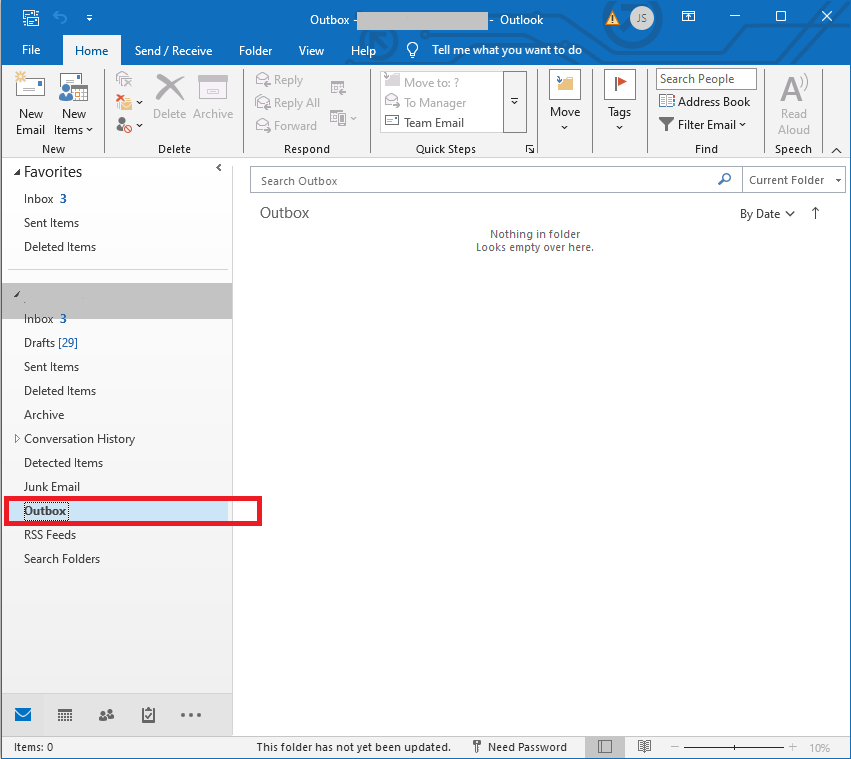
- In the folder pane on the left, click Outbox. A number in brackets means unsent messages are waiting.
- Double-click the oldest message. If it opens like a draft, click Send again.
- If Outlook freezes or says the message is in use, go to Send / Receive → Work Offline, wait a few seconds, and open the message again.
- If it still will not send, copy any text and recipient addresses you need, then drag the message to Drafts (safer) or delete it. Click Work Offline again to go back online.
- Write a short plain-text test email to yourself with no attachment and send it.
Check the attachment size. Large attachments are one of the most common reasons a message gets stuck. Many providers limit a message to roughly 20 to 25 MB, and attachments grow by about a third when they are encoded for email, so a 19 MB file can already go over a 25 MB limit. Compress the file, or upload it to OneDrive, Google Drive or another cloud service and send a link instead.
Check the recipient addresses. A typo in an address can cause the server to reject the message. Correct the address and send again.
How to verify: the test email leaves the Outbox, appears in Sent Items, and arrives in your inbox. If the plain test works but the original message does not, the problem is that specific message, usually its size or one of its addresses.
Test your account with webmail
This test tells you whether the problem is your email account or the Outlook app on your computer.
- Open your browser and sign in to your mail on the web. Outlook.com and Microsoft 365 users can use Outlook on the web, and Gmail users can use Gmail in the browser.
- Send a short test message to yourself.
- Works on the web but not in Outlook: the account is fine and the problem is local. Continue with the sign-in, antivirus, add-in and profile sections below.
- Fails on the web too: the problem is with the account or the service. Look for a notice that sending is blocked or limited, a full mailbox, an expired password, or an outage. If you see a warning that your account was blocked for suspicious activity, follow the verification steps from the provider and change your password.
Email providers also limit how many messages or recipients you can send per day, and sending a large batch in a short time can pause your sending. If that applies to you, wait and try again later, and read the published sending limits of your provider.
Common Outlook send error codes and what they usually mean
If Outlook shows an error code that starts with 0x, compare it with the list below. The meanings are general, and the exact cause can differ, so treat the code as a starting point and not as a final diagnosis.
| Code | What it usually means | What to check |
|---|---|---|
| 0x800CCC0D | Outlook cannot find the mail server | Typos in the outgoing server name, DNS problems, internet connection |
| 0x800CCC0E | Outlook cannot connect to the server | Firewall, antivirus, VPN or network blocking the port; check port and encryption |
| 0x800CCC0F | The connection to the server was interrupted | Unstable connection, or security software cutting the connection; try another network |
| 0x800CCC13 | Outlook could not connect to the network | Offline mode or no internet; see the section on confirming Outlook is online |
| 0x800CCC78 | The message could not be sent because an address was rejected | Recipient address, and the sender email address in the account settings |
| 0x80042109 | Outlook cannot connect to the outgoing (SMTP) server | SMTP server name, port, encryption and authentication settings |
Replies from the mail server that start with a number such as 550 or 554, often followed by a code like 5.7.1, are permanent rejections (for example a blocked sender, a policy, or a missing authentication requirement). The text next to the code usually explains the reason. Replies that start with 4 are temporary, and the server normally expects the message to be retried later.
If the error text mentions SPF, DKIM or DMARC and you send from your own domain, the problem is in the email setup of the domain and not in Outlook itself.
Review account authentication and provider settings
Sending fails without an obvious error when Outlook has lost its sign-in or when the outgoing (SMTP) settings are wrong. Accounts that you added by typing only your email address and password are usually configured automatically, so in that case do not change the server settings. Start with the sign-in.
Step A: renew the sign-in.
- Look for a yellow banner or a password prompt in Outlook and complete it. If you recently changed your password, or it expired, sign in again with the new one.
- If your account uses two-step verification, finish the sign-in in the browser window that Outlook opens. Some Gmail accounts that were set up manually with IMAP and SMTP need an app password instead of the normal password.
Step B: check the outgoing server (IMAP, POP and custom-domain accounts).
- Click File → Account Settings → Account Settings.
- Select the email account and click Change, then More Settings.
- Open the Outgoing Server tab, tick My outgoing server (SMTP) requires authentication, and choose Use same settings as my incoming mail server.
- Open the Advanced tab and check that the outgoing server port and encryption type match your provider.
These are the settings that providers commonly publish:
| Provider | Outgoing server | Port | Encryption |
|---|---|---|---|
| Gmail | smtp.gmail.com | 587 (or 465) | STARTTLS (or SSL/TLS on 465) |
| Outlook.com / Hotmail | smtp-mail.outlook.com | 587 | STARTTLS |
| Microsoft 365 (work or school) | smtp.office365.com | 587 | STARTTLS |
| Custom-domain email from a web host | The mail server name given by your host | 465 or 587 | SSL/TLS on 465, STARTTLS on 587 |
Providers change these details from time to time, so confirm them on the official help page of your email provider before you edit anything. Avoid port 25 for sending from a home connection, because many internet providers block it. On a Microsoft 365 work or school account, the organization can also disable SMTP sending for some apps, so ask your IT administrator if the settings look correct but sending still fails.
How to verify: after saving the changes, restart Outlook and send a test message to yourself.
Check antivirus, firewall and VPN settings
Security software and network filters can block the connection Outlook uses to send mail. This is a common cause of the errors 0x800CCC0E, 0x800CCC0F and 0x80042109.
- Open your antivirus program and look for an option called email scanning, mail shield or SSL/TLS scanning. Turn off only that feature for a moment, not all protection, and test sending.
- Open Control Panel → Windows Defender Firewall → Allow an app or feature through Windows Defender Firewall and confirm that Microsoft Outlook is ticked for both Private and Public networks.
- Pause any VPN and test again. Some VPNs, office networks and school networks block outgoing mail ports.
- Try a different network, for example your phone hotspot, to see whether your usual network is the problem.
If sending works after you change a setting, turn the security feature back on and look for an option that allows Outlook, instead of leaving protection off. On its own, Windows Security is not a common cause of this problem.
How to verify: a test message sends successfully on the changed setting or the other network, and fails again when you switch back. That tells you which component is blocking it.
Temporarily test without problematic add-ins
Add-ins such as CRM tools, PDF tools, meeting plug-ins and antivirus plug-ins load every time Outlook starts, and one of them can interfere with sending. Safe mode starts Outlook without add-ins, which makes it a quick test.
Start Outlook in safe mode:
- Close Outlook completely.
- Hold down Ctrl and double-click the Outlook icon. When Windows asks whether you want to start Outlook in safe mode, click Yes.
- Or press Windows + R, type outlook.exe /safe and press Enter.
- Send a test message to yourself.
If the message sends in safe mode, an add-in is the likely cause. Find it like this:
- Open Outlook normally and click File → Options → Add-ins.
- At the bottom, set Manage to COM Add-ins and click Go.
- Clear the check box of every add-in, click OK, and restart Outlook.
- If sending works, turn the add-ins on again one at a time, restarting Outlook each time, until the problem returns. The last add-in you enabled is the one to update, repair or remove.
How to verify: sending keeps working with the problem add-in turned off, and fails again when you turn it on.
Repair the Outlook profile as a later step
Do this only after the earlier checks, because a new profile means setting up your account again. A damaged profile or data file can stop sending even when your password and server settings are correct. The sign that points to this is that webmail works, safe mode does not help, and Outlook still cannot send.
Option 1: repair the account. Click File → Account Settings → Account Settings, select the account, and click Repair if the button is available. Follow the prompts and restart Outlook.
Option 2: create a new profile.
- Close Outlook.
- Press Windows + R, type control and press Enter. Set View by to Small icons and open Mail (Microsoft Outlook).
- Click Show Profiles, then Add, and give the new profile a name such as Test.
- Add your email account when asked and finish the setup.
- Under When starting Microsoft Outlook, use this profile, choose Prompt for a profile to be used and click OK.
- Open Outlook, choose the new profile, and send a test message.
Option 3: repair Office. Open Settings → Apps → Installed apps, find Microsoft 365 (or Microsoft Office), open the three-dot menu, choose Modify, and run Quick Repair. If that does not help, run Online Repair.
Back up first. POP accounts keep their mail in a local data file with the extension .pst, so do not delete .pst files. Microsoft 365, Outlook.com, Gmail (IMAP) and other Exchange or IMAP accounts download their mail again from the server, but anything stored only in a local .pst file will not come back. If you suspect that the data file itself is damaged, Microsoft provides the Inbox Repair Tool (SCANPST.EXE) for .pst files.
How to verify: a test message sends from the new profile. If it does, check that your mail, contacts and calendar are present, and only then make it the default profile and remove the old one.
Prevent it from happening again and when to ask for help
Once sending works again, a few habits make a repeat less likely:
- Keep attachments small and share large files through a cloud link.
- Check that the Outbox is empty before you close Outlook or shut down a laptop, so a half-sent message is not left behind.
- Keep Outlook and Windows updated. In classic Outlook, click File → Office Account → Update Options → Update Now.
- Remove add-ins that you no longer use.
- Update your saved password in Outlook soon after you change it on the provider website.
Ask for help from your IT administrator or your email provider if webmail fails too, if you see a message that your account is blocked, or if the problem continues after you create a new profile. Have this information ready: the exact error text and code, your Outlook version (File → Office Account → About Outlook), the type of email account, and the steps you already tried.
Frequently asked questions
Why are emails stuck in the Outbox?
Common causes include offline mode, a network or authentication problem, an oversized attachment, an add-in conflict, or a damaged Outlook profile.
Should I delete the Outbox message?
If the message is duplicated elsewhere or clearly damaged, moving it to Drafts can be safer than immediately deleting it. Keep a copy of important content.
Can I change SMTP settings randomly?
No. Mail providers use specific server names, ports, encryption, and authentication rules. Use the provider's current documentation.