Free Up Windows Disk Space Without Deleting Important Files
By Jethro Sedoguio Writer & Editor, TechGuide PH · Updated September 3, 2026 · 4 min read
Low disk space can interfere with updates, applications, and everyday Windows tasks. Start with Windows' built-in storage tools and review large files manually before deleting anything you may need later.
Run Storage Sense and temporary-file cleanup
The easiest and safest first step is to use Windows' own cleanup tools. They can identify temporary files you no longer need, but you should still read each category before confirming deletion.
First, see what is using space:
- Press Windows + I to open Settings.
- Go to System > Storage.
- Wait for the drive scan to finish. You will see a breakdown such as Apps, Temporary files, Documents, Pictures, and Videos.
- In Windows 11, click Show more categories if you do not see the full list.
Clean temporary files:
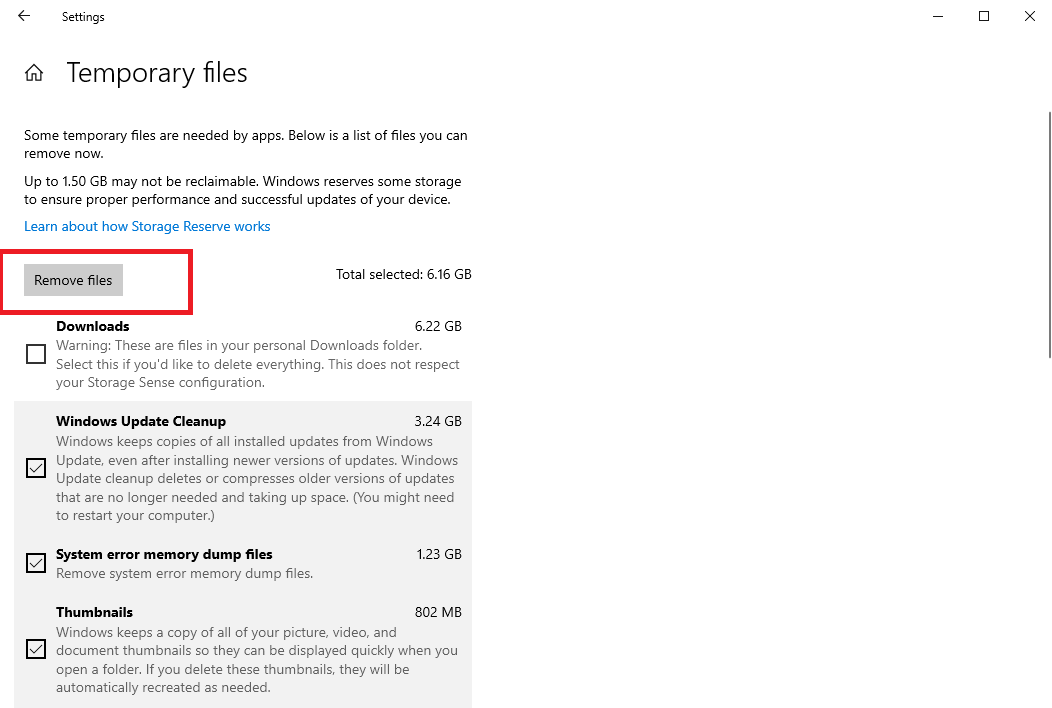
- On the Storage page, select Temporary files.
- Read each category and its description.
- Check only the categories you are sure about, such as Temporary files, Thumbnails, and Delivery Optimization Files.
- Look carefully at Downloads and Recycle Bin before checking them. They may still contain files you need.
- Click Remove files and wait for it to finish.
About Windows.old and previous Windows installations: After a major Windows upgrade, you may see Previous Windows installation(s). It takes a lot of space, but it is also what lets you roll back to the earlier version. Delete it only when you are sure the current Windows is working well.
Turn on Storage Sense for automatic cleanup:
- In System > Storage, select Storage Sense.
- Turn on Automatic User content cleanup (or the equivalent option in your version).
- Choose how often it runs and how long files stay in the Recycle Bin or Downloads before they are removed.
Be careful with the setting for the Downloads folder. If you set it to delete files that have not been opened for a long time, you could lose installers or documents you still need. If you are unsure, leave it on Never.
How to verify: Return to System > Storage and compare the free space with what you had before. Also confirm that your personal files in Documents, Pictures, and Desktop are still intact.
Find large files instead of deleting randomly
It is more effective and safer to find out what the large files are than to delete things at random just to make room. Often a handful of big videos, installers, or archives take up most of the space.
Find large files with File Explorer:
- Open File Explorer (Windows + E).
- Select the drive or folder you want to check, such as This PC > Local Disk (C:) or your Users folder.
- In the search box at the top right, type size:gigantic to see files larger than 128 MB. You can also use size:>1GB for larger ones.
- Click the Size column header (or use Sort by > Size) to put the biggest files at the top.
- Be patient while the search runs, because it can take a while on a large drive.
Common sources of large files:
- The Downloads folder: old installers, ISO files, ZIP and RAR archives, and duplicate downloads.
- The Videos folder: screen recordings, video exports, and old projects.
- The Documents and Desktop folders: large projects and backup files.
- Games or apps with their own folders outside the usual locations.
- Old phone backups stored in your user folder.
Before deleting a file:
- Right-click the file and choose Properties to see its date and location.
- Open it if you are not sure what it is.
- Do not delete anything inside the Windows, Program Files, or ProgramData folders by hand. It is not safe.
- If you are unsure, move the file to an external drive or another folder first instead of deleting it.
- Make sure important files have another copy before you remove the original.
Files to leave alone: Files with extensions such as .sys, .dll, or .exe inside system folders, as well as files like pagefile.sys and hiberfil.sys. Windows manages these, and they should not be deleted by hand.
How to verify: After cleaning up, open the projects and documents you use often to confirm nothing is missing. Then check the Storage page to see the new free space.
Remove software you no longer use
Uninstalling a whole program or game you no longer use usually frees more space than repeatedly clearing small caches. Games, video editors, and design software in particular can take several GB each.
How to see which apps are largest:
- Press Windows + I and go to Apps > Installed apps (or Apps & features in Windows 10).
- Sort the list by Size.
- Look at the ones at the top and ask yourself whether you still use them.
- Check the Install date too, to spot old programs you have not touched in a long time.
How to uninstall:
- Close the program and check the system tray in case it is still running in the background.
- In Windows 11, click the three-dot menu next to the program and choose Uninstall. In Windows 10, select the program and click Uninstall.
- Follow the uninstaller's steps.
- Restart if the program asks you to.
Games and launchers: If you use a launcher such as Steam, Epic Games, or the Xbox app, it is better to uninstall the game from the launcher itself. Your account and cloud saves usually remain, but check that your saves are synced first.
Before uninstalling:
- Check whether the program stores any important files, projects, or settings that are not synced to an account.
- Make sure you have the license key or login if you plan to reinstall it later.
- Do not remove anything related to drivers, hardware, or security unless you know what it does.
Do not delete the program folder by hand: Deleting a folder in File Explorer can leave services, scheduled tasks, and registry entries behind. Use the official uninstall option instead.
How to verify: After uninstalling, restart the computer and check System > Storage. Free space should increase, and the programs you need should still work.
Move personal media to another location
If you have a large collection of photos, videos, music, and projects, deleting is not always the answer. You can move them to an external drive or cloud storage to free up your system drive while keeping your files.
Your options:
- External hard drive or SSD: Good for large archives you do not use often. A one-time cost, and it does not depend on the internet.
- USB flash drive: Fine for small amounts of data, but easier to lose or damage.
- Cloud storage (OneDrive, Google Drive, and others): Accessible from anywhere, but it depends on internet access and on free space or a paid plan.
- A second internal drive: If you have a desktop with a free slot, you can add a drive just for media.
How to move files safely:
- Connect the external drive and make sure it appears in File Explorer.
- Create a clear folder structure, for example Photos\2024 and Videos\Projects.
- Copy the files to the new location (do not move them yet).
- Open a few files in the new location to confirm they are not corrupted.
- Compare the number of files and the size of the folders with the originals.
- Only when you are sure the copy is complete, delete the originals.
If you use OneDrive: The Files On-Demand feature shows files in File Explorer without keeping them all downloaded to your computer. Right-click a file or folder and choose Free up space to remove the local copy while keeping it in the cloud. Make sure syncing has finished (a green check mark) before you do this.
Do not make the external drive your only copy: External drives can fail, be lost, or be stolen. Follow the 3-2-1 rule: three copies of important files, on two different kinds of storage, with one copy off-site (for example, a cloud backup).
How to verify: Open some of the moved files from their new location, and make sure your most important files also have a separate backup before you delete the copy on your computer.
Review restore-point and system storage usage
Windows System Protection creates restore points that let you roll the system back to an earlier working state if an update or installation causes trouble. It uses part of your drive, so it is worth checking how much space it reserves.
How to check System Protection:
- Click Start, type Create a restore point, and open it.
- On the System Protection tab, select your system drive (usually C:).
- Click Configure.
- Look at Current Usage and the Max Usage slider.
How to adjust the space reserved:
- If System Protection is off, decide whether you want to turn it on. If it is off, you may have no restore point to use when you need one.
- Move the Max Usage slider to a reasonable level for your drive size. On a small drive you may choose a lower percentage, but remember that fewer restore points will be kept.
- Click Apply and then OK.
If you need to delete old restore points: In the same Configure window there is a Delete button that removes all restore points for that drive. Do this only when the computer is working well, because you will lose the points you could roll back to. Create a new one afterward, before you install a driver or large piece of software.
Know the limits of System Restore:
- It covers system files, drivers, registry settings, and some installed programs.
- It is not a backup. It does not protect your personal documents, photos, or videos.
- It cannot solve every problem, especially hardware faults.
Other system storage you can review:
- In Storage settings, look at the System & reserved category to see what Windows, virtual memory, and the hibernation file are using.
- Do not delete files such as pagefile.sys or hiberfil.sys by hand. If you want to change virtual memory or hibernation, use Windows' official settings and make sure you understand the effect.
- Never delete personal files just to solve a system-space problem.
How to verify: After changing the setting, reopen the Configure window and confirm that Max Usage is what you chose. Create a new restore point and check that it appears in the list under System Restore.
Frequently asked questions
What should I delete first when storage is full?
Start with temporary files, unused applications, and large personal files you have already backed up. Review each category rather than deleting folders blindly.
Is it safe to delete the Downloads folder?
Only if you have checked its contents. Downloads often contains installers and personal files that are not stored elsewhere.
Why does free space disappear again?
Windows updates, temporary files, application caches, and new personal files can consume space over time. Storage Sense can help automate routine cleanup.