Slow Wi-Fi? Diagnose the Signal Before Buying New Equipment
By Jethro Sedoguio Writer & Editor, TechGuide PH · Updated September 8, 2026 · 4 min read
A slow Wi-Fi connection can be caused by weak signal, interference, router placement, congestion, an overloaded network, or an internet-service limitation. A few simple comparisons can show which factor matters most.
Why Wi-Fi Feels Slow and How to Find the Real Cause
When Wi-Fi feels slow, the first reaction is often to buy a new router or an expensive mesh system. Sometimes that helps, but slow Wi-Fi has many possible causes: a weak signal in one room, interference from neighbors, a crowded network, an aging router, or an internet plan that is simply too slow for your household.
This guide helps you measure first and spend money later. You will compare speeds in different places, read the results, and try the free fixes before considering new equipment. The steps apply to most home networks, and menu names differ between router brands, so check your router manual or your provider website if an option is named differently.
Compare Speed Next to the Router and in the Problem Room
Slow Wi-Fi can have different causes, and the right fix depends on which one you have. A simple set of speed tests will tell you more than any guess.
- Choose a reputable speed test website or app and use the same one for every test.
- Close downloads, streaming, and cloud backups on all devices, so they do not distort the result.
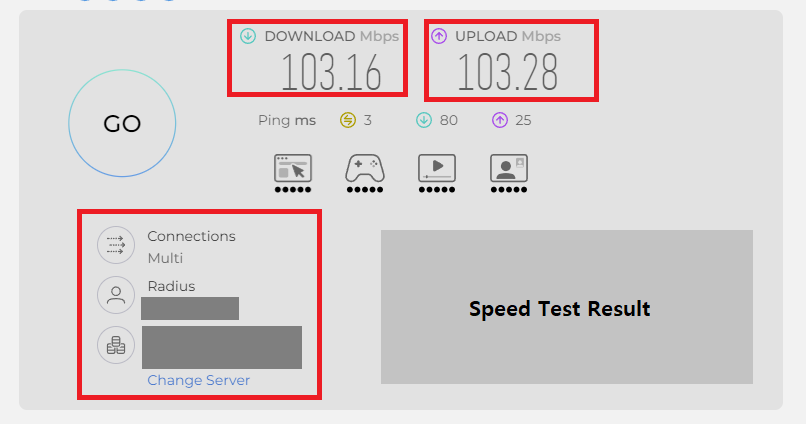
- Stand about one to two meters from the router with a clear line of sight. Run the test three times and write down the download speed, upload speed, and ping.
- Go to the room where the connection feels slow and run it three more times with the same device.
- If possible, connect a laptop to the router with an Ethernet cable and test again. This shows what the internet service delivers without Wi-Fi.
On many Android phones, you can also open Settings > Network & internet > Internet, tap the gear next to the network, and check the signal strength and link speed if they are shown.
Repeat the tests at a busy time, such as the evening, and at a quiet time, because the internet service may be slower when your neighborhood is busy.
How to verify: You should have a short table of results: near the router, in the problem room, wired, and at different times of day.
Read the Results: Signal, Router, or Internet Plan
Compare the numbers you collected and match them to the patterns below.
- Fast next to the router, slow in the problem room: the signal weakens before it reaches that room. Focus on placement, band choice, interference, and possibly an access point.
- Slow everywhere on Wi-Fi, but fast with an Ethernet cable: the problem is in the Wi-Fi itself. Check interference, router settings, router age, and the number of devices.
- Slow even with an Ethernet cable: the problem is the router connection, the modem, or the internet service. Restart the equipment, check the cables, and contact your provider.
- Fast at quiet times and slow in the evening: the network is crowded, either inside the home or in your area. Check your own devices first, then ask the provider about congestion.
- Speeds are lower than the plan even on Ethernet: compare the result with the speed you pay for. A big gap deserves a call to the provider.
Remember that Wi-Fi rarely reaches the full plan speed, and the number depends on the device. A small difference near the router is normal. A very large difference is worth investigating.
How to verify: Write one sentence that states your most likely cause, then choose the fixes from the sections that match it.
Improve Router Placement
Wi-Fi signals spread outward and weaken as they pass through walls, floors, and objects. Where the router sits often matters more than how expensive it is.
- Move it to a central location. A router in a corner sends much of its signal outside the house.
- Raise it. Place it on a shelf or table, not on the floor or behind furniture.
- Keep it in the open. Avoid closets, cabinets, and the back of a television. Enclosed spaces block the signal and trap heat.
- Keep it away from interference. Stay clear of microwave ovens, cordless phones, large metal objects, mirrors, and aquariums, which absorb or reflect signals.
- Adjust the antennas. If the antennas can move, point one vertically and the other at an angle, so the signal covers more directions.
If the internet line enters the house at an inconvenient place, you can often move the router by running an Ethernet cable from the modem or fiber terminal to a better location. Ask your provider before moving provider-owned equipment.
How to verify: After moving the router, repeat the speed test in the problem room and compare it with your earlier result.
Use the Appropriate Wi-Fi Band
Most modern routers broadcast on more than one band. Each has strengths and weaknesses, and the best choice depends on the distance from the router.
- 2.4 GHz: reaches farther and passes through walls better, but it is slower and shared with many other devices and neighbors.
- 5 GHz: is usually faster and less crowded, but its range is shorter and walls reduce it more.
- 6 GHz (on Wi-Fi 6E and newer equipment): can be very fast at short range, but it needs compatible devices and is the most easily blocked.
To choose a band:
- Open the router settings and check whether the bands share one network name or have separate names, such as one ending in 2G and one ending in 5G.
- For devices close to the router, use the 5 GHz network.
- For devices in far rooms where 5 GHz is weak or keeps dropping, try the 2.4 GHz network.
- On your phone, forget the network and reconnect to the specific band you want to test.
Some routers combine both bands under one name and choose automatically, which is convenient but not always the best choice for a particular room. If you have problems, try separate names for a test.
How to verify: Run the speed test on each band in the problem room and keep the one that is faster and more stable.
Reduce Interference and Choose a Better Channel
In apartments and dense neighborhoods, many routers use the same radio channels. Their signals overlap, so every network slows down.
- Install a Wi-Fi analyzer app on your Android phone and view the nearby networks and the channels they use.
- Log in to the router settings and open the Wireless or Wi-Fi section.
- For 2.4 GHz, channels 1, 6, and 11 are the common non-overlapping choices. Pick the one with the fewest nearby networks, or leave the setting on automatic if your router handles it well.
- For 5 GHz, there are more channels and usually less crowding. Try a different channel if the one in use is busy.
- In crowded areas, a narrower channel width, such as 20 MHz on 2.4 GHz, can be more stable than a wider one.
- Save the settings and restart the router if it asks.
Also remove sources of interference near the router and the devices: microwave ovens, cordless phones, baby monitors, and USB 3 devices can disturb the 2.4 GHz band. Thick walls, concrete, metal, and mirrors reduce signal strength.
How to verify: Run the speed test again in the problem room after changing the channel and compare it with your earlier result.
Check Connected Devices and Background Traffic
Wi-Fi is shared. Every device and every large transfer takes a part of the available speed, and some of that traffic happens without you noticing.
- Open the router admin page, usually written on the router label, and look at the list of connected devices. Check that every device is one you recognize.
- Look for devices that are using a lot of data, if your router shows this.
- Pause large background activity for a test: cloud photo backups, game and system updates, video streams, and security cameras that upload video.
- Run the speed test again with these paused.
As a rough guide, a video call and standard video streaming each need only a few megabits per second, while high-quality 4K streaming, large game downloads, and several users at the same time need much more. A plan that was enough for two people may feel slow for a family with many devices.
If you find unknown devices, change the Wi-Fi password to a strong one and make sure the router uses WPA2 or WPA3 security.
How to verify: If speed improves noticeably when background traffic is paused, the network is being overloaded, not the signal.
Check the Router, Its Firmware, and Its Cables
Sometimes the limit is hidden in the equipment itself.
- Restart the router. Unplug it for about 30 seconds and plug it back in. A router that has been running for a long time can slow down.
- Update the firmware. Check the admin page or the manufacturer website for an update, and follow the official instructions.
- Check the ports. Some older or cheaper routers have 100 Mbps Ethernet ports, which cannot carry a faster internet plan. Check the router specifications for Gigabit ports if your plan is faster than 100 Mbps.
- Check the cables. Damaged or very old Ethernet cables can limit speed. Replace a suspicious cable and test again.
- Check the heat. A router in a closed, hot space may slow down or restart. Give it ventilation.
- Consider the router age. Equipment that is many years old may lack support for newer Wi-Fi standards, which matters when you have many modern devices.
If the router belongs to your provider, ask whether a newer model is available instead of buying a second router that sits behind the first one.
How to verify: Test again by cable and by Wi-Fi after each change.
Upgrade Equipment Only After Measuring the Problem
A new router is not always the answer. If the real problem is distance, interference, or the internet plan, new equipment may change nothing. Use your test results to choose the cheapest fix that matches the cause.
- Weak signal in far rooms: first reposition the router. Then consider adding a wired access point or a mesh system. Connecting the extra units with Ethernet cables works much better than connecting them wirelessly.
- Stationary devices: use Ethernet for a television, desktop computer, or game console. This frees Wi-Fi for phones and laptops.
- Wireless range extenders: these can help in some situations, but they often reduce speed because they repeat the signal. Treat them as a limited solution.
- Slow even over Ethernet: the cause is the internet service or the plan, not Wi-Fi. Contact the provider or consider a faster plan.
- Old router: if the router is many years old and lacks newer Wi-Fi standards, replacing it can help, especially in a home with many devices.
When you buy, match the equipment to your plan and home size. Marketing numbers on the box, such as very large combined speeds, do not predict real-world speed. Check that the router ports support the speed of your plan, and read independent reviews.
How to verify: After each change, repeat the same tests so you can see what the change actually did.
Conclusion
Before buying new equipment for slow Wi-Fi, measure the speed near the router, in the problem room, and over Ethernet. Those results show whether the problem is the signal, the router, the number of devices, or the internet service.
Try the free fixes first: better router placement, the right band, a less crowded channel, fewer background transfers, and a router restart with updated firmware. Spend money only when your measurements show what the equipment needs to solve.
Frequently asked questions
Why is Wi-Fi fast beside the router but slow upstairs?
Distance, walls, floors, and interference can weaken the signal. A wired connection, access point, or mesh system may help when placement alone is not enough.
Does rebooting the router really help?
It can clear temporary software or connection-state problems, but repeated reboots are not a substitute for diagnosing a persistent issue.
Should I buy a faster router for slow internet?
Only after checking whether the existing router or Wi-Fi link is actually the bottleneck. A faster wireless standard cannot increase an internet plan beyond what the service provides.