DNS Server Not Responding on Windows? Check DNS Without Guesswork
By Jethro Sedoguio Writer & Editor, TechGuide PH · Updated September 6, 2026 · 4 min read
DNS translates website names into network addresses. If Windows cannot reach a DNS resolver, websites may fail even though the underlying internet connection is still active.
What a DNS Server Not Responding Error Means
DNS works like a phone book for the internet. When you type a website name, your computer asks a DNS server for the numeric address behind it. If the server does not answer, or the answer is wrong, you may see messages such as DNS server not responding, DNS_PROBE_FINISHED_NO_INTERNET, or ERR_NAME_NOT_RESOLVED, even though your Wi-Fi shows as connected.
The cause can be the browser, a VPN or security program, a damaged Windows setting, an outdated network driver, the router, or the internet provider. Changing settings at random can make things worse. This guide uses short tests to find the layer that is failing, and then applies the matching fix. The steps apply to Windows 10 and Windows 11, and menu names are noted where they differ.
Confirm That the Problem Is DNS Before Changing Anything
A DNS error means the computer cannot translate a website name into an address. It does not always mean that DNS is the real cause, because a lost connection can produce the same message. Two quick tests tell you which it is.
- Right-click the Start button and open Terminal, Windows PowerShell, or Command Prompt.
- Type ping 8.8.8.8 and press Enter. This tests a direct connection to a public server using a number, not a name.
- Type ping google.com and press Enter. This test needs DNS to find the address first.
Compare the results:
- If the first test replies and the second says the host could not be found, DNS is the problem.
- If both fail, the computer has no working internet connection. Check Wi-Fi, the cable, and the router before touching DNS settings.
- If both work but a specific website does not, the problem may be that website, your browser, or a security setting.
Some networks block ping requests, so a failed ping alone is not final proof. In that case, also check whether other devices on the same network can load websites.
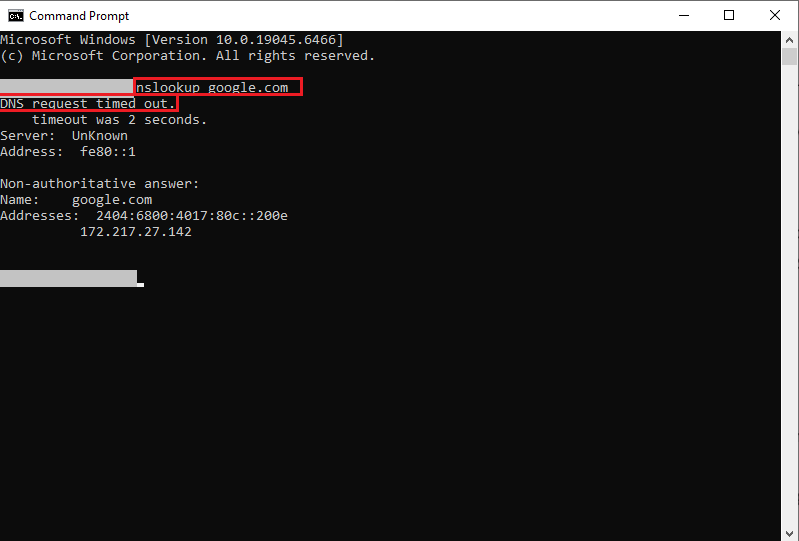
You can also run nslookup google.com. A reply with addresses means the DNS server is answering, and an error such as a timeout means it is not.
How to verify: Write down which tests passed and failed so you can repeat them after each fix.
Rule Out the Browser, VPN, and Security Software
Before changing DNS, check whether something on the computer is interfering with name lookups.
- Try another browser. If a website opens in Edge but not in Chrome, the problem is in the browser, such as an extension, a stored setting, or a browser-level secure DNS option.
- Disconnect any VPN. Open the VPN app and disconnect it. Also check Settings > Network & internet > VPN for active connections. A VPN that is stuck can send DNS requests to a server that no longer answers.
- Check security software. Some third-party antivirus or firewall products filter web and DNS traffic. Temporarily disable that specific feature, or the whole program for a short test, if you trust the source, and then turn it on again.
- Check Windows Security firewall. Open Windows Security > Firewall & network protection and make sure the network profile is not blocking all traffic because of a recent change.
- Use the Windows troubleshooter. Open Settings > System > Troubleshoot > Other troubleshooters and run Network and Internet (or Internet Connections).
How to verify: After each step, try a website again. If it works after one step, the cause is that program or setting.
Flush the Windows DNS Cache
Windows remembers recent DNS answers for a short time to speed up browsing. If a stored answer is outdated or damaged, websites can fail to load even though the DNS server is working again.
- Right-click Start and choose Terminal (Admin), Windows PowerShell (Admin), or Command Prompt (Admin). Confirm the administrator prompt.
- Type ipconfig /flushdns and press Enter.
- Wait for the message that the DNS Resolver Cache was successfully flushed.
- Optionally, type ipconfig /release, press Enter, then type ipconfig /renew and press Enter to request a fresh address from the router.
- Close the window and test a website.
Flushing the cache is safe. It does not delete your files or saved passwords, and Windows simply rebuilds the cache as you browse.
If you use a VPN, the release and renew commands may disconnect it, so reconnect afterward.
How to verify: Run ping google.com again. If it now returns replies, a stale cache was the cause.
Test With Another Trusted DNS Resolver
By default, Windows uses the DNS server given by your router, which usually forwards requests to your internet provider. If that server is slow or unavailable, using a different reputable resolver can confirm that the problem is DNS and restore access.
- Press Windows + R, type ncpa.cpl, and press Enter.
- Right-click your active Wi-Fi or Ethernet adapter and choose Properties.
- Select Internet Protocol Version 4 (TCP/IPv4) and click Properties.
- Before changing anything, write down the current settings. If it says Obtain DNS server address automatically, remember that this is the original setting.
- Select Use the following DNS server addresses.
- Enter a preferred and an alternate address from a public resolver you trust, for example 1.1.1.1 and 1.0.0.1 (Cloudflare), or 8.8.8.8 and 8.8.4.4 (Google).
- Click OK, close the windows, and test a website.
To undo the change, return to the same screen and select Obtain DNS server address automatically.
Public resolvers have their own privacy policies, so read them before keeping one permanently. If this fixes the problem, your provider DNS or the router DNS setting is likely at fault, and you may prefer to fix it there.
How to verify: After changing the server, run nslookup google.com and ping google.com. They should return results.
Check Proxy Settings and the Hosts File
Two Windows settings can send your browsing somewhere unexpected and cause name resolution errors: a proxy and the hosts file. Both are sometimes changed by unwanted software.
Proxy
- Open Settings > Network & internet > Proxy.
- Make sure Automatically detect settings is on.
- Under Manual proxy setup, turn off Use a proxy server unless your school or workplace requires one.
Hosts file
- Open File Explorer and go to C:\Windows\System32\drivers\etc.
- Open the file named hosts with Notepad. If Windows asks which program to use, choose Notepad.
- Lines starting with # are comments and are harmless. Look for any other lines that list a website name followed by an address, which you or a legitimate program did not add.
Do not edit or delete lines unless you are sure what they are. If you find suspicious entries for well-known websites, run a full scan with Windows Security first. Making changes to this file requires administrator rights, and an incorrect edit can block websites.
How to verify: After correcting the proxy, restart the browser and test a website.
Update or Reinstall the Network Adapter Driver
The network adapter driver connects Windows to the Wi-Fi or Ethernet hardware. An outdated or damaged driver can cause drops and failed name lookups that look like DNS errors.
- Right-click Start and open Device Manager.
- Expand Network adapters and find your Wi-Fi or Ethernet adapter.
- Right-click it, choose Update driver, and then Search automatically for drivers.
- Check Settings > Windows Update for optional driver updates, and look at the support page of your PC or adapter manufacturer for a newer driver.
- If the problem began after a driver update, right-click the adapter, open Properties > Driver, and use Roll Back Driver if the button is available.
- If nothing works, right-click the adapter and choose Uninstall device. Do not select the option to delete the driver software unless you have the driver installer. Restart the computer, and Windows normally reinstalls the adapter automatically.
Download drivers only from the manufacturer or Windows Update. Driver updater programs and unofficial websites are a common source of problems.
If you cannot connect to the internet at all to download a driver, use another computer and a USB drive.
How to verify: After the restart, connect to the network and repeat ping google.com.
Reset the Windows Network Stack When Simpler Fixes Fail
If DNS still fails and the router and driver look fine, the Windows networking components may be damaged by software, malware, or an interrupted update. Resetting them returns them to default settings.
Option 1: Reset from the commands
- Open an administrator Terminal or Command Prompt.
- Run these commands one at a time, pressing Enter after each: netsh winsock reset, then netsh int ip reset, then ipconfig /flushdns.
- Restart the computer.
Option 2: Use the Windows Network reset
- In Windows 11, open Settings > Network & internet > Advanced network settings > Network reset. In Windows 10, open Settings > Network & Internet > Status > Network reset.
- Click Reset now and confirm.
Network reset removes and reinstalls network adapters and returns networking settings to their defaults. You will need to reconnect to Wi-Fi with the password, and you may need to set up VPN software again. Make sure you know your Wi-Fi password first.
Use only the commands from official Microsoft documentation or from a source you trust, and do not paste commands that you do not understand.
How to verify: After the restart, reconnect to the network and repeat the ping and nslookup tests.
Check the Router and Its DNS Configuration
If every device on the network reports DNS errors, the cause is probably the router, the modem, or your internet provider, not the Windows computer. Changing settings on each device would only hide the problem.
- Test a phone or another computer on the same Wi-Fi. If it also fails to load websites, continue below.
- Restart the modem and router: unplug them for about 30 seconds, plug the modem in first, wait for stable lights, and then plug in the router.
- Open the router admin page, which is usually printed on the router label, and look at the Internet, WAN, or DHCP settings.
- Check the DNS servers. For most home connections, the DNS should be set to automatic so that it uses the provider values. If someone entered a custom address that no longer works, change it back to automatic or to a trusted resolver.
- Check for a router firmware update through the manufacturer instructions.
- If the router looks correct and the modem lights are normal, contact the internet provider, tell them that DNS requests fail on all devices, and ask whether there is an outage.
How to verify: After the change, test a phone and the Windows computer. Both should load websites by name.
Conclusion
To fix a DNS server not responding error on Windows without guesswork, start by testing whether the connection works with a numeric address and fails with a name. Then rule out the browser, VPN, and security software, flush the DNS cache, and test another trusted DNS resolver.
If the problem remains, check the proxy and hosts file, update the network adapter driver, and reset the network stack. When every device fails, look at the router settings and contact your internet provider. Change one thing at a time and record the original settings so that you can always undo a change.
Frequently asked questions
Can the internet work while DNS is broken?
Yes. The physical or Wi-Fi connection can remain active while the system cannot translate domain names into addresses.
Is Google DNS always faster?
There is no universal fastest resolver. Performance depends on location, network, caching, and the resolver itself.
Will flushing DNS delete my browser data?
No. Flushing Windows' DNS cache removes cached name-resolution records; it does not delete browser history or saved passwords.