Turn an Android Phone Into a Secure Mobile Hotspot
By Jethro Sedoguio Writer & Editor, TechGuide PH · Updated September 4, 2026 · 4 min read
Android can share its mobile data connection with nearby devices through a hotspot. Set a strong password, understand your carrier's limits, and switch the hotspot off when it is no longer needed.
Find the Hotspot Settings on Your Phone
On most Android phones, the hotspot feature is found under Settings > Network & internet > Hotspot & tethering > Wi-Fi hotspot. Samsung phones usually place it under Settings > Connections > Mobile Hotspot and Tethering, while other brands may label it "Personal hotspot" or "Portable hotspot." If you cannot find it, open Settings and type "hotspot" in the search bar.
Before turning it on, make sure your phone has an active mobile data connection. A hotspot only shares the internet access your phone already has, so if mobile data is off or the signal is weak, the devices you connect will have no usable internet either.
Also check your mobile plan. Some carriers limit tethering, throttle speeds after a certain amount of hotspot data, or exclude it from unlimited data promos. Reading your plan details first can save you from an unexpected charge or a sudden slowdown.
Set Up Strong Security for Your Hotspot
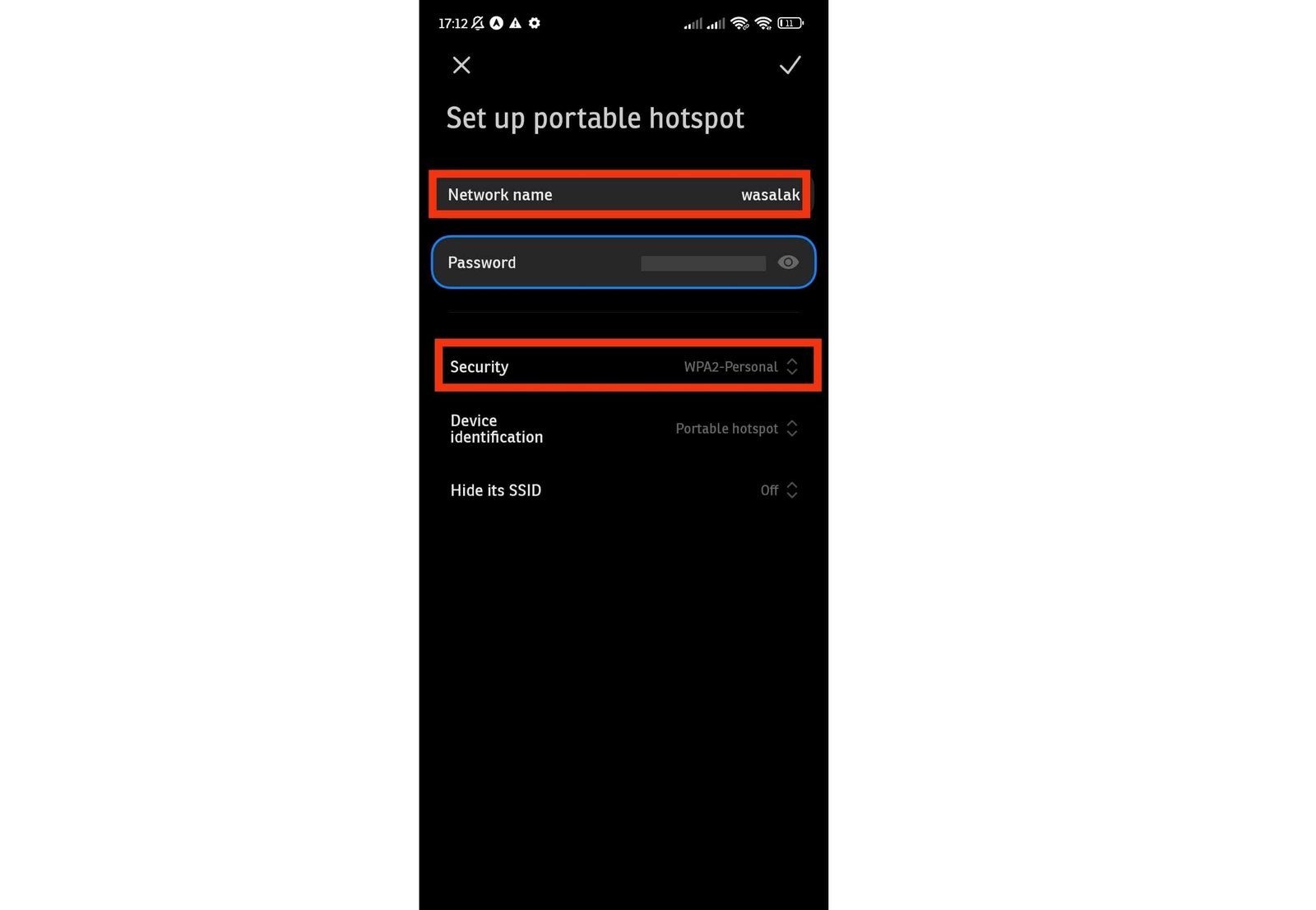
Open the hotspot settings and look for the security or password options. If your phone offers WPA3, choose it. If some of your devices cannot connect, use WPA2-Personal instead. Never leave the hotspot set to "None" or "Open," because anyone within range could join it and use your data.
Create a password of at least 12 characters that mixes letters, numbers, and symbols. Avoid birthdays, phone numbers, your name, or simple patterns like 12345678. If you do not want to think of one, you can use the random password your phone generates and save it in a password manager.
Change the network name (SSID) to something neutral. A name that includes your full name or phone model tells strangers more about you than they need to know. Hiding the network name is not a real security measure, since the network can still be detected, so a strong password matters far more.
If your phone has the option, set a limit on the number of connected devices and enable the automatic shut-off, which turns the hotspot off after a period with no connected devices.
Connect Your Laptop, Tablet, or Another Phone
Turn on the hotspot, then open the Wi-Fi list on the device you want to connect. On Windows, click the network icon in the taskbar. On a Mac, click the Wi-Fi icon in the menu bar. On another phone or tablet, go to the Wi-Fi settings. Select your hotspot name, enter the password, and wait for the connection to finish.
Keep the two devices close together during the first connection. If the hotspot does not appear in the list, check that it is still switched on and try changing the hotspot band. The 2.4 GHz band works with nearly all devices and covers a longer distance, while 5 GHz is faster but has a shorter range and is not supported by some older devices.
If you are connecting a Windows laptop, you can also set the hotspot as a metered connection under Settings > Network & internet > Wi-Fi. This reduces automatic background downloads such as large Windows updates, which would otherwise use up your mobile data quickly.
Manage Battery, Mobile Data, and Heat
Running a hotspot is demanding for a phone. It keeps the mobile radio, the Wi-Fi radio, and the processor busy at the same time, so the battery can drain much faster than usual. If you plan to use it for more than a few minutes, connect the phone to a charger or power bank.
Watch your data usage as well. Streaming video, video calls, cloud backups, and software updates on the connected device can use gigabytes in a short time. You can set a data warning or limit under Settings > Network & internet > Data usage, and check how much the hotspot has used in the same section.
Phones can get warm when they are charging and sharing data at once. Take the phone out of a thick case, keep it out of direct sunlight, and avoid putting it under a pillow or inside a bag. If it becomes too hot to hold comfortably, turn off the hotspot and let it cool down.
Turn Off the Hotspot and Review Connected Devices
When you are done, switch the hotspot off instead of leaving it running in the background. This saves battery and removes the chance that someone nearby tries to connect to it.
While the hotspot is on, open its settings and look at the list of connected devices, if your phone provides one. If you see a device you do not recognize, turn off the hotspot immediately and change the password before using it again. Changing the password disconnects every device, so you will need to reconnect your own devices with the new one.
It is also a good habit to change the hotspot password every few months, especially if you have shared it with friends, coworkers, or guests. If your connection suddenly becomes slow, checking the connected-device list is one of the quickest ways to find out whether someone else is using your data.
Frequently asked questions
Does a mobile hotspot use my data plan?
Yes. Devices connected through the hotspot normally consume the phone's mobile data allowance, subject to your carrier's plan.
Why is my hotspot slow?
Mobile signal strength, network congestion, the phone's hotspot band, distance, and the connected device can all affect performance.
Is a hotspot safe to use?
A properly configured hotspot with a strong password is preferable to an open network. Still, use HTTPS and normal account-security practices on the connected device.