Speed Up an Android Phone Without Wiping It
By Jethro Sedoguio Writer & Editor, TechGuide PH · Updated September 13, 2026 · 4 min read
An Android phone can feel slower when storage is crowded, apps are outdated, or a background process is misbehaving. Start with changes that preserve your files and only consider a reset after simpler checks fail.
Why Android Phones Slow Down and What to Try First
Android phones usually slow down gradually. The common causes are low storage, too many apps working in the background, outdated software, heavy home screens, and sometimes an aging battery or limited memory. Most of these can be improved without erasing the phone.
This guide starts with the changes that help most and cost nothing, and keeps the factory reset for the end. Menu names differ between Samsung, Xiaomi, Oppo, Pixel, and other brands, so use the search box at the top of Settings if an option is not where described. Make changes one at a time so you can tell which one actually helps.
Check Available Storage and Free Up Space
Android needs free space to install updates, save temporary files, and keep apps running smoothly. When storage is nearly full, the phone can become slow to open apps, take longer to save photos, and show random freezes.
- Open Settings > Storage and check how much space is free. As a general target, try to keep at least 10 to 15 percent of the total storage available.
- Tap the categories, such as Images, Videos, Apps, and Downloads, to see what takes the most space.
- Open the Downloads folder and delete old installers, documents, and files you no longer need.
- Check messaging apps such as WhatsApp or Telegram for saved media, because videos and forwarded files can use several gigabytes.
- Move photos and videos to a cloud service or computer, and confirm that the upload is complete before deleting local copies.
Many phones include a built-in cleaner, and Files by Google can suggest duplicates and unused items. Review each suggestion before confirming deletion.
How to verify: Return to the Storage screen. The free space should have increased, and apps should open slightly faster after you restart the phone.
Review Apps That Run Heavily in the Background
Some apps keep working after you close them. They refresh feeds, sync data, track location, and send notifications. A few of them are useful, but many drain memory and processing power without giving you much in return.
- Open Settings > Battery and look at Battery usage. Apps that use a lot of power while you rarely open them are good candidates for restriction.
- Open Settings > Apps and select the app.
- Tap App battery usage (or Battery) and choose Optimized or Restricted. Restricted limits background activity the most.
- Open Settings > Passwords & accounts (or Accounts) and turn off automatic sync for accounts you do not use.
Be careful with apps you rely on for messages, banking alerts, calendar reminders, and security. Restricting those can cause delayed or missed notifications, so leave them on the default setting.
How to verify: Use the phone normally for a day and check Battery usage again. The restricted apps should show lower background activity.
Shorten or Remove Animations
Animations are the small movements that happen when you open an app, switch screens, or close a menu. Shortening them does not make the processor faster, but it makes the interface feel quicker because you spend less time waiting for transitions.
On many phones, the simple way is through accessibility settings:
- Open Settings > Accessibility.
- Look for Remove animations, Reduce animations, or a similar option under the color and motion settings.
- Turn it on and test how the phone feels.
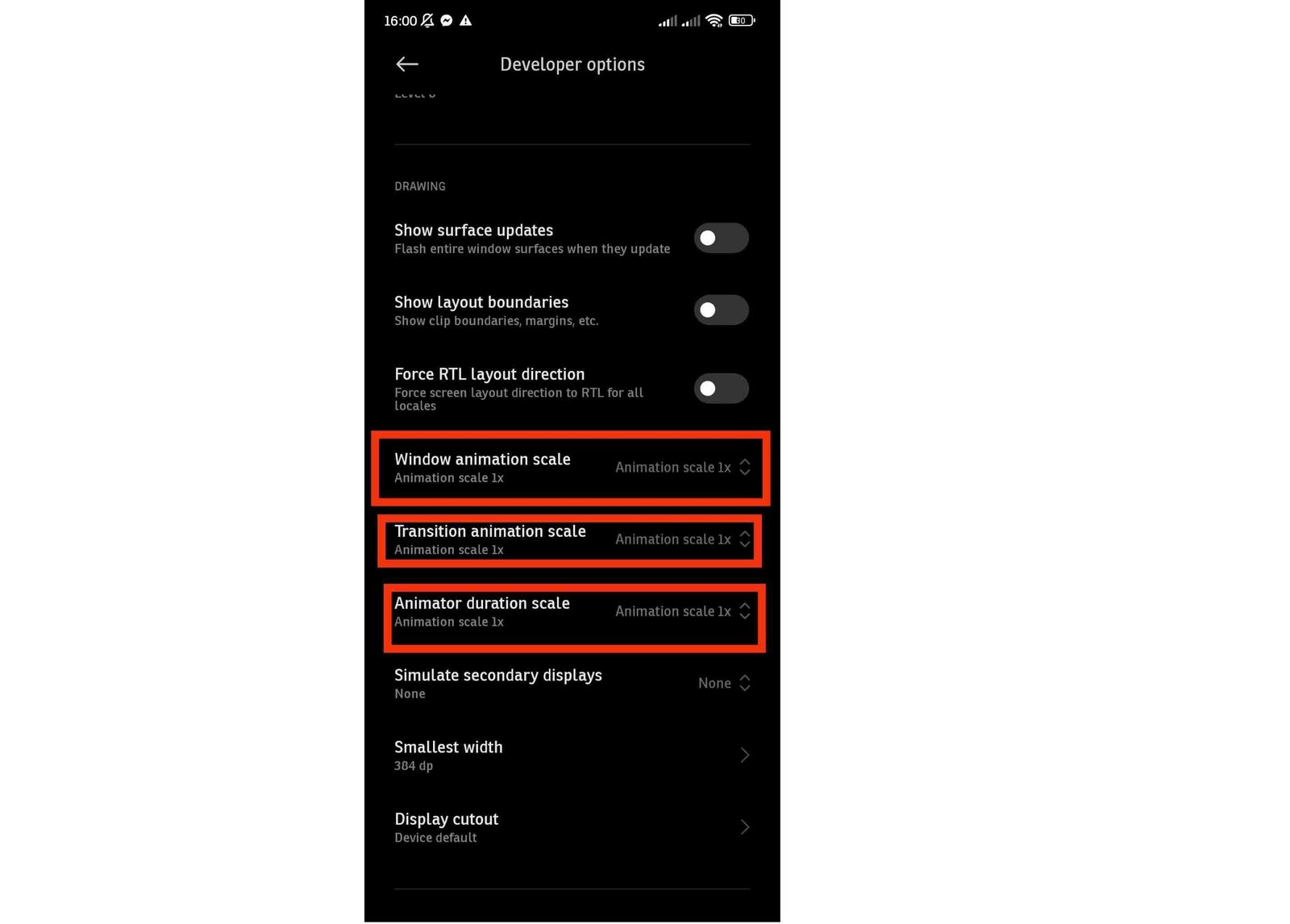
If you want finer control, you can use Developer options:
- Open Settings > About phone and tap Build number seven times. Enter your screen lock if asked.
- Open Settings > System > Developer options.
- Find Window animation scale, Transition animation scale, and Animator duration scale.
- Change each from 1x to 0.5x, or to Animation off if you prefer the quickest response.
Do not change other Developer options unless you know what they do, because some of them can affect stability and battery life.
How to verify: Open and close a few apps. Transitions should feel shorter. To undo the change, set the three values back to 1x.
Update Android and Your Apps
Updates often include fixes for memory leaks, battery drain, and bugs that slow the phone down. An outdated app on a newer Android version, or the other way around, can also cause lag.
To update the apps:
- Open the Google Play Store and tap your profile picture.
- Tap Manage apps & device.
- Tap Update all, or update the apps you use most one by one.
To update Android:
- Open Settings > System > Software updates, or Settings > Software update on some phones.
- Tap Check for update and install anything available. Keep the phone plugged in or above 50 percent battery during the update.
- Restart when it finishes.
If your phone no longer receives updates from the manufacturer, keep your apps updated and be more careful about what you install, because older systems may also lack recent security patches.
How to verify: Check Settings > About phone for the current Android version and security patch date.
Remove or Disable Apps You Do Not Use
Every installed app takes storage, and many also run background services or start automatically. Removing apps you no longer use is one of the most effective cleanups.
- Open Settings > Apps and tap See all apps.
- Look for games, shopping apps, and tools you have not opened for a long time.
- Select an app and tap Uninstall.
- For apps that came with the phone and cannot be removed, tap Disable if the button is available.
Disable only apps you recognize and are sure you do not need. Do not disable system components such as Google Play services, System UI, your keyboard, the phone and messaging apps, or the launcher, because that can make the phone unstable.
Heavy home screens can also slow the interface. Remove widgets you do not use and replace animated or live wallpapers with a still image. For social media apps that run slowly, consider a lighter version of the app or the mobile website.
How to verify: Restart the phone and see whether it starts up and opens apps more quickly than before.
Restart Regularly and Scan for Unwanted Apps
A phone that has been on for weeks can accumulate stuck processes. Restarting it about once a week clears them and is harmless.
If the slowdown came suddenly, or you see pop-up ads, unknown apps, or constant browser notifications, check for unwanted software:
- Open the Google Play Store and tap your profile picture.
- Tap Play Protect, then Scan.
- Review the result and remove any app that is flagged or that you do not remember installing.
- In Google Chrome, open Settings > Site settings > Notifications and block sites that send spam notifications.
Install apps only from the Play Store or the developer official source. Apps downloaded from random websites are a common cause of ads and background activity.
How to verify: After removing a suspicious app, restart the phone and check whether the ads or slowdowns stop.
Know the Limits of Older Hardware
Software cleanup has limits. Apps and Android itself keep getting heavier, so a phone with 2 or 3 GB of RAM and an older processor may struggle with modern apps even when it is perfectly clean.
- Battery Saver. This mode can limit performance to save power. Check Settings > Battery and turn it off when you need the phone to be responsive.
- Heat. A phone that becomes hot, especially while charging or gaming, reduces its speed to protect itself. Remove the case, move to a cooler place, and avoid using it while it charges.
- An aging battery. A worn battery can cause sudden shutdowns and lag under load. Look for the manufacturer battery-health information or ask an authorized service center to check it.
- Phone built-in tools. Brands such as Samsung include device care or optimization tools. Using the built-in version is safer than installing third-party boosters, which often add their own background activity.
If the phone is still slow after cleanup and updates, a battery replacement or a newer device may be a better investment than more tweaking.
Use a Factory Reset Only After You Have a Backup
A factory reset returns the phone to its original software state and removes accumulated problems, but it erases everything stored on the device. Treat it as the last option, after the steps above have not helped.
Before you reset:
- Photos and videos: Confirm they are uploaded to Google Photos or another service, and open the service on another device to make sure they are there.
- Contacts and calendar: Check that they are synced with your account in Settings > Passwords & accounts.
- Messages and app data: Create a chat backup in apps such as WhatsApp. Go to Settings > System > Backup and check the date of the last backup.
- Authenticator apps: Move accounts to a new device or save recovery codes first, because the app data will be erased.
- Google account: Make sure you know the password, because Android may require it after a reset to confirm that you own the phone.
To start the reset, open Settings > System > Reset options and choose Erase all data (factory reset). Menu names vary between brands.
After the reset, avoid restoring every old app at once. Install the apps you really need first and watch the speed. If the phone is fast again, add the rest gradually so you can notice which one slows it down.
Conclusion
To speed up an Android phone without wiping it, start with free storage, restrict unnecessary background activity, shorten animations, update the system and apps, and remove what you do not use. Restart regularly and scan for unwanted apps if the slowdown was sudden.
Change one thing at a time and test the result, so you know what actually helped. A factory reset is useful when the software is genuinely damaged, but only after you have a verified backup of your photos, contacts, and app data.
Frequently asked questions
Does clearing every app cache make Android faster?
Not necessarily. Cache files are normally temporary and Android manages them automatically. Clear a specific app's cache when that app is misbehaving or using an unusual amount of space.
How much free storage should I keep?
There is no single percentage that guarantees good performance on every phone, but keeping a reasonable amount of free space is preferable to operating almost completely full.
Will a factory reset improve an old phone?
It can remove software clutter and configuration problems, but it cannot reverse aging hardware or make an underpowered device equivalent to a newer model.