Secure an Android Phone Before It Gets Lost or Stolen
By Jethro Sedoguio Writer & Editor, TechGuide PH · Updated September 7, 2026 · 4 min read
A secure lock screen, protected Google account, updated software, and sensible app permissions make a lost phone much harder to misuse. Set these controls up before you need them.
Why You Should Secure Your Android Phone Before Something Happens
A phone holds more than contacts and photos. It usually holds your email, messaging apps, banking and payment apps, and the codes used to confirm your accounts. If it is lost or stolen, the damage depends on what you prepared beforehand, because the most useful protections have to be switched on while you still have the phone in your hand.
This guide covers the settings to set up now, what to do in the first minutes after a loss, and how to avoid common mistakes. Menu names vary between Samsung, Xiaomi, Pixel, and other brands, so use the search box at the top of Settings if an option is not where described.
Set a Strong Screen Lock
The screen lock is the first barrier between a stranger and your messages, photos, email, and payment apps. A phone with no lock, or with a lock that is easy to guess, gives a thief access within seconds.
- Open Settings > Security & privacy (or Settings > Security) and find Screen lock. On some phones it is under Lock screen or Device unlock.
- Choose PIN or Password rather than Swipe or None.
- Use a PIN of at least six digits. Avoid obvious choices such as 123456, repeated digits, your birthday, or the last digits of your phone number.
- Set up a fingerprint, and face unlock if you want it, as a convenience on top of the PIN. The PIN remains the fallback.
- Open Screen timeout in the display settings and set the lock to engage quickly, such as 30 seconds, so the phone is not left open if you put it down.
A pattern lock is better than nothing, but it can be easy to copy by watching your finger or by the smudges left on the screen. Do not share your PIN or tell it to anyone who watches you unlock the phone in public.
How to verify: Lock the phone and wake it up. It should ask for your PIN, password, or biometric each time.
Turn On Google Find Hub (Find My Device)
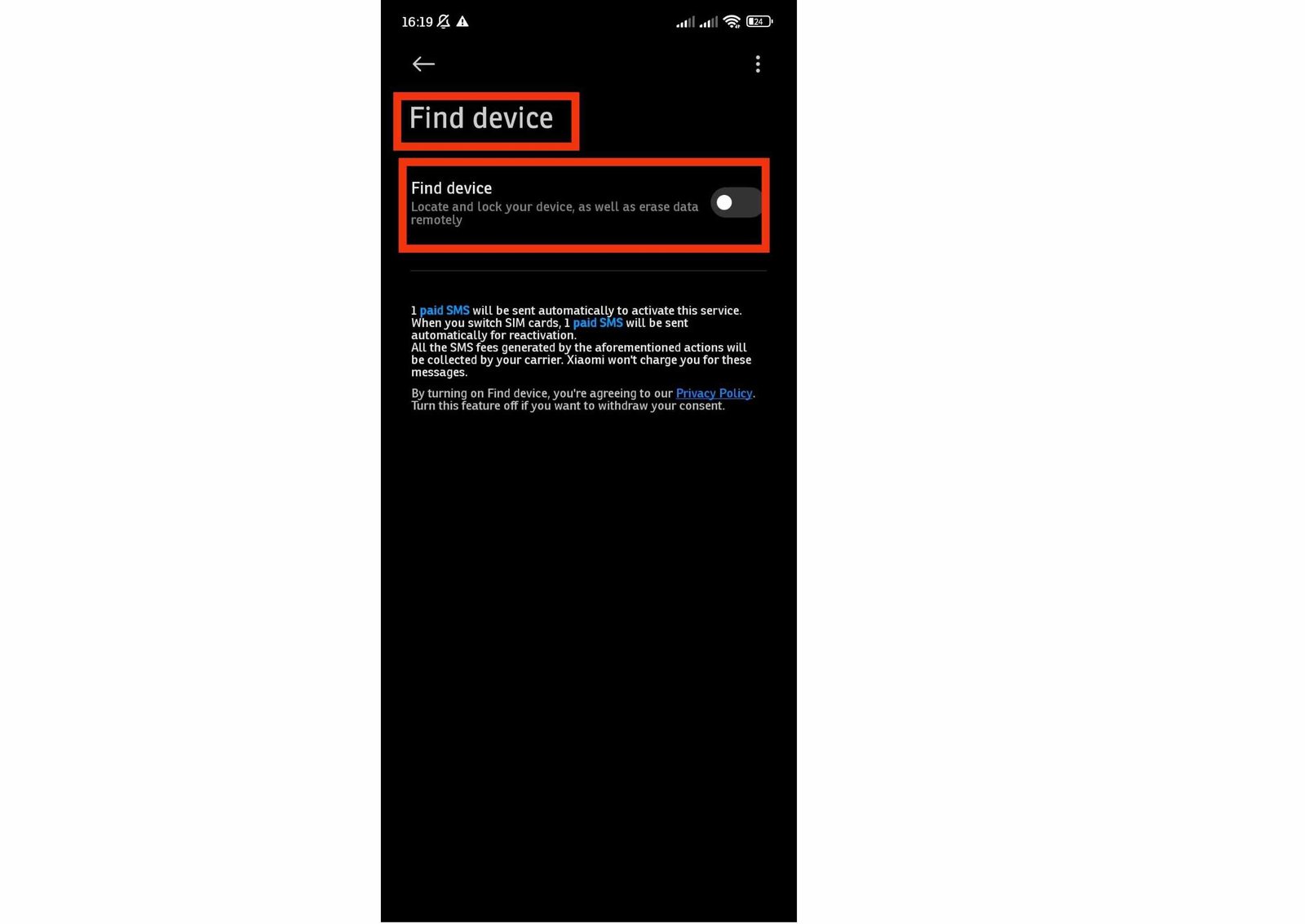
Google offers a device-finding service for Android phones. On recent versions it is called Find Hub, and on older versions it appears as Find My Device. It can show the phone approximate location, make it ring, lock it, and erase it remotely, but only if it was set up before the phone went missing.
- Open Settings > Google and look for Find Hub or Find My Device. If you do not see it, search for it in the Settings search box.
- Turn the feature on if it is off.
- Open Settings > Location and make sure Location is turned on, because the service cannot find a phone that is not allowed to know its position.
- Check that the phone is signed in to your Google account and that the account is the one you remember the password for.
- If your phone offers it, review the options for finding the phone while it is offline. The wording differs by phone and Android version.
To test the service, open the Find Hub website or app on another device, sign in with the same Google account, and confirm that your phone appears. Try the Play sound option while the phone is nearby.
How to verify: The phone should appear in the list with a recent location and respond when you ask it to ring.
Limit What a Stranger Can See on the Lock Screen
Even a locked phone shows information. Notifications can reveal message content, one-time codes, and email subjects without unlocking the device.
- Open Settings > Notifications > Notifications on lock screen (or Lock screen notifications).
- Choose the option that hides sensitive content, or turn off Show sensitive content.
- Open Settings > Security & privacy and review Smart Lock or Extend Unlock. Features that keep the phone unlocked at home or when connected to a trusted device are convenient, but a thief who has the phone and the trusted device can use them. Turn them off or restrict them.
- If your phone has Lockdown, enable it in the lock screen settings so you can quickly disable biometrics and notifications from the power menu.
- Consider adding a line of contact text, such as an alternative email address, in Lock screen text or Owner information. Do not include your home address.
How to verify: Send yourself a test message, lock the phone, and check whether the content is hidden on the lock screen.
Review Sensitive App Permissions
If someone gains access to the phone, or a malicious app is installed, permissions determine how much data it can reach. Limiting them lowers the risk in both situations.
- Open Settings > Security & privacy > Privacy > Permission manager. On some phones, the path is Settings > Privacy > Permission manager.
- Open Location, Camera, Microphone, Contacts, SMS, and Files and media one at a time.
- For each one, look at the apps that have access and remove access from apps that do not need it. A flashlight app does not need your contacts, for example.
- Use Allow only while using the app for location whenever the app offers it.
Also review three special permissions that can give an app much more control:
- Device admin apps, which can lock or wipe the phone.
- Accessibility services, which can read the screen and perform actions. Only trusted apps should have this access.
- Install unknown apps, which should remain off for browsers and file managers unless you have a specific reason.
You can find these in Settings > Apps > Special app access or in the Accessibility settings.
How to verify: Open the Privacy dashboard, if your phone has one, and check which apps have recently used your location, camera, or microphone. Any unexpected use deserves a closer look.
Protect the Google Account Behind the Phone
Your Google account is connected to your email, photos, backups, passwords, and Android itself. If someone gets into the account, they can reach much more than the phone. Securing it also makes recovery easier if the phone disappears.
- Open myaccount.google.com on a computer or in a browser and go to Security.
- Use a long, unique password that you do not use on any other service.
- Turn on 2-Step Verification. Prefer an authenticator app, a security key, or a passkey over text message codes, because text messages are sent to a SIM card that could be stolen along with the phone.
- Check the Recovery phone and Recovery email and make sure they are current and not stored only on the phone you are protecting.
- Open Your devices and look for devices you do not recognize. Sign out of old phones you no longer use.
- Review Third-party apps and services with account access and remove those you do not use.
Keep backup codes for your account in a safe place away from the phone. If your authenticator app is only on this phone, make sure you have a second way to sign in.
How to verify: Sign in to your Google account from a different device and confirm you can complete the 2-Step Verification without the lost phone.
Keep Android and Apps Updated
Security updates fix weaknesses that attackers can use to bypass protections or take control of a device. Running old software leaves those weaknesses open.
- Open Settings > System > Software updates (the path varies) and tap Check for update.
- Install available updates and restart the phone when asked.
- Open Settings > About phone > Android version and check the Android security update date. If it is very old, your phone may no longer receive security fixes from the maker.
- Open the Google Play Store, tap your profile picture, then Settings > Network preferences, and turn on auto-update for apps over Wi-Fi.
- Open Play Protect in the Play Store profile menu and make sure scanning is enabled.
Install apps only from the Play Store or the official source of the developer. Do not install APK files sent through chat, social media, or random websites, because that is a common way to deliver malware.
How to verify: The security update date should be recent, and the Play Store should show no large list of pending updates.
Lock the SIM and Record Your Device Details
A thief can remove the SIM card and place it in another phone to receive calls and text messages, including verification codes for your accounts. A SIM lock and a few recorded details make this harder and make reporting easier.
Set a SIM PIN
- Open Settings > Security & privacy > More security settings > SIM card lock, or search for SIM lock in Settings.
- Turn on Lock SIM card.
- Enter the current SIM PIN, then change it to your own. Check with your carrier for the default PIN, and do not guess repeatedly because the SIM can become locked.
Record your details
- Write down the IMEI number. You can find it in Settings > About phone, or by dialing *#06# in the Phone app.
- Keep the box, receipt, and IMEI in a safe place away from the phone. They help when you contact your carrier or report the loss.
- Save your carrier customer service number so you can reach it quickly from another phone.
How to verify: Restart the phone. It should ask for the SIM PIN before connecting to the network.
What to Do If the Phone Is Lost or Stolen
Act quickly and calmly. The order of the steps matters.
- Try to locate it. On another device, open the Find Hub (Find My Device) page and sign in with your Google account. Use Play sound if you think it is nearby.
- Secure it. Choose the option to lock the phone and sign out of the Google account. You can add a message and a contact number for whoever finds it.
- Contact your carrier. Ask them to suspend or block the SIM so no one can use your number or receive verification codes.
- Change your passwords. Start with your Google account, then email, banking, mobile wallets, and social media. Sign out of other sessions where possible.
- Tell your bank or wallet provider if you used payment apps on the phone, so they can watch for suspicious activity.
- Report it. File a report with the local police or the appropriate authority and give them the IMEI and the phone details.
- Erase only as a last step. The erase option deletes the data, but afterward you can usually no longer locate the phone. Use it when you are convinced you will not get it back or when sensitive data is at risk.
Do not go alone to meet someone who claims to have your phone or to retrieve it from an unfamiliar place. Involve the police or a trusted person.
Conclusion
The best time to protect an Android phone is before anything goes wrong. A strong PIN, a working device-finding service, careful permissions, a secured Google account, regular updates, and a locked SIM together make it much harder for someone to misuse a lost or stolen phone.
Test the settings once, keep your IMEI and recovery codes away from the phone, and know the steps for responding quickly. Regular backups also mean that losing the device does not mean losing your photos and contacts.
Frequently asked questions
Is a fingerprint lock enough?
Biometrics are convenient, but the phone still relies on a PIN or password as a fallback. Use a strong fallback credential.
Can I erase a lost Android phone remotely?
Supported device-finding services can provide remote lock or erase functions when the phone was configured correctly and can communicate with the service.
Should I install an antivirus app on Android?
The need depends on your device and usage. Keeping Android updated, using the official app store, and reviewing permissions are important baseline protections.