Android GPS Not Finding Your Location? Work Through These Checks
By Jethro Sedoguio Writer & Editor, TechGuide PH · Updated September 23, 2026 · 4 min read
GPS problems can come from weak satellite reception, disabled location settings, app permissions, power-saving restrictions, or an app-specific issue. Test outdoors first so you can separate reception problems from phone settings.
Why Android GPS Fails and What to Check First
When an Android phone shows the wrong position, a blue dot that keeps jumping, or the message that it cannot find your location, the cause is not always the GPS chip. The problem can come from your surroundings, a permission setting, power-saving restrictions, an outdated app, or sometimes a physical fault.
This guide goes from the quickest checks to the more involved ones, so you can find the cause without resetting the phone unnecessarily. The steps apply to most recent Android versions. Menu names differ slightly between brands such as Samsung, Xiaomi, and Google Pixel, so use the search box at the top of Settings if you cannot find an option.
Test Your Location Outdoors With a Clear View
GPS works by receiving signals from satellites, and those signals are weak by the time they reach the ground. Concrete roofs, basements, parking structures, dense buildings, and even heavy tree cover can block or bounce them. Before changing any settings, rule out the environment.
- Go outside, or stand next to a large window with a view of open sky.
- Open Google Maps or another map app.
- Wait at least one to two minutes without moving the phone around much. If the phone has been off, in airplane mode, or taken to a different city, the first position fix can take longer than usual.
- Watch the blue location dot. A small, tight dot means the phone has a good fix. A large blue circle around the dot means the phone is unsure of its position.
If the phone locates you quickly outdoors but fails indoors, the phone is probably fine. Indoor positioning relies more on Wi-Fi and mobile networks, which are covered in a later step.
How to verify: Stand in the open for two minutes. If the dot becomes small and matches your real position, the problem was the surroundings, not the phone.
Confirm Location Services and App Permission
Two separate settings control location: the phone-wide switch, and the permission given to each app. Both must be correct. Menu names vary a little between phone brands and Android versions, but the path is similar.
First, the phone-wide setting:
- Open Settings.
- Tap Location.
- Make sure Use location (or Location) is turned on.
You can also swipe down from the top of the screen and check the Location tile in Quick Settings.
Next, the app permission:
- Open Settings > Apps and select the app that cannot find your location.
- Tap Permissions, then Location.
- Choose Allow only while using the app. Some apps that work in the background, such as fitness trackers, may need Allow all the time.
- Turn on Use precise location. If this is off, the app only receives an approximate area, which can look like GPS is failing.
How to verify: Reopen the app and check whether it now shows your position without an error message.
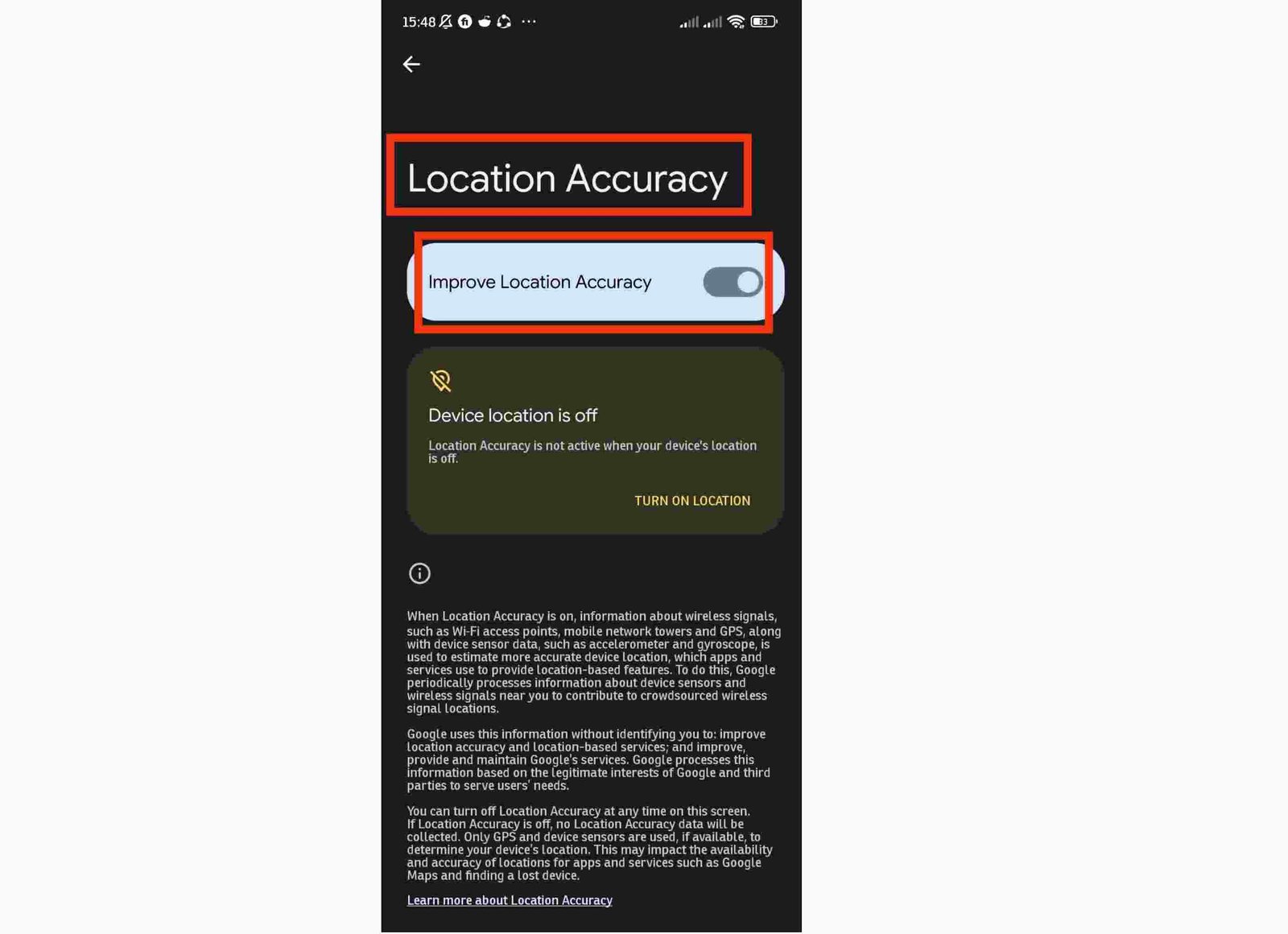
Turn On Google Location Accuracy and Wireless Scanning
Android does not rely on satellites alone. It combines GPS with Wi-Fi networks, Bluetooth devices, and mobile towers to estimate where you are, which is especially important indoors and in cities. If these helpers are turned off, positioning can become slow or inaccurate.
- Open Settings > Location.
- Tap Location services.
- Open Google Location Accuracy (on some phones it is named Improve accuracy) and turn on Improve Location Accuracy.
- If you see Wi-Fi scanning and Bluetooth scanning, turn both on. They allow location to work even when Wi-Fi or Bluetooth appear switched off.
On older Android versions, look for a Mode option and choose High accuracy.
If the blue dot in Google Maps points the wrong way even though the position is correct, calibrate the compass. Tap the blue dot, choose Calibrate compass, and move the phone in a figure-eight pattern.
How to verify: Open the map app and check whether the accuracy circle around the dot becomes smaller within a minute.
Check Battery Saver and Background Restrictions
Battery-saving features can slow down or stop location updates, especially for an app that is not currently on the screen. This often shows up as a navigation app that works at first and then loses your position after the screen turns off.
- Open Settings > Battery and turn off Battery Saver (or Power saving mode) for testing.
- Go back to Settings > Apps, select the affected app, and open its battery settings. The wording differs by brand, for example App battery usage or Battery.
- Choose Unrestricted, or the equivalent option that allows background activity.
- On phones with extra optimization tools, check that the app has not been placed in a sleeping or restricted list.
This does not need to stay permanently loosened for every app. Change it for the specific app you rely on for navigation or tracking, and leave other apps as they were.
How to verify: Start navigation, lock the screen for a few minutes, and unlock it. The position should still be current.
Update the Map App and Android
Bugs in a specific app version, or a mismatch between an app and an older Android release, can cause location problems that settings changes cannot fix.
To update the app:
- Open the Google Play Store.
- Tap your profile picture, then Manage apps & device.
- Tap Updates available and update the map app, as well as Google Play services if it is listed.
To update Android:
- Open Settings > System > Software updates (or Settings > Software update on some phones).
- Tap Check for update and install anything that is available.
- Restart the phone when the update finishes.
How to verify: After updating and restarting, open the map app outdoors and allow a minute for a new position fix.
Compare With a Second Location App
This test shows whether the problem belongs to one app or to the phone itself.
- Install or open a second reputable map or navigation app. If you normally use Google Maps, try a different map app, and the other way around.
- Grant it location permission with Use precise location turned on.
- Test both apps outdoors at the same spot, one after the other.
If only one app fails, focus on that app: its permissions, battery restrictions, cache, and version. If both apps show the wrong position or cannot find you at all, the cause is more likely the phone settings, a system issue, or the hardware, and the next sections apply.
How to verify: Write down which apps worked and which did not. That result decides whether you keep troubleshooting the app or the phone.
Restart, Clear the App Cache, and Test in Safe Mode
If the settings look correct but the location still fails, clear temporary data and check whether another app is interfering.
Restart and refresh the connection. Restart the phone. If the problem remains, switch on airplane mode for about 30 seconds, then switch it off.
Clear the cache of the map app:
- Open Settings > Apps and select the map app, for example Maps.
- Tap Storage & cache.
- Tap Clear cache.
Clearing the cache removes temporary files only. Avoid Clear storage unless you have to, because it can remove saved settings and downloaded offline maps and may sign you out.
Check for interference from another app. Safe Mode starts the phone with downloaded apps disabled:
- Press and hold the power button, then touch and hold Power off.
- Tap OK to restart in Safe Mode.
- Open the map app and test your location outdoors.
If location works in Safe Mode, a recently installed app, such as a battery saver, cleaner, or location-changing tool, may be interfering. Restart normally and uninstall the most likely app, one at a time. Also open Settings > Developer options if you have enabled it, and make sure Select mock location app is set to None.
How to verify: After each change, reopen the map app outdoors and wait about a minute before judging the result.
Check for Physical and Hardware Causes
If every app fails in open air, even after the software steps above, the cause may be physical.
- Phone case or mount. Thick cases with metal plates, magnetic car mounts, and wallet cases with metal parts can weaken signal reception. Remove the case and test again.
- Heat. A phone left on a car dashboard in direct sun can become hot enough to behave poorly. Let it cool down in a shaded place and retry.
- Drops and water damage. If GPS problems began after a fall or exposure to water, the antenna or internal connection may be damaged.
- Persistent failure after backup and reset. A factory reset is a last software step. Back up your photos, contacts, and files first and confirm you know your Google account password. If GPS still fails after a reset, contact the manufacturer or an authorized service center.
Use the settings reset only after the simpler checks, because it erases data on the phone.
Conclusion
Most Android location problems come from the environment, a missing permission, power restrictions, or an app issue rather than a broken GPS chip. Test outdoors first, confirm that location and precise permission are enabled, turn on Google Location Accuracy, update the app and Android, and compare a second app before considering a reset.
If the phone still cannot find your position in open air after these checks and a case-free test, treat it as a possible hardware fault and have it checked by the manufacturer.
Frequently asked questions
Why does GPS work outside but not indoors?
Satellite signals are weaker indoors and can be blocked or reflected by buildings. Phones may use Wi-Fi and cellular information to supplement location, but that is not identical to a strong satellite fix.
Does turning Location off and on fix GPS?
It can clear a temporary location-service state, but persistent problems require checking permissions, power restrictions, updates, and reception.
When should I suspect a hardware problem?
If multiple reputable apps consistently fail to obtain a location outdoors after settings and software checks, hardware or firmware may need professional diagnosis.