Free Up Android Storage Without Losing Important Photos and Files
By Jethro Sedoguio Writer & Editor, TechGuide PH · Updated September 10, 2026 · 4 min read
Running out of phone storage can prevent updates and make everyday tasks frustrating. Start by identifying the largest categories, then remove or move data only after you know you have another copy when necessary.
Why Android Storage Fills Up and How to Clean It Safely
Android storage usually fills up gradually. Photos and videos accumulate, chat apps save every received file, apps grow with each update, and downloads stay in a folder long after you needed them. When the phone is nearly full, it can slow down, refuse to install updates, and show messages that there is not enough space.
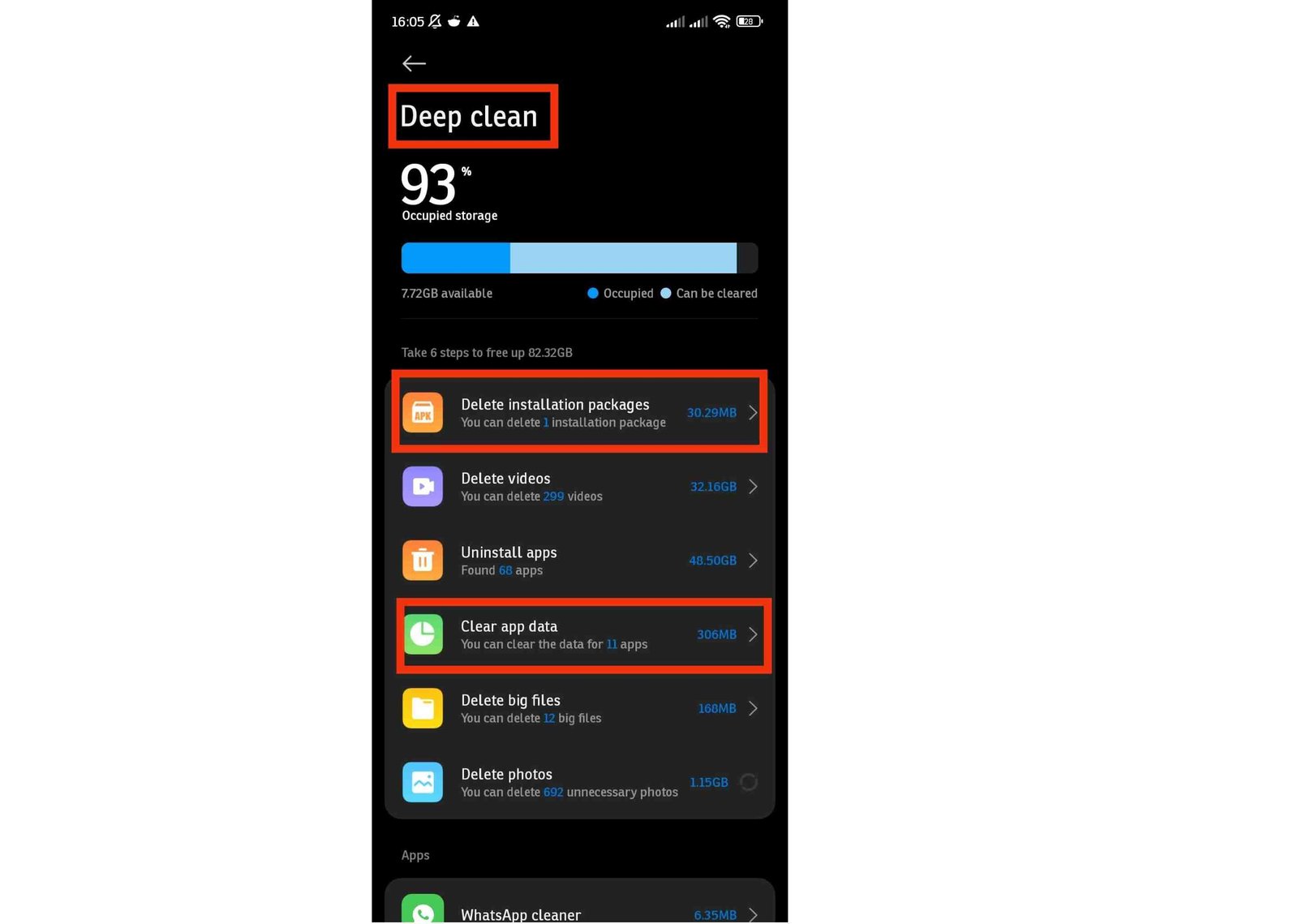
This guide focuses on freeing space without losing anything you care about. The order matters: find what is using the space, back up photos and files, then remove duplicates, caches, offline downloads, and apps. Menu names differ a little between Samsung, Xiaomi, Pixel, and other brands, so use the search box in Settings if you cannot find an option.
See Which Categories Are Using the Most Space
Before deleting anything, find out where the space is actually going. Many people spend an hour clearing small files while a single folder of videos takes up most of the storage.
- Open Settings > Storage.
- Look at the bar and the list of categories, such as Images, Videos, Audio, Documents & other, and Apps.
- Tap each large category to see what is inside it.
- Write down the two or three biggest ones. These are where you will get the most space back.
You can also open Files by Google and check the Clean tab, which suggests junk files, large files, and duplicates. Treat these as suggestions and review the items before you confirm.
The System category contains Android itself and cannot be removed, so concentrate on your own photos, videos, downloads, and apps.
How to verify: Note the free space shown now so you can compare it after each cleanup step.
Back Up Photos and Videos Before Deleting Anything
Photos and videos are usually the largest category and the one you cannot replace. Make sure there is a second copy before you remove anything from the phone.
Option 1: Google Photos backup
- Open Google Photos and tap your profile picture.
- Check that Backup is turned on and that the status says the backup is complete.
- Open photos.google.com on a computer, or the app on another device, and confirm that recent photos and videos appear there.
Remember that a free Google account has limited shared storage across Gmail, Drive, and Photos. If the quota is full, the backup can stop without an obvious warning, so check Backup status in the app.
Option 2: Copy to a computer
- Connect the phone with a USB cable and choose File transfer when asked.
- Open the phone storage on the computer and go to DCIM > Camera. Copy the folder to the computer. Also copy folders such as Pictures and Movies if you use them.
- Open a few copied photos and videos on the computer to confirm they play correctly.
Using both options gives you better protection than relying on one.
How to verify: Do not delete any local copy until you have opened a sample of the backed-up files from a different device or the computer.
Clean the Downloads Folder With Care
The Downloads folder collects installers, PDF files, receipts, forms, and attachments. Some are obsolete, but some may be the only copy of an important document.
- Open Files by Google or your phone file manager.
- Tap Browse, then Downloads.
- Sort the list by size, with the largest files first.
- Open a file if you are not sure what it is. Delete items you recognize as unnecessary, such as old setup files ending in .apk, duplicated documents, and videos you already watched.
- Copy important documents, such as tickets, contracts, and receipts, to cloud storage or a computer before removing them from the phone.
Avoid using the select-all option in this folder. It is quick, but it is also how many people delete files they needed later.
How to verify: Open Settings > Storage again and check that the Documents & other category is smaller.
Manage Photos and Videos Saved by Messaging Apps
Messaging apps often save every photo, video, voice note, and document you receive, including files forwarded in group chats. Over time this can become one of the biggest hidden storage users.
- Open WhatsApp and go to Settings > Storage and data > Manage storage.
- Review Larger than 5 MB and the chats using the most space.
- Select items you no longer need and tap the delete option.
Before deleting media you want to keep, check whether it is included in your chat backup. If it is not, the deleted files may not be recoverable.
Telegram
- Open Settings > Data and Storage > Storage Usage.
- Tap Clear cache. Telegram can download most cloud media again when you need it.
To prevent the problem from returning, review the auto-download settings in each app and limit automatic downloads of large videos over mobile data, or turn them off.
How to verify: Check Settings > Storage afterward to confirm the Videos and Images categories decreased.
Clear the Cache of Large Apps Selectively
Apps store temporary files so they can load quickly. The cache of browsers, social media apps, and streaming apps can grow to hundreds of megabytes or more. Clearing it is safe because the app rebuilds it, but the space returns as you keep using the app, so do it only for the largest apps.
- Open Settings > Apps and sort or review the list to find apps with large sizes.
- Select an app and tap Storage & cache.
- Check the size shown for Cache. If it is large, tap Clear cache.
Do not tap Clear storage or Clear data for this purpose. That removes account settings, saved files, and sometimes offline content.
Avoid cleaner apps that promise to free gigabytes in one tap. Some of them display ads or ask for broad permissions, and the cache they clear comes back quickly.
How to verify: The Cache value for that app should show a small number, and total free storage should increase.
Uninstall Apps You No Longer Use
Large apps and games can take several gigabytes each. Removing an app you no longer use usually frees more space than repeated cache cleaning.
- Open the Google Play Store and tap your profile picture.
- Tap Manage apps & device, then the Manage tab.
- Sort by Size or Least used.
- Select the apps you do not need and tap Uninstall.
Before removing a game or app, check whether its progress or data is stored in an account. Some games and note-taking apps keep data only on the phone, and uninstalling them erases it. Authenticator apps are especially important: move your accounts to a new device or save recovery codes before removing one.
You can always install an app again from the Play Store later if you need it.
How to verify: Check the Apps category in Settings > Storage after uninstalling to see the space you recovered.
Remove Offline Downloads and Use Free Up Space Safely
Many apps keep downloaded content on the phone so you can use it without internet. This content can be large, and it is easy to forget.
- Music and podcasts: Check the downloads section of your music or podcast app and remove albums and episodes you no longer play.
- Video apps: Open the downloads tab in YouTube or streaming apps and delete finished videos.
- Offline maps: In Google Maps, tap your profile picture, open Offline maps, and delete areas you no longer need.
- Games: Some games download extra data inside the app. Check the game settings for an option to delete downloaded resources.
If your photos are fully backed up, Google Photos can remove the local copies for you:
- Open Google Photos and tap your profile picture.
- Tap Free up space (the label may differ slightly between app versions).
- Read the number of items listed and confirm.
This removes only items that Google Photos has already backed up. They remain in your Google Photos library, but they will need an internet connection to view. If your phone has a microSD slot, you can also set new photos to be saved on the card from the camera settings, where that option is available.
How to verify: Open a few photos that were removed from the phone in Google Photos on another device, and confirm they are still in your library.
Empty the Trash Folders and Check the Results
Deleted items often remain in a trash or recycle folder for a period before they are removed permanently. That means a file you deleted this morning may still be using space, which is why storage sometimes does not change after a cleanup.
- Open Google Photos, go to Library, and open Trash (or Bin). Review the items and delete them permanently if you are sure.
- Open your phone Gallery app and look for Recently deleted or Trash.
- In Files by Google, open the menu and check Trash.
Look through the items before emptying, because permanent deletion cannot be undone. If you are not sure about something, leave it for now, because trash folders usually clear themselves after a set number of days.
How to verify: Restart the phone, open Settings > Storage, and compare the free space with the number you wrote down at the beginning. Aim for a comfortable margin, for example 10 to 15 percent of total storage, so the phone has room to update and work normally.
Conclusion
To free Android storage safely, start by finding what takes the space, confirm that photos and videos are backed up in two places, and then remove downloads, messaging media, caches, offline content, and apps you do not use. Empty the trash folders last, because deleted files can still use space until they are permanently removed.
Do each step slowly and check the free space after it. That way you remove only what is unnecessary, and your important photos and files stay protected.
Frequently asked questions
What takes up the most Android storage?
It varies by person, but photos and videos, large apps, downloaded media, and offline content are common contributors. The Storage screen gives the most useful device-specific answer.
Is it safe to delete cached files?
A cache is normally temporary, but clearing it can make an app rebuild files or log you in again in some cases. Clear specific caches when there is a reason.
How do I free space without deleting photos?
Back up the photos first, verify the backup, then use the photo app's supported option for removing local copies while keeping the cloud copy.