Android Bluetooth Not Connecting? A Practical Pairing Troubleshooter
By Jethro Sedoguio Writer & Editor, TechGuide PH · Updated September 3, 2026 · 4 min read
Bluetooth problems can come from stale pairing information, distance, interference, permissions, or the accessory itself. Isolate the phone from the accessory before resetting broader network settings.
Why Android Bluetooth Fails to Connect
Bluetooth problems usually appear as an accessory that does not show up in the list, a pairing request that fails, a device that connects and then drops, or a connection with no sound. The cause may be the phone, the accessory, interference, or an old pairing record.
This troubleshooter works from the quickest checks to the more involved ones, and it separates phone problems from accessory problems so you do not waste time. Menu names differ between Samsung, Xiaomi, Pixel, and other brands, so use the search box in Settings if you cannot find an option.
Restart Bluetooth and Both Devices
Bluetooth connections can get stuck after a device sleeps, loses power, or switches between other devices. A restart gives both sides a clean start and is the quickest first test.
- Swipe down from the top of the screen and tap the Bluetooth tile to turn it off. Wait about ten seconds and turn it on again.
- Turn Airplane mode on for ten seconds, then off, which resets the wireless radios.
- Restart the phone: hold the power button and tap Restart.
- Turn the accessory off and on again. For wireless earbuds, put them back in the charging case for a few seconds and take them out again.
- Make sure the accessory has enough charge. A very low battery can make it fail to pair or disconnect repeatedly.
How to verify: Open Settings > Connected devices and check whether the accessory appears as connected or available to connect.
Test the Accessory With Another Device
Before changing phone settings, find out whether the accessory itself is working. This is the fastest way to know which side to troubleshoot.
- Try to pair the accessory with another phone, tablet, or computer.
- If it pairs without trouble, the accessory is probably fine and the problem is on your Android phone. Continue with the phone steps.
- If it fails with every device, charge it fully and check the manual for a reset procedure. The button combination depends on the product, so use the instructions from the manufacturer.
Also check whether the accessory is already connected somewhere else. Many headphones, speakers, and watches automatically reconnect to the last device they used, such as a laptop or an old phone. While they are connected there, they may not appear available to your Android phone. Turn Bluetooth off on the other devices and try again.
How to verify: Note the result with each device. A working accessory that refuses only your phone points to a phone-side cause.
Forget the Old Pairing and Pair Again
An accessory that used to work and suddenly stops connecting often has a damaged or outdated pairing record. Removing the old pairing and creating a new one usually fixes this.
- Open Settings > Connected devices and look under Previously connected devices or Saved devices.
- Tap the gear icon next to the accessory and choose Forget (or Unpair).
- Put the accessory in pairing mode. This is usually done by holding the power or pairing button until a light blinks. The exact method differs by product, so check its manual.
- On the phone, tap Pair new device, wait for the accessory name to appear, and select it.
- Confirm the pairing request. For older accessories, a PIN may be required, and common default codes are 0000 or 1234.
If you are pairing with a car, also delete the phone from the car Bluetooth list, because many cars keep an old record and limit the number of saved phones.
How to verify: The accessory should show as connected, and sound, calls, or data should work through it.
Check Distance and Interference
Bluetooth uses the same 2.4 GHz radio band as many Wi-Fi networks, microwave ovens, and other wireless devices. Distance and obstacles can also affect it.
- Keep the devices close during pairing. Place the phone and accessory within about one meter of each other with nothing between them.
- Move away from crowded wireless areas. Routers, microwaves, USB 3 hubs, and many connected accessories can add interference. Try pairing in a different room.
- Avoid blocked paths. Walls, metal objects, and even your body can weaken the signal. If earbuds cut out when the phone is in a back pocket, try carrying the phone on the same side of the body or in a bag.
- Disconnect extra accessories. Temporarily turn off other Bluetooth devices you are not using, such as a watch or a second headset, to see whether they interfere.
How to verify: Test the connection at close range first. If it works there but fails at a distance, range or interference is the cause.
Check the Calls and Media Audio Profile Settings
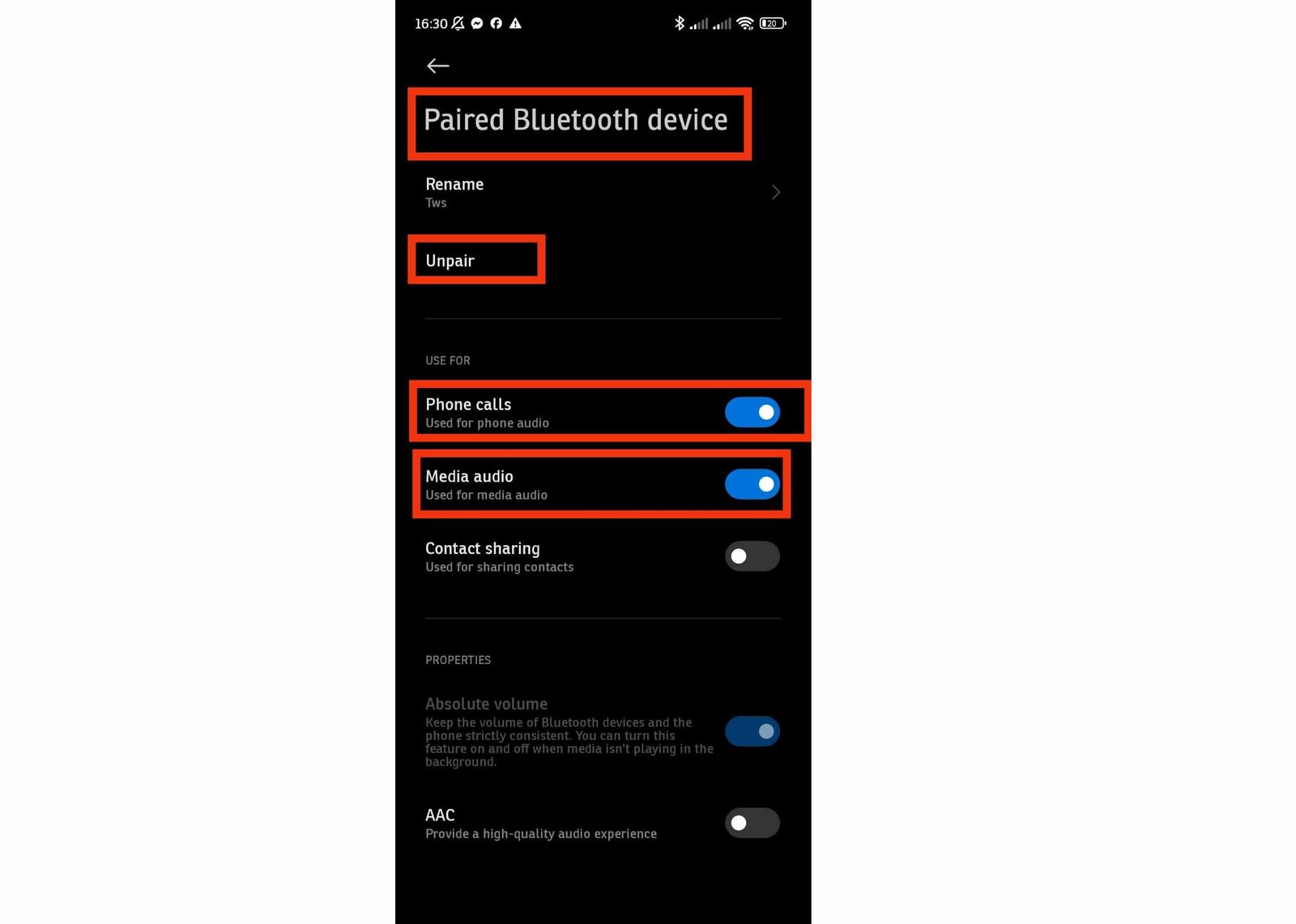
A device can be paired and connected but still not work for what you need, such as music playing from the phone speaker or calls not going through a car kit. This happens when the correct profile is disabled for that accessory.
- Open Settings > Connected devices.
- Tap the gear icon next to the accessory.
- Check the toggles for Phone calls, Media audio, and Contact sharing or similar options. Turn on the ones you need.
- During a call or while playing audio, check the output selector on the screen and make sure the Bluetooth device is selected.
If the volume of a Bluetooth accessory is stuck or cannot be adjusted from the phone, check for an update for the accessory firmware first. Advanced users may also find an option named Disable absolute volume in Developer options, but it should only be used for this specific problem.
How to verify: Play a sound and make a short test call to confirm that both go through the accessory.
Review App Permissions and Install Updates
Some accessories connect through a companion app, and the app needs the right permission to find nearby devices. Outdated software on the phone or the accessory can also cause connection errors.
Permissions
- Open Settings > Apps and select the companion app for the accessory, for example the app for your earbuds or smartwatch.
- Tap Permissions.
- On Android 12 and newer, allow Nearby devices. On older Android versions, the app may need Location permission to scan for Bluetooth devices.
Updates
- Update the companion app in the Google Play Store.
- Open the app and look for a firmware update for the accessory. Keep the accessory charged and close to the phone during the update.
- Install any Android system update in Settings > System > Software updates.
How to verify: Open the companion app and check whether it now detects the accessory.
Clear the Bluetooth Cache and Test in Safe Mode
The Bluetooth system component stores temporary data. If that data becomes corrupted, connection problems can persist even after repairing.
Clear the cache
- Open Settings > Apps and tap See all apps.
- Open the menu and choose Show system apps.
- Find Bluetooth and tap Storage & cache.
- Tap Clear cache and restart the phone.
Use only Clear cache. Clear storage would delete all saved Bluetooth pairings.
Test in Safe Mode
- Press and hold the power button, then touch and hold Power off and tap OK.
- Try to connect the accessory while the phone is in Safe Mode.
- Restart normally to leave Safe Mode.
If Bluetooth works in Safe Mode, an app you installed may be interfering, such as an audio equalizer, a battery manager, or a security tool. Uninstall the most recent suspicious apps one at a time and test again.
Reset Network Settings as a Last Phone-Side Step
If nothing else works and the accessory connects to other devices, the phone Bluetooth configuration may be damaged. Resetting network settings clears it, but it also removes other saved connection information, so keep it for the end.
Before you start, make sure you know your Wi-Fi passwords, and remember that you will need to pair all Bluetooth accessories again.
- Open Settings > System > Reset options. On some phones, the path is under General management or Additional settings.
- Tap Reset Wi-Fi, mobile & Bluetooth.
- Read the warning, confirm the reset, and enter your screen lock if asked.
- When the phone restarts, pair the accessory again as described earlier.
This does not delete photos, apps, or accounts.
How to verify: Pair only the problem accessory first and test it before reconnecting your other devices.
Conclusion
To fix Android Bluetooth connection problems, first check whether the accessory works with another device. Then restart both sides, forget and re-pair, reduce distance and interference, review profile settings and permissions, update the app and firmware, and clear the Bluetooth cache.
Resetting network settings is the last phone-side step because it removes other saved connections. If the accessory fails with every device, it likely has a hardware or battery problem, and the manufacturer support is the next place to go.
Frequently asked questions
Why does Bluetooth say connected but produce no sound?
The connection can exist while audio output is routed elsewhere or the accessory profile has a problem. Check the phone's media output selection and the accessory's volume.
Why won't my Bluetooth device appear?
Make sure the accessory is in pairing mode, has battery, and is not already connected elsewhere. Restarting both devices can also help.
Will resetting network settings delete my photos?
No. It removes network-related saved information, such as Wi-Fi and Bluetooth pairings, rather than personal photos.