Android App Keeps Crashing? Fix the App Before Resetting the Phone
By Jethro Sedoguio Writer & Editor, TechGuide PH · Updated September 14, 2026 · 4 min read
An Android app that closes unexpectedly can be affected by its cache, permissions, an outdated release, insufficient storage, or a bug in the app itself. Work through targeted fixes so you do not erase useful data unnecessarily.
Why Android Apps Crash and the Order to Fix Them
An app that closes by itself, freezes on the opening screen, or shows the message that it has stopped is one of the most common Android problems. The cause is usually in the app, its stored data, a permission, or low storage, and not in the phone as a whole.
A factory reset is the most drastic fix and often unnecessary. This guide starts with the least disruptive steps, such as restarting and updating, and moves toward steps that remove data, so you can stop as soon as the app works. Menu names vary a little between phone brands and Android versions, so use the search box in Settings if you cannot find an option.
Restart the Phone and Update the App
A temporary memory or process problem can make an app close right after it opens. A restart clears those temporary states, and an update may already contain a fix from the developer.
- Close the app completely. Open Settings > Apps, select the app, and tap Force stop.
- Restart the phone: hold the power button and tap Restart.
- Open the Google Play Store and tap your profile picture.
- Tap Manage apps & device, then Updates available.
- Update the crashing app. You can also search for it in the Play Store and tap Update on its page if the button appears.
Install the update only from the official store. If the crashes began right after an update, check the app page for a newer version a few days later, because developers often release a quick fix for a bad release.
How to verify: Open the app and use it for a few minutes, including the feature that usually triggers the crash.
Review Permissions and System Compatibility
Some apps close unexpectedly when a permission they depend on has been denied, or when they were not built for the version of Android on the phone.
To check permissions:
- Open Settings > Apps and select the crashing app.
- Tap Permissions.
- Look at the permissions the app needs for its main function, such as Camera for a camera app or Storage or Photos and videos for a gallery.
- Allow the ones it legitimately needs and leave unrelated permissions denied.
On the same App info screen, look for Pause app activity if unused (or a similar option). If it is turned on, Android can remove an unused app permissions after a period of inactivity, which may cause errors when you open the app again. Turn it off for apps you rely on.
To check compatibility, open the app page in the Play Store and scroll to About this app. If the problem started after an Android update, install any pending system update from Settings > System > Software updates, because an update may contain compatibility fixes.
How to verify: Reopen the app. If it now asks for a permission and then works normally, a missing permission was the trigger.
Clear the App Cache
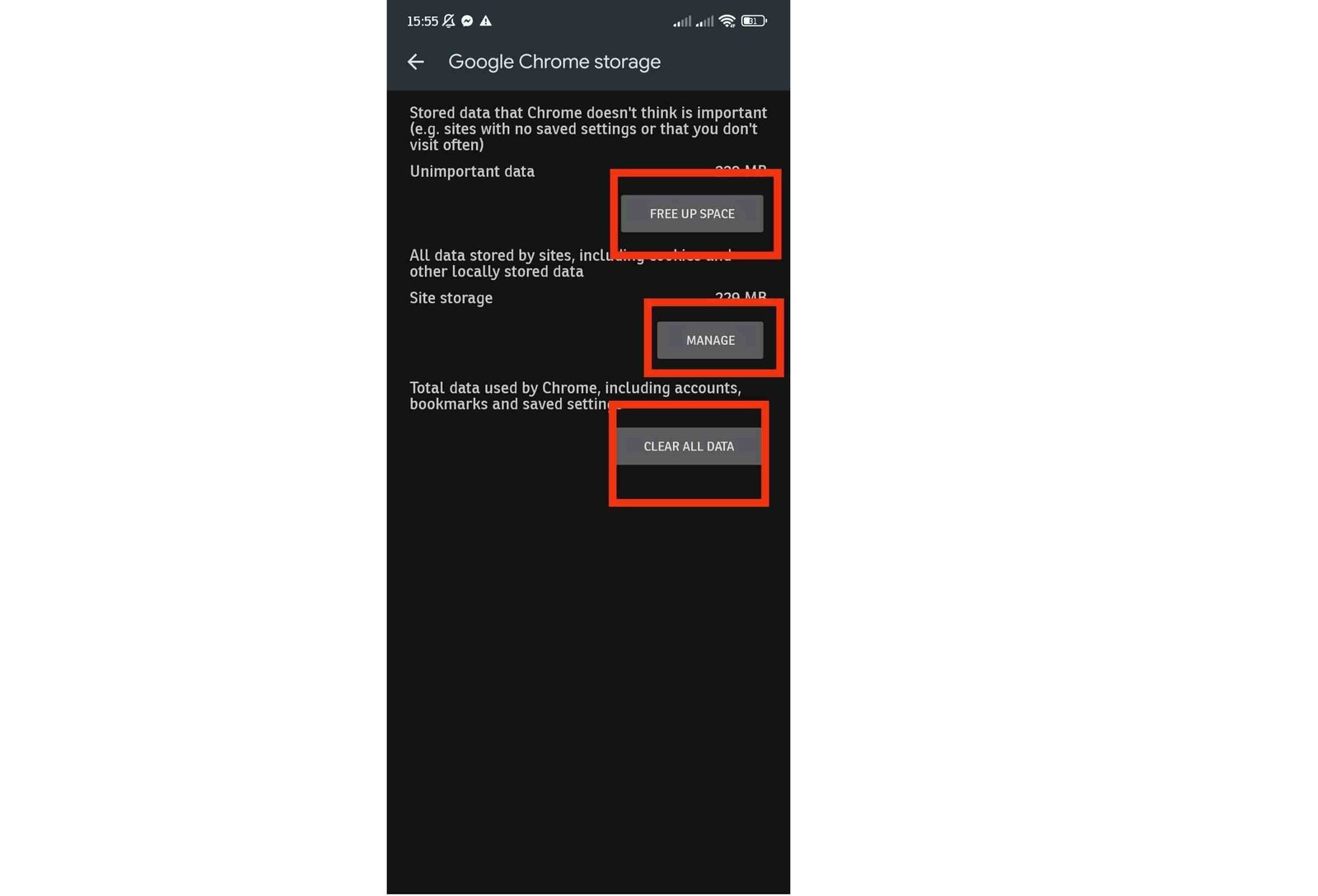
Cache files are temporary files that help an app load faster. If they become damaged, the app can crash at startup or whenever it reads them. Clearing the cache is the safest repair because it does not delete your account, messages, or saved progress.
- Open Settings > Apps.
- Select the app that crashes.
- Tap Storage & cache (on some phones, just Storage).
- Tap Clear cache.
- Return to the home screen and open the app again.
Do not tap Clear storage or Clear data at this stage. Those options remove local settings and may sign you out. They are covered in a later step.
How to verify: The first launch after clearing the cache may take a little longer while the app rebuilds its temporary files. If it then runs without closing, a damaged cache was the cause.
Check Free Storage and Background Load
When the phone is almost out of storage or memory, apps may fail to save files, load data, or stay open. This is common on phones with limited storage and many installed apps.
- Open Settings > Storage and check how much space is free. Try to keep a few gigabytes available.
- Review large items such as videos, downloads, and unused apps, and remove the ones you no longer need. Back up photos before deleting local copies.
- Open the recent apps screen and swipe away apps you are not using, particularly games and video apps.
- Restart the phone if it has been running for many days.
Avoid apps that promise to boost memory or clean the phone automatically. They often add more background activity and can close services other apps depend on.
How to verify: After freeing space, open the crashing app again and test the action that used to fail.
Update Android System WebView and Google Play Services
Many apps show web content inside the app, for example login screens, help pages, and embedded forms. They rely on a system component called Android System WebView, and on Google Play services for several background features. If either is damaged or outdated, several different apps may begin to crash at the same time.
- Open the Google Play Store and search for Android System WebView.
- If an Update button is shown, tap it. On some Android versions the browser, Google Chrome, handles this role, so update Chrome too.
- Search for Google Play services and update it if the Play Store offers an update.
- Restart the phone.
If you cannot find an update option, the component is probably already current or is managed by the system.
How to verify: If more than one app was crashing, check whether they now open normally. A single app that still fails usually has an app-specific problem.
Test in Safe Mode to Find an Interfering App
Safe Mode temporarily disables downloaded apps, so it can show whether another app is causing the crash.
- Press and hold the power button.
- Touch and hold Power off, then tap OK to restart in Safe Mode.
- Open the crashing app and use it normally.
- Restart the phone normally to leave Safe Mode.
If the app works in Safe Mode, an app you installed may be interfering with it. Recently added apps that draw over other apps, apply screen filters, or claim to speed up the phone are common suspects. To review them, open Settings > Apps > Special app access > Display over other apps and check which apps are allowed. Uninstall or disable suspect apps one at a time and test after each change.
If the app still crashes in Safe Mode, the cause is more likely the app itself, its data, or the system.
Clear App Data or Reinstall Only After Checking Your Backup
If the earlier steps do not help, the app data itself may be damaged. Clearing it gives the app a fresh start, but it also removes everything stored locally, so check what will be lost first.
Before you continue, confirm the following:
- Messaging apps: Make sure a chat backup is available in the app settings before removing data.
- Games: Check that progress is linked to an account, such as a Google Play Games or game account, and not saved only on the phone.
- Authenticator apps: Do not clear data or uninstall until you have moved your accounts to another device or saved recovery codes, or you could be locked out of those accounts.
- Banking and work apps: You may need to register the device again, so make sure you have your login details.
To clear the data:
- Open Settings > Apps and select the app.
- Tap Storage & cache, then Clear storage (or Clear data).
- Confirm, then open the app and sign in again.
If it still crashes, uninstall it from the app info screen and install it again from the Play Store.
How to verify: Sign in, restore your backup if the app offers it, and use the feature that previously crashed.
Contact the Developer if the App Still Crashes
If the app still fails after reinstalling, the problem may be a bug that only the developer can fix. A clear report makes it far more likely that the issue is solved.
- Open the app page in the Play Store and scroll to Developer contact. Use the email address or website listed there.
- Include the app version, your phone model, and your Android version. You can find the last two in Settings > About phone.
- Describe exactly what you were doing when the crash happened and whether it happens every time.
- Attach a screenshot of any error message.
Also read recent reviews on the Play Store. If many users report the same crash after a certain update, wait for the developer to publish a fix instead of resetting your phone. Download apps only from the official store, and avoid installing older versions from unknown websites because those files can contain malware.
Conclusion
When one Android app keeps crashing, work from the simplest fix to the most disruptive: restart and update, review permissions, clear the cache, free some storage, update WebView, test in Safe Mode, and only then clear the app data or reinstall it after confirming your data is backed up.
A factory reset is for situations where many apps fail and none of these steps help. If you reach that point, back up your photos, contacts, and files first and make sure you know your Google account password before you begin.
Frequently asked questions
Will clearing cache delete my account?
Clearing cache removes temporary files and normally does not erase the app's account data. The exact behavior can vary by app.
Why does only one app keep crashing?
A problem isolated to one app often points to that app's data, version, permissions, or compatibility rather than the whole phone.
Should I uninstall the app immediately?
Try updating, restarting, checking permissions, and clearing its cache first. Reinstalling is useful when the installation itself may be damaged.