Android Connected to Wi-Fi but No Internet? Try These Fixes
By Jethro Sedoguio Writer & Editor, TechGuide PH · Updated September 6, 2026 · 4 min read
An Android phone can show a Wi-Fi connection while the network itself has no internet, has a DNS problem, or has rejected the device. These checks help separate a phone issue from a router or service issue.
What Wi-Fi Connected With No Internet Means
When Android shows that Wi-Fi is connected but websites and apps do not load, the phone has joined the router but cannot reach the internet through it. The message can appear as Connected, no internet, an exclamation mark on the Wi-Fi icon, or an app that keeps saying it is offline.
The cause can be the phone, the router, the modem, or the internet service. This guide starts by identifying which side has the problem, then moves from simple restarts to settings and a network reset. Menu names vary between Samsung, Xiaomi, Pixel, and other brands, so use the search box in Settings if you cannot find an option.
Find Out Whether the Problem Is the Phone or the Network
Before changing any settings, decide where the problem is. This takes a few minutes and tells you which fixes are worth trying.
- Connect another phone, tablet, or computer to the same Wi-Fi network and open a website.
- On your Android phone, turn off Wi-Fi and use mobile data to open a website. If mobile data works, the phone itself can reach the internet.
- If possible, connect your Android phone to a different Wi-Fi network, such as a friend network or another phone hotspot.
Compare the results:
- Every device fails on this Wi-Fi: the problem is probably the router, the modem, or the internet service. Go to the router and internet service sections.
- Only your Android phone fails on this Wi-Fi but works on another network: the problem is usually between the phone and this particular router. Continue with the phone-side steps.
- Your phone fails on every Wi-Fi network: the cause is likely a setting or software problem on the phone.
How to verify: Write down which combinations worked and which did not. That result decides your next step.
Restart the Phone, the Router, and the Modem
A restart clears temporary network states and stuck connections on both sides. It is simple, but it fixes a large share of no-internet cases.
On the phone
- Turn Wi-Fi off, wait ten seconds, and turn it on again.
- If that does not help, turn Airplane mode on for ten seconds, then off.
- Restart the phone completely: hold the power button and tap Restart.
On the router and modem
- Unplug the power cable of the router. If you have a separate modem or fiber terminal, unplug it too.
- Wait about 30 seconds.
- Plug in the modem first and wait until its lights are stable, then plug in the router.
- Wait two to five minutes for the connection to come back before testing.
Use the normal power procedure for your equipment. Do not press a reset button with a pin unless you want to erase the router settings, because that can remove the internet account details.
How to verify: Reconnect the phone and open a website and an app that needs the internet.
Forget the Wi-Fi Network and Reconnect
Saved network information can become outdated, especially after the router password or settings were changed. Forgetting the network removes that old information and lets the phone create a fresh connection.
- Open Settings > Network & internet > Internet.
- Tap the gear icon next to the connected Wi-Fi network.
- Tap Forget.
- Select the network again from the list and enter the password carefully. Check capital letters and similar characters such as 0 and O.
If your router has separate names for its 2.4 GHz and 5 GHz networks, try connecting to the other one. The 2.4 GHz network has longer range, while the 5 GHz network is usually faster at a short distance.
This only affects the one network. Other saved networks on the phone are not changed.
How to verify: Open a website after reconnecting. The Wi-Fi icon should show a normal connection without an exclamation mark.
Check for a Sign-In Page and Wi-Fi Quality Features
Two common causes are easy to miss.
A sign-in page on public Wi-Fi. Hotels, cafes, schools, and offices often require you to accept terms or log in before internet access is allowed. Your phone connects to the network, but nothing loads until you finish that step.
- Look in the notification panel for Sign in to Wi-Fi network and tap it.
- If you do not see it, open a browser and go to a simple website that uses http, such as example.com. The sign-in page should appear.
- Enter the code, accept the terms, or sign in as the network instructs.
Wi-Fi quality features. Some phones automatically switch to mobile data or disconnect when they decide that the Wi-Fi is weak. These features can sometimes make the connection unstable.
- Open Settings > Network & internet > Internet and look for Network preferences.
- Look for options such as Switch to mobile data automatically, Adaptive Wi-Fi, or Avoid poor connections.
- Turn them off temporarily and test the Wi-Fi again.
How to verify: If a sign-in page appeared or the connection became stable after changing the option, you found the cause. You can turn the feature back on afterward if it helps in your normal use.
Check VPN, Private DNS, and Date and Time
Some phone settings can block internet access even when Wi-Fi is fully working. Check these three.
VPN
- Open Settings > Network & internet > VPN and disconnect any active VPN.
- Also open the VPN app itself and make sure it is not connected or stuck.
Private DNS
- Open Settings > Network & internet > Private DNS.
- Choose Automatic or Off. If a provider hostname was entered earlier and is wrong or no longer working, apps and websites may fail to load even though Wi-Fi is connected.
Date and time
- Open Settings > System > Date & time.
- Turn on Set time automatically and Set time zone automatically. An incorrect date can break secure connections.
Also check that no Proxy has been set for the Wi-Fi network in its advanced details.
How to verify: Test websites again after each setting change so you can tell which one fixed it.
Check Router Settings and IP Address Assignment
If one device repeatedly connects without internet, the router may not be giving it a valid address, or it may be blocking it. Routers usually assign addresses automatically through DHCP.
First, look at what the phone received:
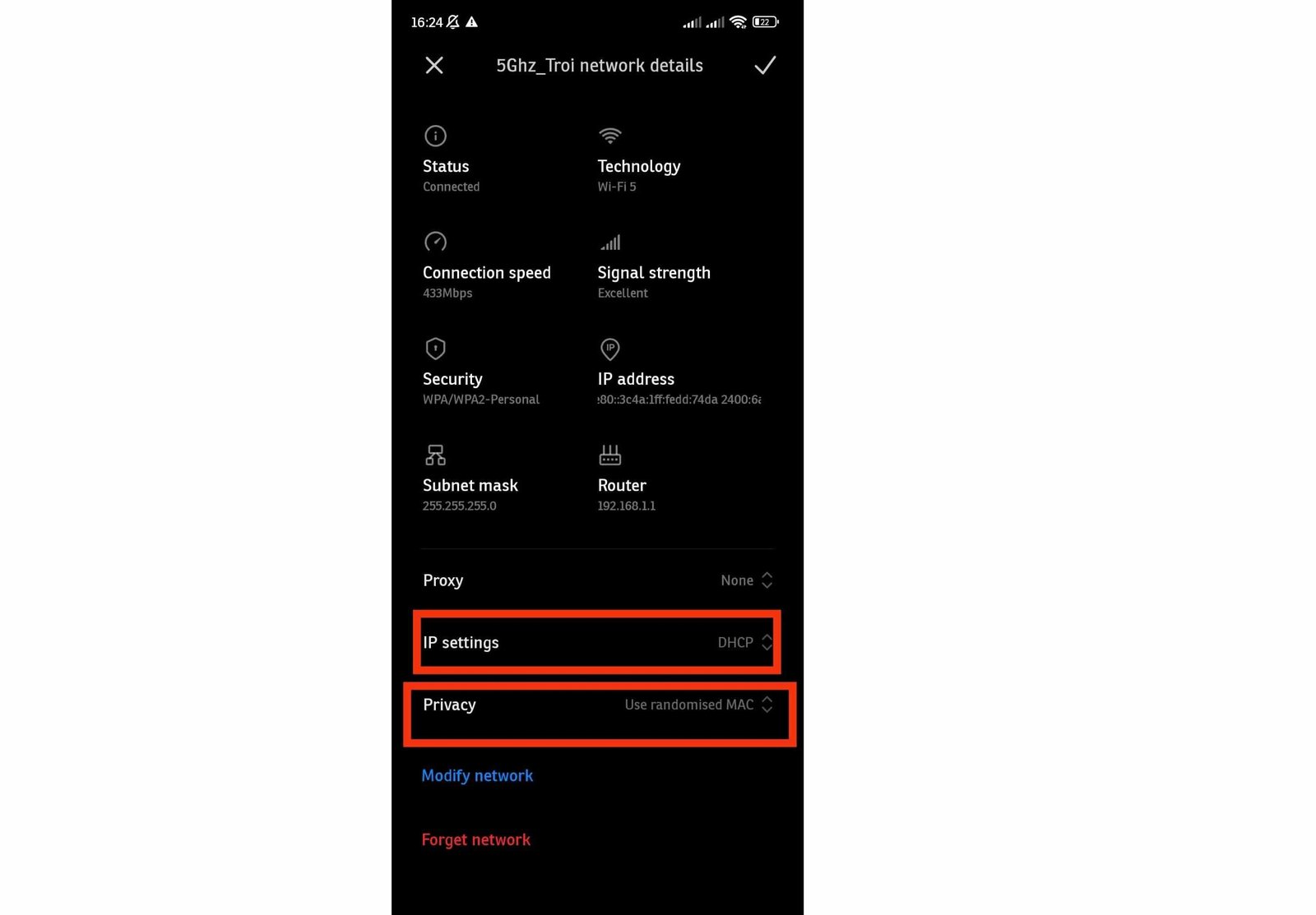
- Open Settings > Network & internet > Internet and tap the gear icon next to the network.
- Check the IP address shown. A normal home address looks similar to 192.168.1.25. If it is missing or looks unusual, the phone is not receiving a proper address.
- In the advanced section, make sure IP settings are set to DHCP and Proxy is set to None.
Then check the router. The login address, often written on a label on the router, is commonly something like 192.168.1.1 or 192.168.0.1. Use the username and password from the label or your internet provider.
- Confirm that DHCP is enabled.
- Look at the list of connected devices. If many devices are listed, the address pool may be full.
- Check for MAC filtering, parental controls, or a block list that may include your phone.
- Check for a firmware update using the instructions of the manufacturer.
Avoid typing a manual IP address unless you know the correct network configuration, because a wrong value can stop the connection completely.
How to verify: After a change, reconnect the phone and check that it receives a normal address and can open websites.
Reset Network Settings as a Last Phone-Side Step
If only your phone fails and nothing else has worked, resetting the network configuration clears settings that may be corrupted. This does not delete your photos or apps, but it does remove saved connection information, so use it after the simpler steps.
Before you start, make sure you know the passwords of your Wi-Fi networks and any Bluetooth accessories you will need to pair again.
- Open Settings > System > Reset options. On some phones, the path is under General management or Additional settings.
- Tap Reset Wi-Fi, mobile & Bluetooth.
- Read the warning, then tap Reset settings and confirm with your screen lock.
- When the phone is ready, reconnect to Wi-Fi and enter the password.
The reset removes saved Wi-Fi networks, Bluetooth pairings, and mobile network settings. Mobile data settings from your carrier are usually restored automatically, but check that mobile data still works.
How to verify: Connect to the problem network and open a website. If it works, a corrupted network setting was probably the cause.
When the Internet Service Itself Is the Problem
If every device on the network has no internet, even after restarting the equipment, the router may be working normally and the problem may come from the internet connection.
- Look at the lights on the modem or fiber terminal. A warning light, a red light, or a light that has stopped blinking normally can indicate a line or service problem. The meaning depends on the equipment, so check its manual or your provider website.
- Connect a computer to the router with a network cable, if possible. If the wired computer also has no internet, the problem is not the phone or the Wi-Fi.
- Check your provider app, website, or social media pages for an announced outage in your area.
- Contact the provider support line and tell them the steps you tried, the modem light status, and whether all devices are affected.
- While waiting, use your phone mobile data or hotspot for urgent tasks.
Also make sure the account is active and not suspended for an unpaid bill, because that can produce the same symptom.
Conclusion
When an Android phone is connected to Wi-Fi without internet, start by finding out whether other devices are affected. Then restart the phone and the equipment, forget and rejoin the network, check for a sign-in page, review the VPN, Private DNS, and time settings, and look at the router configuration.
Reset network settings only after the simpler steps, and contact your internet provider if every device is offline. Testing one change at a time helps you identify the real cause so the same problem is easier to fix next time.
Frequently asked questions
Why does Wi-Fi say connected without internet?
The phone may be connected to the router while the router has lost internet access or DNS resolution. Testing another device helps identify which side is failing.
Will forgetting Wi-Fi delete my internet account?
No. It removes the saved network credentials from that phone. You can reconnect later with the correct password.
What happens when I reset network settings?
Saved network information and some connectivity preferences are removed. You will need to reconnect to Wi-Fi and pair Bluetooth devices again.