Use Android Digital Wellbeing to Understand and Manage Screen Time
By Jethro Sedoguio Writer & Editor, TechGuide PH · Updated August 28, 2026 · 4 min read
Digital Wellbeing can show how you use apps, how often you unlock the phone, and where notifications consume attention. The goal is to use the data to make practical changes rather than chase a perfect number.
What Digital Wellbeing Can and Cannot Do
Digital Wellbeing is a feature built into many Android phones. It shows how long you use the phone, which apps you open most, how many notifications you receive, and how often you unlock the screen. It also offers tools such as app timers, Bedtime mode, and Focus mode.
It does not decide for you what a healthy amount of screen time is. It gives you information and reminders, and you decide the goals that fit your life. This guide shows how to read the data, set reasonable limits, and adjust them over time. Menu names differ between Samsung, Xiaomi, Pixel, and other brands, and some phones do not include every feature, so use the search box in Settings if an option is not where described.
Open Digital Wellbeing and Review the Dashboard
Digital Wellbeing is a set of Android tools that show how you use your phone and help you set limits. Looking at the data first gives you facts to work with, so you do not have to guess which apps take your time.
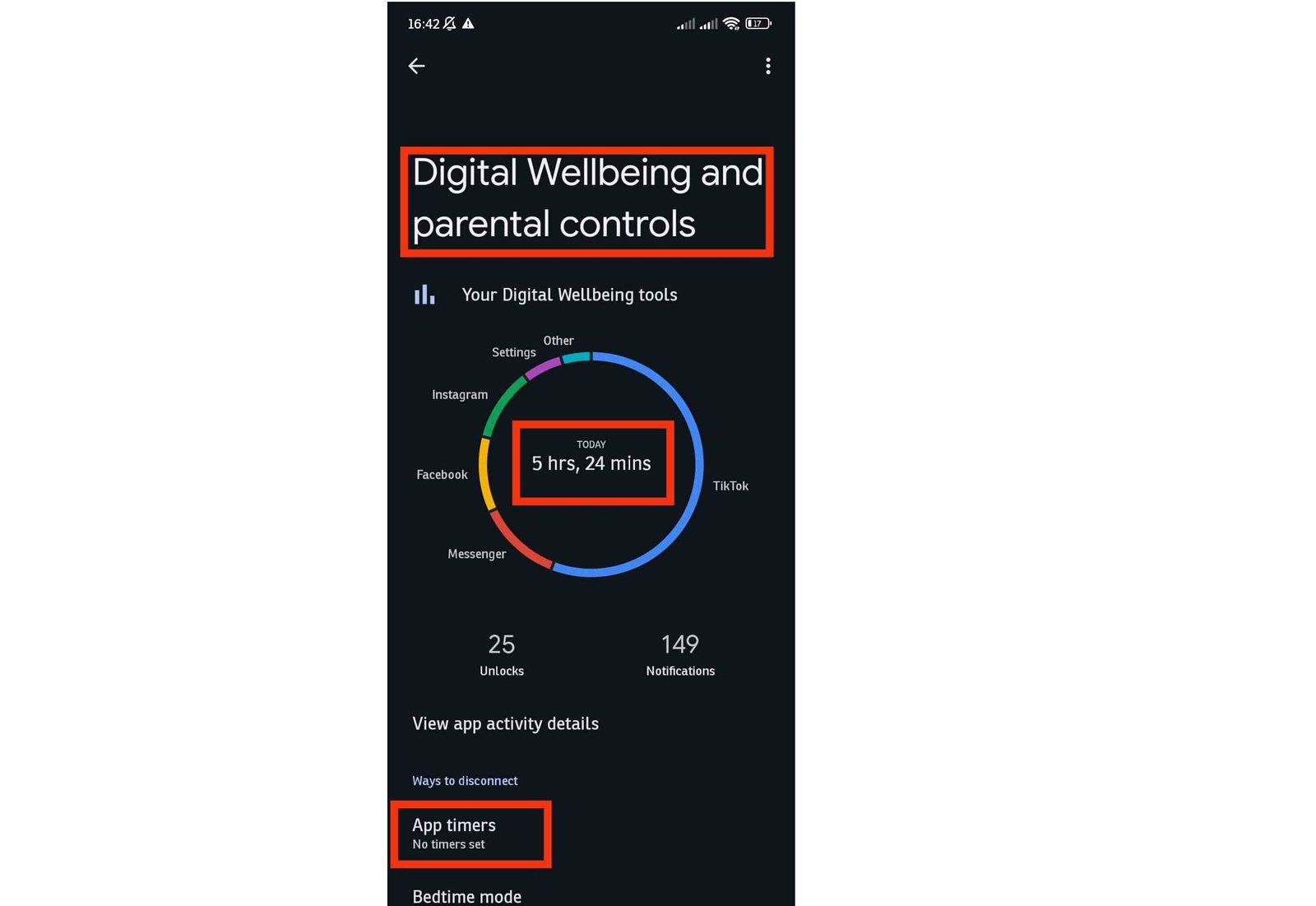
- Open Settings and tap Digital Wellbeing & parental controls. If you cannot find it, use the search box at the top of Settings and type Digital Wellbeing.
- Tap Dashboard (on some phones, the main screen already shows the chart).
- Look at the circle or bar chart that shows your total screen time for today.
- Tap the arrows or the date to move to previous days and view a weekly pattern.
- Tap an app in the list to see how long you used it and how often you opened it.
The dashboard needs some time to collect data, so use the phone normally for a day or two before drawing conclusions. Not every phone includes Digital Wellbeing, and some brands use a slightly different name or layout.
How to verify: After a normal day, the chart should show total time and a list of apps ordered by usage.
Read the Dashboard Numbers Correctly
The dashboard shows three main measurements, and each tells you something different.
- Screen time: how long the screen was on while you used apps. This shows where your time goes.
- Notifications received: how many alerts each app sent. A high number points to apps that interrupt you often.
- Unlocks: how many times you unlocked the phone. A high number with short sessions suggests frequent checking, even when total time is moderate.
Before setting any limit, spend a few minutes with the data:
- Look at the weekly view and identify the two or three apps with the most time.
- Think about which of these you actually want to use less. Navigation, music, and work apps may be necessary.
- Check whether usage is spread across many short sessions or a few long ones. The best fix is different in each case.
- Write down one specific goal, for example reducing a video app by thirty minutes a day or stopping phone use in bed.
How to verify: You should be able to name the apps and times of day that need the most attention before you set any timer.
Set App Timers for Specific Distractions
An app timer sets a daily limit for one app. It works best for a single app that you often open without noticing, such as a video app, a game, or a social media app.
- Open Settings > Digital Wellbeing & parental controls > Dashboard.
- Find the app and tap the hourglass icon next to it, or tap App timer.
- Choose a daily limit, for example 45 minutes or 1 hour.
- Tap Set to save it.
When the limit is reached, the app is paused, its icon turns gray, and it stays unavailable until midnight. You can change or remove the timer at any time, and on many phones you can dismiss it for the day, so it works as a reminder and not as a lock.
Choose a limit based on what you saw in the dashboard. If an app takes three hours a day now, a limit of one hour may be too harsh to keep, while a reduction to two hours is easier to follow.
How to verify: Reach the limit once to check that the notification appears and that you know how to change the setting.
Reduce Unnecessary Notifications
Many phone sessions start with a notification, not with a decision to use the phone. Reducing notifications is often the most effective change you can make.
- Open the Dashboard in Digital Wellbeing and tap Notifications received to see which apps send the most.
- Open Settings > Notifications > App notifications, or tap an app in the list.
- Turn off notifications for apps that do not need your immediate attention, such as shopping, games, and promotions.
- For apps you still need, open the notification categories and turn off only the unnecessary ones, for example likes or recommendations, while keeping direct messages.
Keep notifications on for people and services where a delay could matter, such as family messages, work chats, banking alerts, calendar reminders, and security alerts.
How to verify: After a few days, open Notifications received again. The total number should be clearly lower.
Use Bedtime Mode and Focus Mode
Digital Wellbeing includes two scheduled tools that reduce distractions at specific times of day.
Bedtime mode
- Open Settings > Digital Wellbeing & parental controls > Bedtime mode.
- Choose a schedule, such as the hours you normally sleep, or a rule based on charging the phone at night.
- Select the options you want. They may include Do Not Disturb, Grayscale (the screen turns black and white), and a dark screen.
- Check the exceptions so that important contacts can still reach you, and remember that your alarm normally continues to work.
Focus mode
- Open Focus mode in the same menu.
- Select the apps that distract you, such as social media and games.
- Set a schedule for work or study hours, or turn it on manually when needed.
- Use Take a break if you need access for a short time.
While Focus mode is on, the selected apps are paused and their notifications are hidden.
How to verify: Turn on each mode manually once and confirm that the paused apps and the do-not-disturb behavior match your expectations.
Change Habits Around the Phone, Not Only Settings
Settings help, but habits decide the result. A few physical and routine changes work well with Digital Wellbeing.
- Move distracting apps off the home screen. Put them in a folder or on a second page so you have to look for them.
- Use Do Not Disturb. Open Settings > Sound > Do Not Disturb and create a schedule for meals, study, or work, with exceptions for important people.
- Try grayscale. Turning the screen to black and white, through Bedtime mode or accessibility settings, can make some apps less attractive to scroll.
- Charge the phone away from the bed. Use a real alarm clock or place the phone across the room so the first and last minutes of the day are not spent on the screen.
- Sign out of social media apps. Having to sign in again adds a small pause before you open them.
Pick one or two changes at a time. Trying to change everything at once usually leads to giving up within days.
How to verify: Look at the unlock count and the evening screen time after a week to see whether the changes helped.
Parental Controls and Family Link for a Child Phone
If you are managing a phone used by a child or teenager, Digital Wellbeing includes parental controls that connect to Google Family Link. The setup differs by Android version and phone brand, so follow the prompts on your own device.
- Open Settings > Digital Wellbeing & parental controls > Parental controls and tap Get started.
- Choose whether the phone is used by a child or teen, or by a parent.
- Install and set up the Google Family Link app on the parent phone and connect it to the child account.
- In Family Link, you can set daily screen time limits, a bedtime schedule, and approval rules for new app installs, and you can view activity reports.
Explain the rules to the child instead of applying them silently. Controls work better when the child understands why they exist, and the limits can be adjusted as the child grows. Keep your own Google account password secure so that the settings cannot be changed by someone else.
How to verify: Check in the Family Link app that the child device is listed and that the limits you set appear on the child phone.
Review the Data and Adjust Gradually
The first settings you choose will probably not be perfect. Reviewing the results after a week lets you keep what works and drop what does not.
- After seven days, open the Dashboard and compare the weekly average with your first week.
- Look at which apps went down, which stayed the same, and which increased as a replacement.
- Ask whether the time you spent was useful. An hour of video calls with family and an hour of scrolling count in the same chart, but they do not mean the same thing.
- Tighten a limit slightly if you are meeting it easily, and loosen it if you keep dismissing it. A limit that you ignore every day is not helping.
- Repeat the review every week or two for the first month, then check in occasionally.
Small steady changes last longer than sudden strict rules. If total screen time stays high because of work or study, focus on the notifications and the specific apps that you want to reduce.
How to verify: Compare two weeks of data and decide whether your own goals, not just the number, have improved.
Conclusion
Android Digital Wellbeing is most useful when you treat it as a way to learn first and limit second. Review the dashboard, identify the specific apps and times of day that need attention, reduce notifications, and use app timers, Bedtime mode, or Focus mode where they fit.
Review the results weekly and adjust the limits to something you can keep. The aim is not zero screen time, but a phone that supports your day instead of interrupting it.
Frequently asked questions
Does Digital Wellbeing block apps permanently?
No. App timers and focus features are controls you can adjust. Their exact behavior varies by Android version and device.
Can I hide Digital Wellbeing from the phone?
Some Android versions let you change how settings are presented, but the available options vary. The feature itself is integrated into supported Android builds.
Why is my screen time different from another app?
Different tools can measure activity using different rules. Treat the built-in dashboard as a useful trend indicator rather than an exact scientific measurement.