Block Spam and Scam Calls on Android
By Jethro Sedoguio Writer & Editor, TechGuide PH · Updated August 25, 2026 · 4 min read
Android phones offer several ways to reduce unwanted calls, but the exact menus vary by phone maker and dialer app. Combine caller-ID features, blocking, and sensible privacy habits rather than relying on one filter.
How Spam and Scam Calls Reach Your Android Phone
Spam calls are annoying, but scam calls can cost you money and personal information. Callers get your number from data leaks, public listings, random dialing, and apps or websites you used. Some calls are automated, while others are made by people who sound polite and well prepared.
No single setting stops everything. The best approach combines three layers: phone features that filter and block, tools from your carrier, and good habits when an unknown caller contacts you. This guide covers each layer. Menu names differ between Samsung, Xiaomi, Pixel, and other brands, so use the search box in Settings if an option is not where described.
Turn On Caller ID and Spam Protection
Many Android phones can warn you when an incoming call is likely to be spam. These tools compare the calling number with a database of numbers reported by other users and show a warning or silence the call.
- Open the Phone app.
- Tap the three-dot menu or your profile icon, then open Settings.
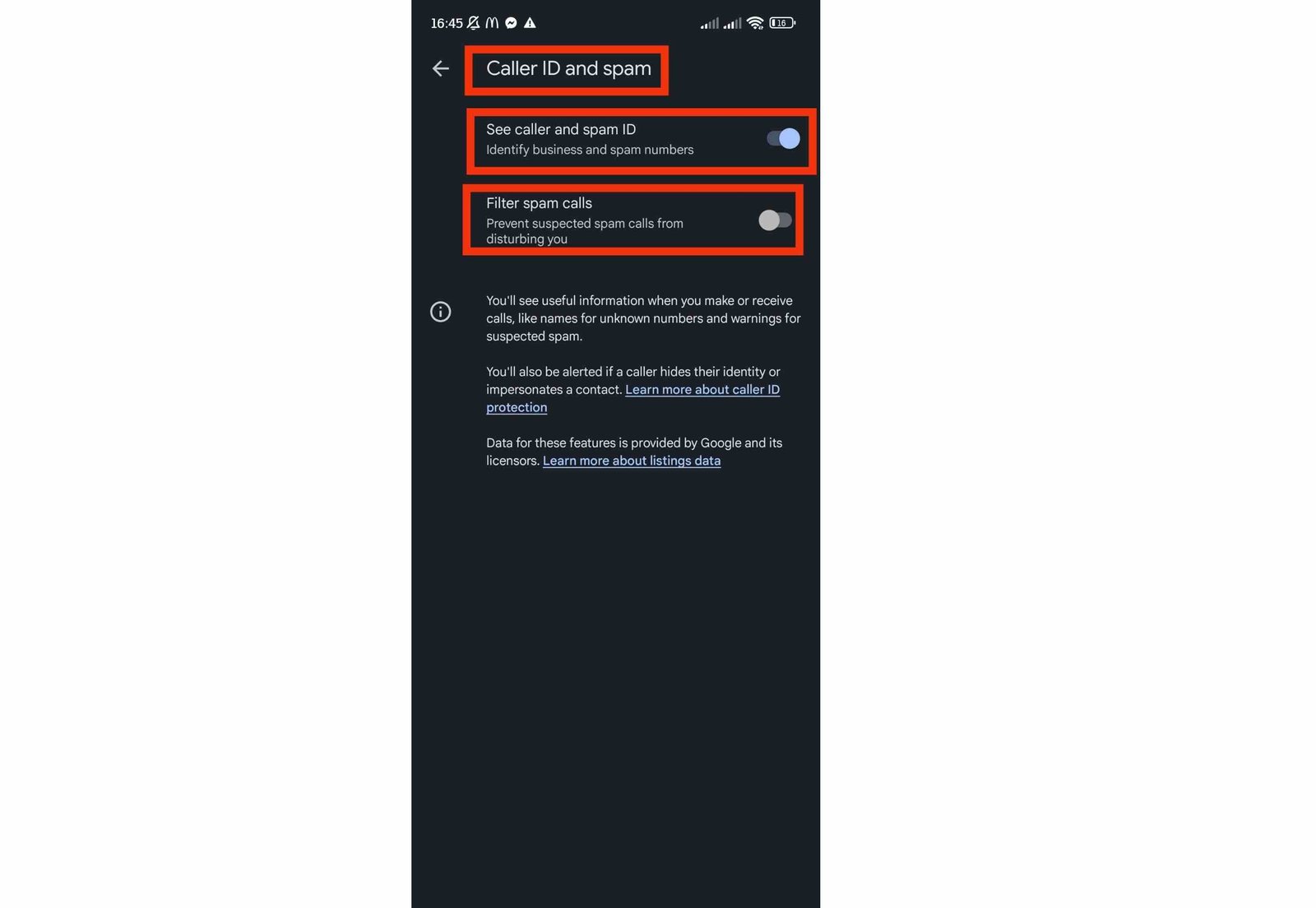
- Tap Caller ID & spam (on Samsung phones, look for Caller ID and spam protection).
- Turn on See caller & spam ID.
- Turn on Filter spam calls if the option is available. Suspected spam is then silenced or sent to your call history instead of ringing.
These services need to check incoming numbers, so read the privacy information shown when you turn them on. Not every phone has the same features, and the names change between Android versions and brands. If you cannot find the option, use the search box in Settings.
The filter is not perfect. A new scam number may not be reported yet, so keep the other protections in this guide as well.
How to verify: After enabling it, open your recent calls and check whether suspected spam calls are labeled in the list.
Block and Report Numbers That Keep Calling
Blocking is the most direct tool for a number that has called you more than once. The phone rejects further calls from it without ringing.
- Open the Phone app and go to Recents.
- Tap the number that called you.
- Tap Block or Block / report spam.
- If you are asked, choose whether to also report the number as spam, which helps protect other users, and confirm.
To review or edit your block list, open Phone > Settings > Blocked numbers (the name may differ slightly on some phones).
Do not call back an unknown number that rang only once or twice and then stopped. Some scams use missed calls to tempt you into calling a premium-rate or international number. Also remember that scammers often change numbers, so blocking works best together with spam filtering and careful habits.
How to verify: Open Blocked numbers and confirm that the number appears in the list.
Silence Unknown Callers With Do Not Disturb
If spam calls interrupt you at certain times, you can allow calls only from people you have saved in your contacts.
- Open Settings > Sound & vibration > Do Not Disturb.
- Tap Calls (or People and then Calls).
- Choose Contacts only or Starred contacts only.
- Create a schedule, for example for sleeping hours or work hours, so it turns on and off automatically.
Some phones also have an option to block calls from unknown or hidden numbers, usually inside Phone > Settings > Blocked numbers. Use this option carefully. Hospitals, delivery services, banks, and offices sometimes call from hidden or unsaved numbers, so you may miss a real call.
Some Pixel phones also offer a call screening feature that answers the call for you and shows a transcript. It is available only in certain countries and languages, so check whether your phone supports it.
How to verify: Ask a friend with an unsaved number to call during the Do Not Disturb schedule and confirm that the phone behaves as you expect.
Use Your Carrier Tools When Available
Your mobile provider can see calls and text messages at the network level, so it may offer protections that your phone cannot provide on its own. Availability depends on the carrier and the country.
- Open the official app or website of your carrier and look for sections named spam protection, call blocking, scam shield, or security.
- Check whether the carrier offers a way to report spam calls and spam text messages, such as a short number or a form on its website.
- If you receive repeated scam calls or texts, report them to the carrier and ask whether it can block them at the network level.
- Some countries have a government or regulator channel for reporting scams and unsolicited messages. Check the official website of your local authority for the current process.
Use only the official app, website, or customer service number of the carrier. Messages that claim to be from your carrier and ask for personal details, passwords, or payments are a common scam.
How to verify: Confirm any new protection in the official account page of the carrier, not in a text message or a link you received.
Handle Scam Text Messages and Links
Scammers often combine calls with text messages. A text may claim that a parcel is waiting, an account is locked, or a payment failed, and include a link to a fake website that steals your login or card details.
- Open your messaging app (for example Google Messages) and go to Settings > Spam protection. Turn on spam protection if it is available.
- When you receive a suspicious message, do not tap the link or reply.
- Open the conversation, tap the menu, and choose Block & report spam or the equivalent option.
- If you are concerned about the message, open the official app or type the official website address yourself, and check your account there.
Be suspicious of messages that create urgency, contain shortened links, ask for a one-time code, or come from a number that does not match the organization. A real organization will not ask you to share a verification code by text or phone.
How to verify: Check that the reported sender appears in your blocked list and that further messages from it no longer reach your main inbox.
Treat Unexpected Calls as Untrusted
No filter catches every scam, so your own habits are the strongest protection. Caller ID can be faked, so a number that looks like your bank, a delivery company, or a government office is not proof that the call is real.
Common scam stories include:
- A bank or payment service says there is a problem with your account and asks you to confirm details.
- A courier says a parcel is held and asks for a payment or a link.
- A caller claims to be from technical support and asks you to install a remote-access app.
- You are told you won a prize or must pay a fee to receive money.
- A relative or friend supposedly needs urgent money, or an official demands payment to avoid a penalty.
Warning signs are urgency, pressure to act now, requests for secrecy, and requests to move money or buy gift cards.
What to do:
- Do not give a one-time code, PIN, password, card number, or security code to anyone who contacts you.
- Hang up. Genuine organizations will not mind if you end the call and contact them yourself.
- Call the organization using the number printed on your card, on a bill, or on its official website, not the number the caller gave you.
- Never install an app or open a link because a caller told you to.
How to verify: If you are unsure about a call, contact the real organization through its official channel and ask whether it tried to reach you.
Review Blocked and Filtered Calls Occasionally
Spam filters and block lists sometimes make mistakes. A legitimate call from a clinic, delivery rider, school, or employer may be labeled as spam, especially if the number is new or used by many people.
- Open the Phone app and check Recents. Some phones have a separate Spam or Filtered section.
- Look for numbers you recognize or calls that matched an expected appointment or delivery.
- If a legitimate number was blocked, open Phone > Settings > Blocked numbers and remove it. If it was marked as spam, choose Not spam where the option appears.
- Save important numbers in your contacts, because saved contacts are treated differently from unknown numbers.
Review the list once a month, or sooner if you are expecting an important call.
How to verify: After removing a number from the block list, ask the person to call again and check that the phone rings.
Conclusion
To reduce spam and scam calls on Android, turn on caller ID and spam filtering, block repeat numbers, use Do Not Disturb when necessary, use the tools offered by your carrier, and handle scam texts carefully. Review the filtered list occasionally so that you do not miss a real call.
The strongest protection is the habit of not trusting unexpected callers. Never share codes or passwords, hang up, and contact the organization through an official number. If something goes wrong, contact your bank right away.
Frequently asked questions
Can Android block every spam call?
No filter catches every unwanted call. Caller IDs can also be spoofed, so treat unexpected requests for sensitive information cautiously.
Can I block an entire area code?
Availability depends on your phone and carrier. Some devices offer more advanced filtering than others.
What should I do about scam calls asking for codes?
Do not share verification codes. If you are concerned, contact the claimed service using its official website or app rather than the number provided by the caller.