How to Back Up an Android Phone and Check What Is Actually Saved
By Jethro Sedoguio Writer & Editor, TechGuide PH · Updated September 1, 2026 · 4 min read
A backup is useful only when you know what it contains. This guide separates device backup, photo storage, and account synchronization so you can verify important information instead of assuming everything is covered.
Why Turning On Backup Is Not Enough
Many people assume that if the phone backup switch is on, everything is safe. In practice, Android data is spread across several places: the device backup, your photo service, account sync for contacts and calendar, chat app backups, and files stored locally. Each one has its own settings, and any of them can be switched off or full without an obvious warning.
This guide shows how to turn on each type of backup and, more importantly, how to check what is actually saved. Menu names differ between Samsung, Xiaomi, Pixel, and other brands, so use the search box in Settings if an option is not where described.
Turn On the Device Backup and Check the Last Backup Time
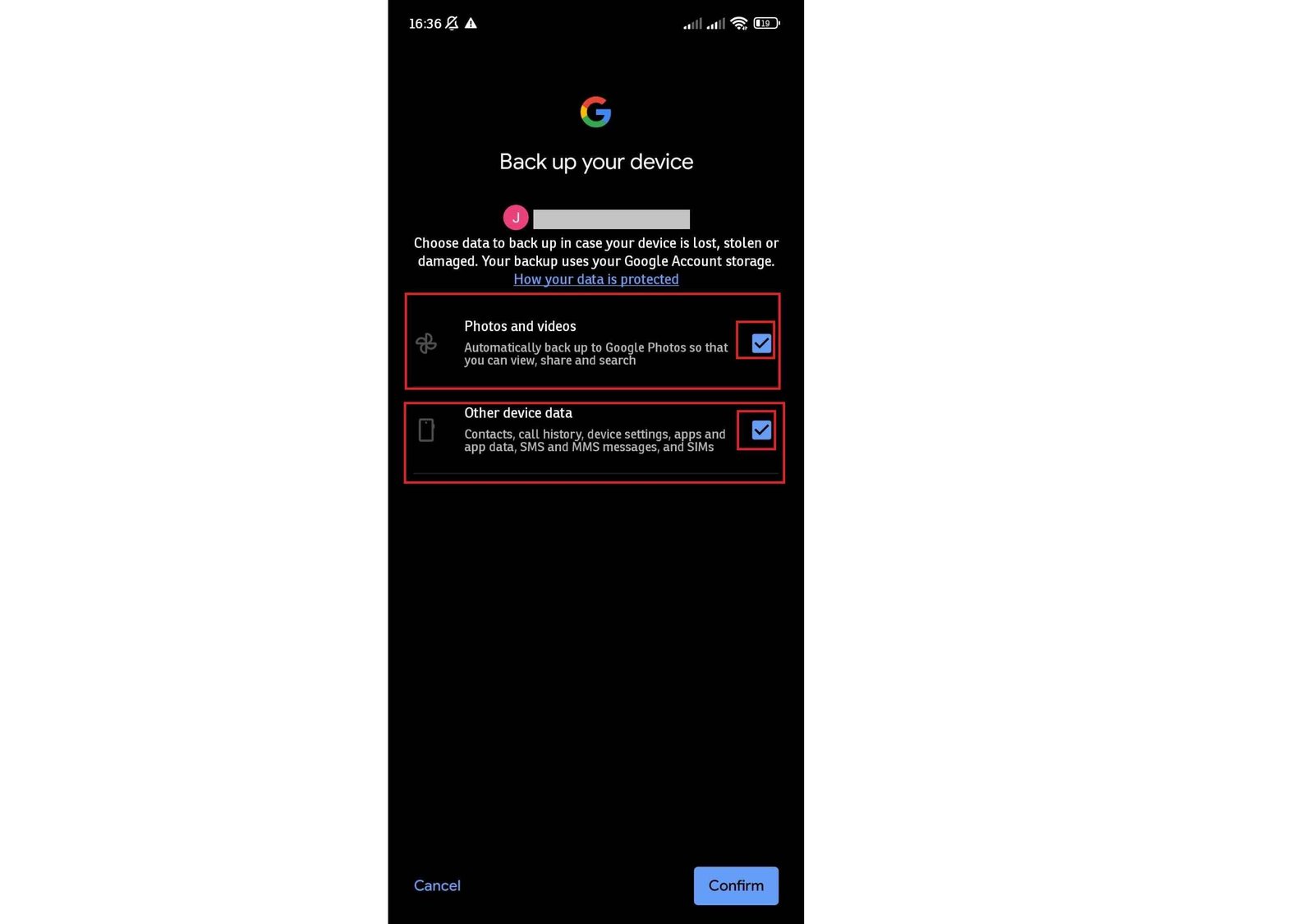
Android has a built-in backup for settings and some app data, stored in your Google account. It is useful, but it only protects you if it is switched on and has actually run recently.
- Open Settings > System > Backup. On some phones, look under Settings > Google > Backup.
- Turn on Backup by Google One (the name may differ slightly depending on the version).
- Confirm that the correct Google account is selected.
- Tap Back up now and wait for it to finish.
- Look at the Last backup time or the backup details. If the date is old, find out why, for example not enough storage in your account or no Wi-Fi connection.
Automatic backups normally run when the phone is idle, charging, and connected to Wi-Fi, so a phone that is rarely charged on Wi-Fi may not back up often. If you use a Samsung phone, you may also see Samsung Cloud or Accounts and backup with similar options.
A free Google account has limited storage shared between Gmail, Drive, and Photos. If the account is full, backups can fail, so check the available storage.
How to verify: The last backup time should show today or within the last day or two.
Back Up Photos and Videos Separately
Photos and videos are not handled the same way as settings and app data. They need their own backup, and they are often the most valuable items on the phone.
- Open Google Photos (or your chosen photo backup app) and tap your profile picture.
- Open Photos settings > Backup and make sure backup is turned on.
- Check Backup folders or Device folders. Photos from apps such as WhatsApp, screenshots, or other folders may not be included automatically, so turn on the ones you want to keep.
- Choose the upload quality that suits your storage space. Original quality uses more of your account storage.
- Wait until the status says the backup is complete.
Then check the result instead of trusting the toggle: open photos.google.com on a computer, or the app on another device, and look for your most recent photos and videos.
How to verify: Take a new photo, wait a few minutes with Wi-Fi on, and confirm that it appears on the other device.
Check Contacts, Calendar, and Account Sync
Contacts and calendar events are usually kept safe by syncing with an account, not just by the device backup. The key question is where they are saved.
- Open Settings > Passwords & accounts (or Accounts) and tap your Google account.
- Tap Account sync.
- Make sure Contacts and Calendar are turned on, and tap Sync now if you want to refresh them.
- Open the Contacts app and check the account used when you create new contacts. If new contacts are saved only to Device or SIM, they may not be backed up.
To confirm what is saved, open contacts.google.com and calendar.google.com on a computer and compare them with the phone. If you find contacts that are stored only on the phone or SIM, move or export them to your Google account.
How to verify: Add a test contact on the phone and check that it appears on the website after a short time.
Back Up Messaging Apps Separately
Chat history is often the data people regret losing most, and most messaging apps use their own backup instead of the Android device backup.
- Open WhatsApp and go to Settings > Chats > Chat backup.
- Choose the Google account and the backup frequency.
- Decide whether to include videos, because they use a lot of storage.
- Tap Back up and wait for it to finish. Check the Last backup time shown on the screen.
Chat backups use space in your Google account storage. WhatsApp also offers an end-to-end encrypted backup option. If you turn it on, store the password or key safely, because the backup cannot be restored without it.
Other apps
- Telegram keeps most cloud chats on its servers when you sign in again, but secret chats are not restored.
- Some privacy-focused apps, such as Signal, use a local backup file that you must copy somewhere safe yourself. Read the instructions in the app.
How to verify: Check the last backup time in the app and make sure the date is recent.
Save Files, Passwords, and Authenticator Accounts
Some of the most important items on a phone are not covered by the standard backup.
Files and documents
- Open Files by Google or your file manager and look at Downloads, Documents, and any folders you created.
- Copy important items to Google Drive or another cloud service, or to a computer.
Passwords
- If you use Google Password Manager, open Settings > Passwords & accounts and check that it is syncing with your account.
- If you use a separate password manager, make sure its own vault is synced and that you can sign in from another device.
Authenticator apps
- Do not assume that authenticator codes move automatically to a new phone.
- Check whether your app offers account sync or export. For example, some apps can sync codes to your account if you turn the option on.
- Save recovery or backup codes for important accounts, such as email and banking, in a safe place away from the phone.
How to verify: Sign in to the password manager and your main accounts from another device to make sure you can get in without this phone.
Keep a Second Copy Outside Your Google Account
If everything is stored in one account, a locked account, a deleted file, or a payment problem could affect all your copies at once. A second backup in a different place reduces that risk.
- Connect the phone to a computer with a USB cable and select File transfer on the phone.
- Open the phone storage on the computer and copy DCIM (camera photos and videos), Pictures, Documents, and any other folders you care about.
- Paste them into a folder on the computer, and then copy that folder to an external drive.
- Open a few of the copied files to confirm that they work.
A simple rule is to keep at least two copies of important data in two different places, with one of them not on the phone. Repeat the copy regularly, for example once a month, and always before a repair, a factory reset, or a major update.
How to verify: Open a sample of photos and documents from the computer copy and from the external drive.
Understand What May Not Be Restored
A backup is not an exact copy of the phone. Knowing the gaps in advance prevents unpleasant surprises when you switch to a new device or reset the current one.
- App data: Some apps do not allow their data to be backed up, or keep it only on the device. Games, notes, and banking apps may need you to sign in again, and some local progress may be missing.
- Downloaded files: Files in the Downloads folder and other local folders are not part of the standard device backup.
- Messaging history: Chat apps usually have their own backup system.
- Authenticator codes and secure items: Many security apps deliberately do not transfer automatically.
- Manufacturer settings: Some brand-specific settings and layouts may not restore exactly on a different phone.
To see what the device backup includes, open Settings > System > Backup and look for Manage backup or backup details, which lists categories such as apps, call history, contacts, device settings, and SMS where supported. Then check the documentation of the apps that matter most to you.
How to verify: Make a short list of your ten most important apps and check for each one whether its data is saved in an account, in a built-in backup, or only on the phone.
Test Your Recovery Plan Before You Need It
A backup you have never tested may fail when you need it. Spend a few minutes confirming that you can actually get your data back.
- Open drive.google.com on a computer, sign in with your Google account, and look for Backups in the storage or sidebar menu. Check that your phone is listed with a recent date.
- Confirm that you know your Google account password and that you can pass the 2-Step Verification without the old phone. Keep backup codes somewhere safe.
- Make sure your SIM card and phone number are available, because verification codes may be sent to them.
- Remember that during setup of a new phone, you can choose to copy apps and data from a cloud backup, and the restore may take a long time on Wi-Fi.
- If you have a spare phone, you can practice a restore on it, but do not use a phone that contains data you want to keep.
Do these checks before a factory reset, a repair, or a planned upgrade, not after.
How to verify: You should be able to describe where your photos, contacts, messages, and files are saved, and how you would sign in to get them back.
Conclusion
A reliable Android backup is made of several parts: the device backup, a separate photo backup, synced contacts and calendar, chat app backups, files, passwords, and authentication codes. Each part should be switched on and then checked, not just assumed to work.
Look at the last backup time, confirm that recent photos and contacts appear on another device, and make sure you can sign in without the phone. Spending a few minutes on this now can save you from losing something you cannot replace.
Frequently asked questions
Does Android backup save everything?
No. Coverage depends on Android version, device maker, app, and the type of data. Check each important category rather than assuming a complete clone of the phone exists.
Are photos included automatically?
Only if a photo backup service is configured to upload them. Check recent uploads and the folders selected for backup.
Should I back up before a factory reset?
Yes. Confirm important files and account data are safely available before erasing the device.